These work anywhere in the editor except while you're typing in a text box. On a Mac, use Cmd instead of Ctrl. Press ? in the editor to see this list at any time; it's also at the bottom of the Versions and settings panel.
- Open the editor and click an empty part of the page, so you're not typing in a box.
- Press ? (Shift and the / key on most keyboards).
- The list opens. Choose Close when you're done.
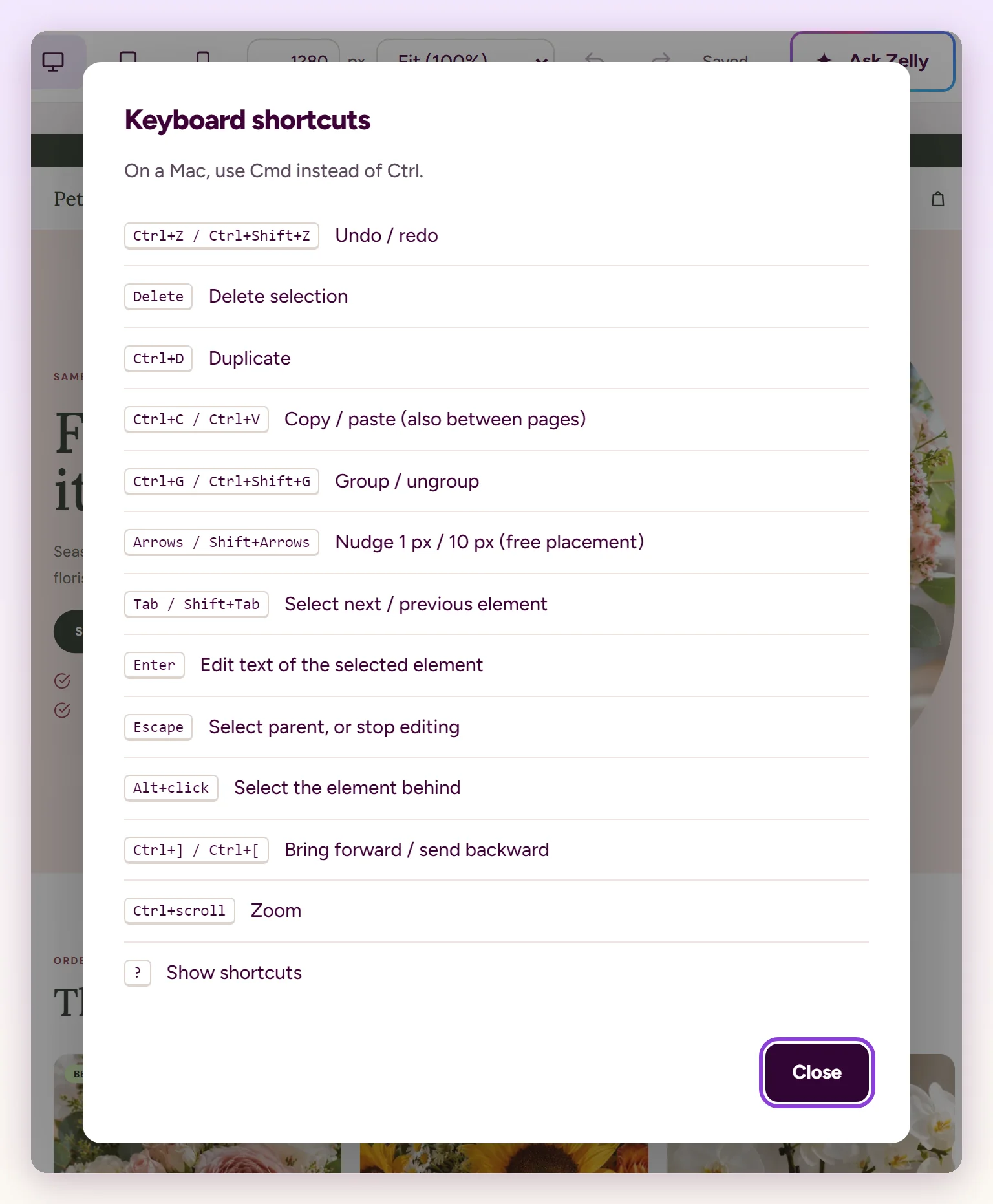
| Keys | What they do |
|---|---|
| Ctrl+Z | Undo |
| Ctrl+Shift+Z | Redo |
| Delete | Delete what's selected |
| Ctrl+D | Duplicate what's selected |
| Ctrl+C then Ctrl+V | Copy and paste, including from one page to another |
| Ctrl+G | Group the selected things into a Stack |
| Ctrl+Shift+G | Ungroup |
| Arrow keys | Nudge 1px (in free-placement sections) |
| Shift + arrow keys | Nudge 10px |
| Tab / Shift+Tab | Select the next or previous element |
| Enter | Start editing the selected text |
| Escape | Stop editing, or select the parent (what it sits inside) |
| Alt + click | Select the element behind the one you clicked |
| Ctrl+] / Ctrl+[ | Bring forward / send backward |
| Ctrl + scroll | Zoom the canvas |
| ? | Show the shortcuts |