- Open Pages in your site's menu and find the page.
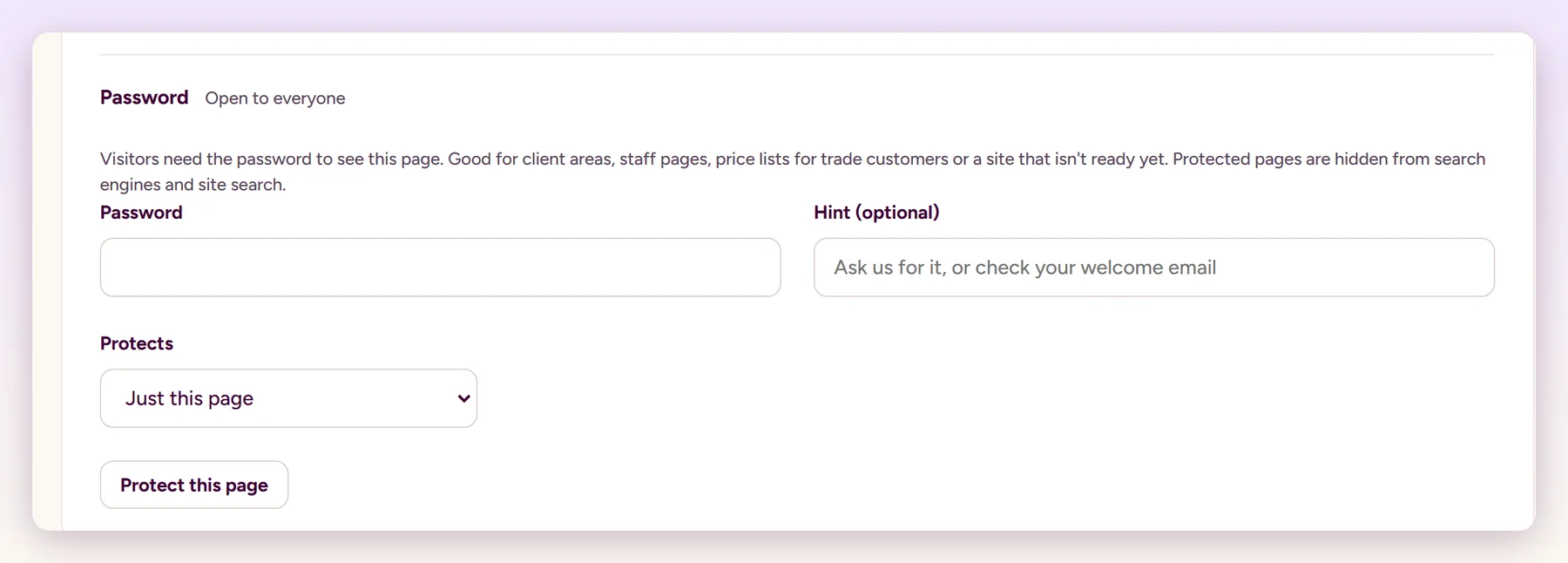
- Open Password under the page's settings.
- Type a password and an optional hint (like "Ask us for it, or check your welcome email").
- Choose what it protects: just this page, everything under it (like a client area with its own pages), or the whole website (from the home page).
- Choose Protect this page. It works on your live site straight away.
Visitors see a simple password screen. Protected pages are hidden from search engines and your site's search. Good for client areas, staff pages, trade price lists, or a site that isn't ready yet.
Change the password any time; people who had it open will need the new one. Remove it to make the page public again.
← All site settings guides