Renamed a page? It's automatic
When you change the address of a page, post, product or listing, Zertle sends the old address to the new one when you publish. Visitors with old links, bookmarks or Google results still land on the right page, and you keep your rankings. You don't need to do anything.
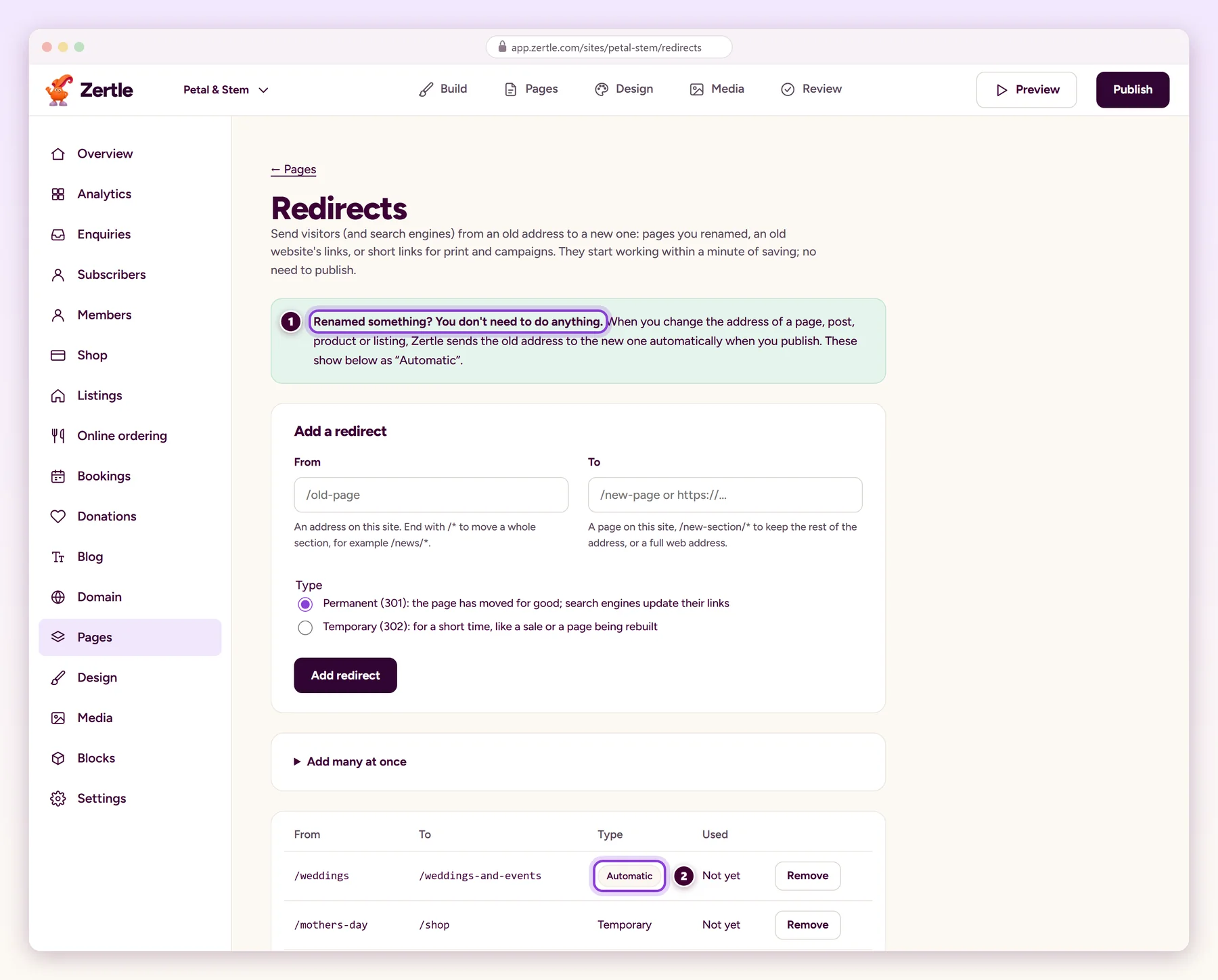
- Change the address in Pages (or in a post's or product's settings) and publish.
- Open Pages → Redirects to see it, marked Automatic.
- Change it back later? The automatic redirect is removed for you, so nothing loops.
Add your own redirects
Open Pages → Redirects (or Redirects at the top of the Pages screen). Use your own redirects for links from an old website, or short links for print and campaigns.
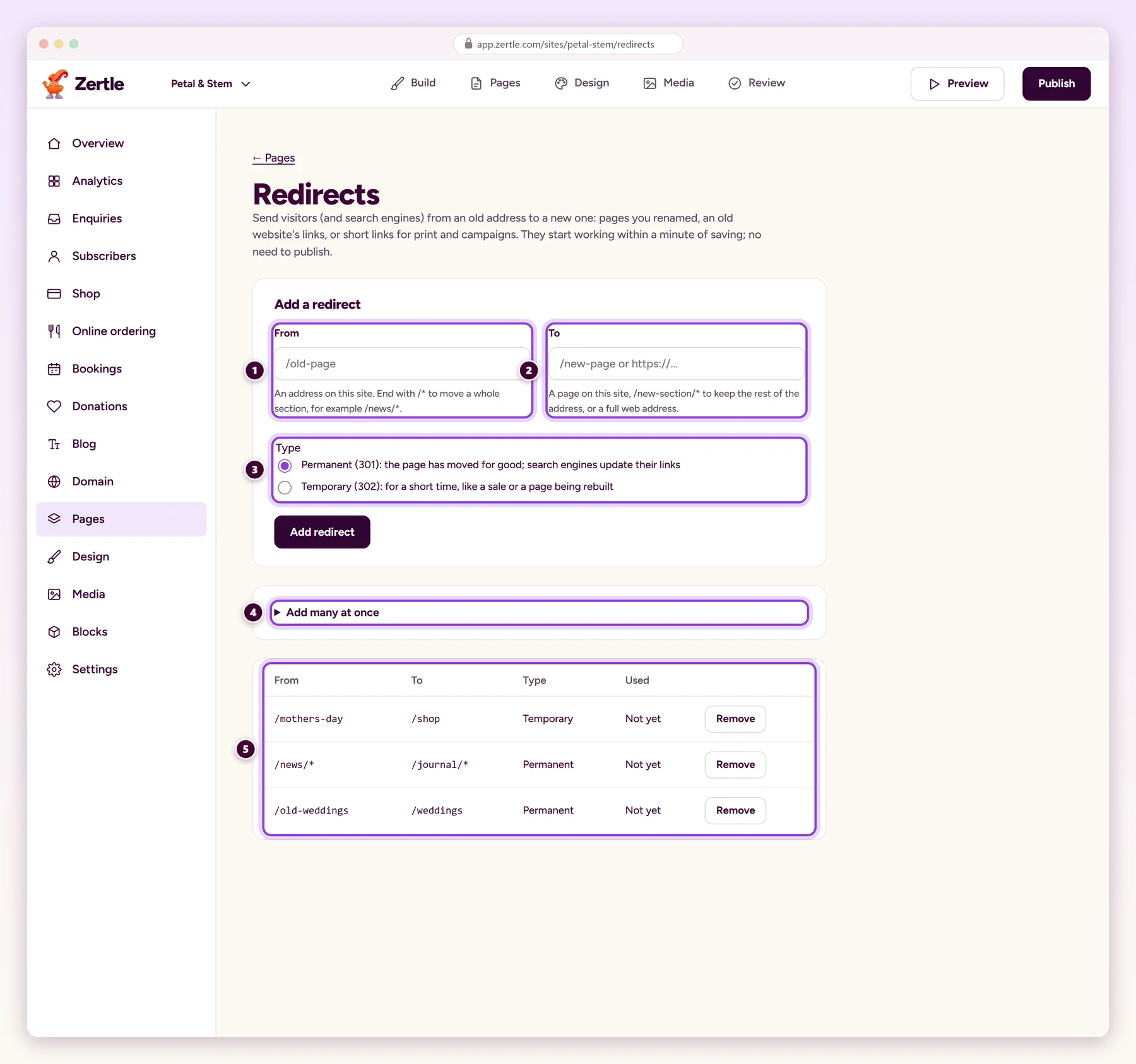
- Choose Pages in your dashboard's menu, then Redirects at the top.
- In From, type the old address, like /old-page. In To, choose or type the new one.
- Choose the Type (usually Permanent (301)), then Add redirect. It works within a minute.
| Setting | What it does |
|---|---|
| From | An address on your site, like /old-page. End with /* to move a whole section, like /news/*. |
| To | A page on your site, /new-section/* to keep the rest of the address, or a full web address. |
| Type | Permanent (301) for things that have moved for good (search engines update their links); Temporary (302) for a short time, like a sale or a page being rebuilt. |
Choose Add redirect. It works within a minute, without publishing. Each redirect shows how often it's used, and you can delete it any time.
Add many at once
Moving from another website? Open Add many at once and paste one per line, written as the old address, a comma, then the new one. They're all permanent (301). Lines with a problem are skipped and listed so you can fix them.
← All site settings guides