A collection is any set of similar items with their own pages: a blog, projects or case studies, property or vehicle listings, recipes, events. Zertle adds a list page (showing all of them) and a post page design (used by every item).
1. Add it in the editor
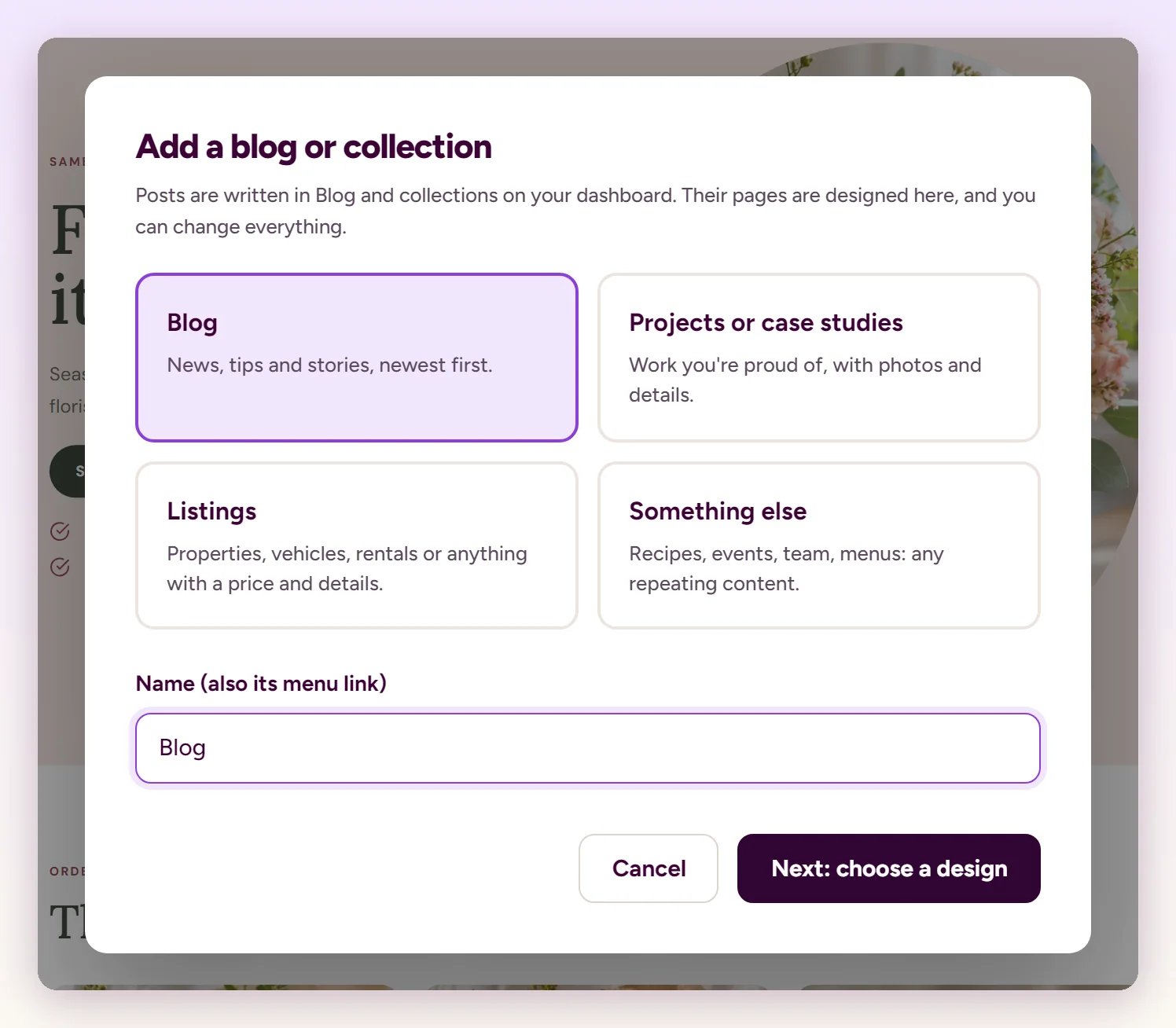
- Open Pages on the left rail and choose Add a blog or collection.
- Choose what you're sharing: Blog, Projects or case studies, Listings or Something else.
- Give it a name. This is also its menu link and web address, like /journal.
- Choose Next: choose a design.
2. Choose the designs
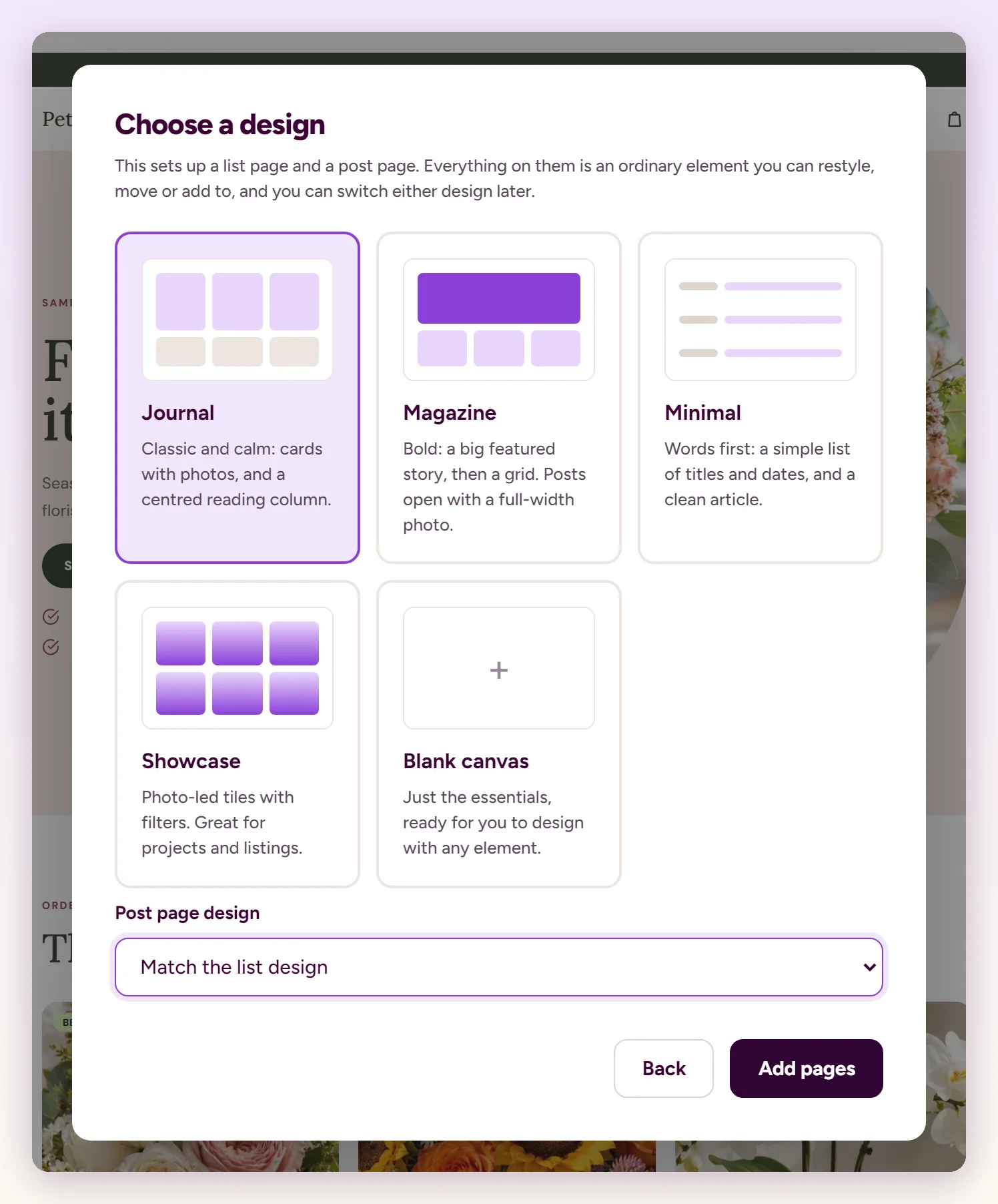
Pick a list design and a post page design. Everything on them is an ordinary element you can restyle, move or add to, and you can switch either design later.
| List design | Looks like |
|---|---|
| Journal | Classic and calm: cards with photos, and a centred reading column. |
| Magazine | Bold: a big featured story, then a grid. |
| Minimal | Words first: a simple list of titles and dates. |
| Showcase | Photo-led tiles with filters. Great for projects and listings. |
| Blank canvas | Just the essentials, ready for you to design. |
Post page designs: Classic, Full-width photo, Split, With sidebar (contents, author, sign-up and popular posts), Minimal, Details panel (great for listings) or Blank canvas. Or choose Match the list design.
Choose Add pages. Zertle adds the two pages and a few starter posts so it looks finished straight away. Starter posts show while you design but never on your live site.
3. Manage it from your dashboard
Open Blog in your site's menu.
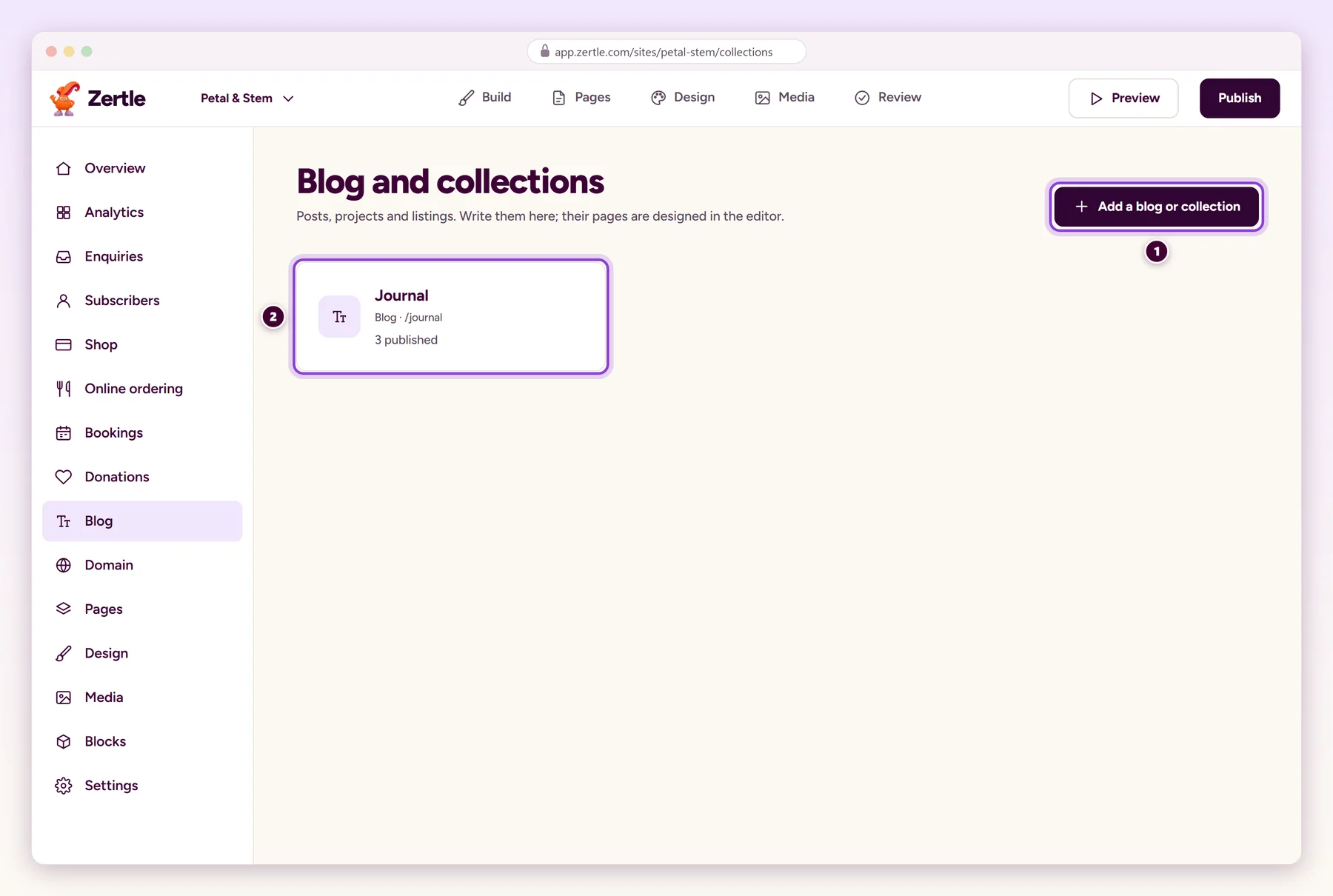
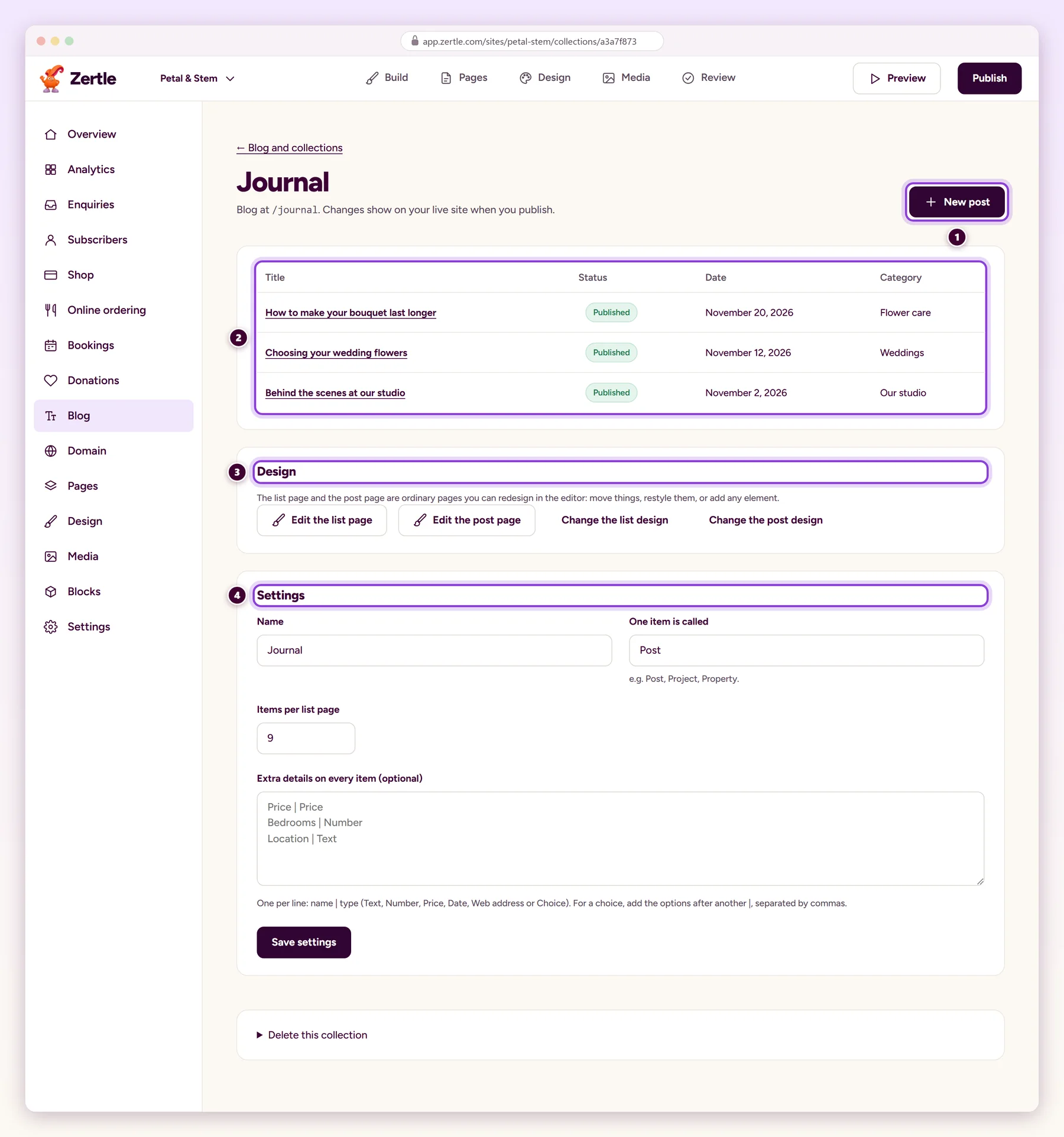
Open a collection to see its items, designs and settings:
| Section | What's there |
|---|---|
| New post | Write a new item. See Write and edit posts. |
| Items | Every item with its status, date and category. Click to edit. |
| Design | Edit the list page, Edit the post page, or change either design. |
| Settings | The collection's Name, what one item is called (like Post, Project, Property), items per list page, and extra details every item has (see below). |
| Delete this collection | Deletes all its items. Its pages stay in your design until you delete them in the editor. |
Extra details on every item
Great for listings and projects. One per line, written as a name, then a bar, then a type: Text, Number, Price, Date, Web address or Choice. For example Bedrooms | Number or Location | Text. A Choice also lists its options after another bar. Each item then has a box for each detail, and a Post detail part can show them on the post page.
← All blog and collections guides