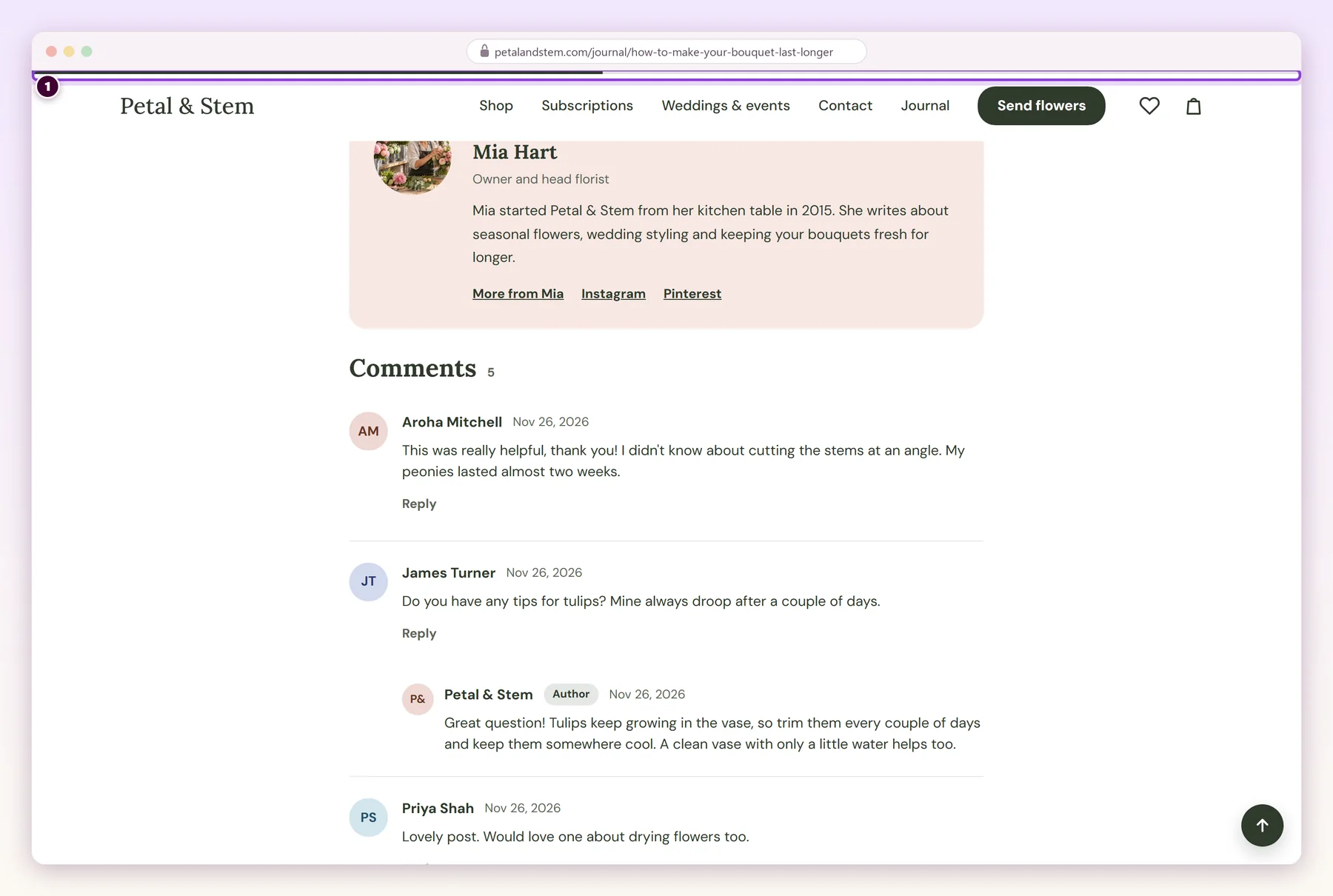
A reading progress bar shows readers how far through a post they are. It sits across the top of the screen and fills from left to right as they scroll, and is full when they reach the bottom of the page.
Add it
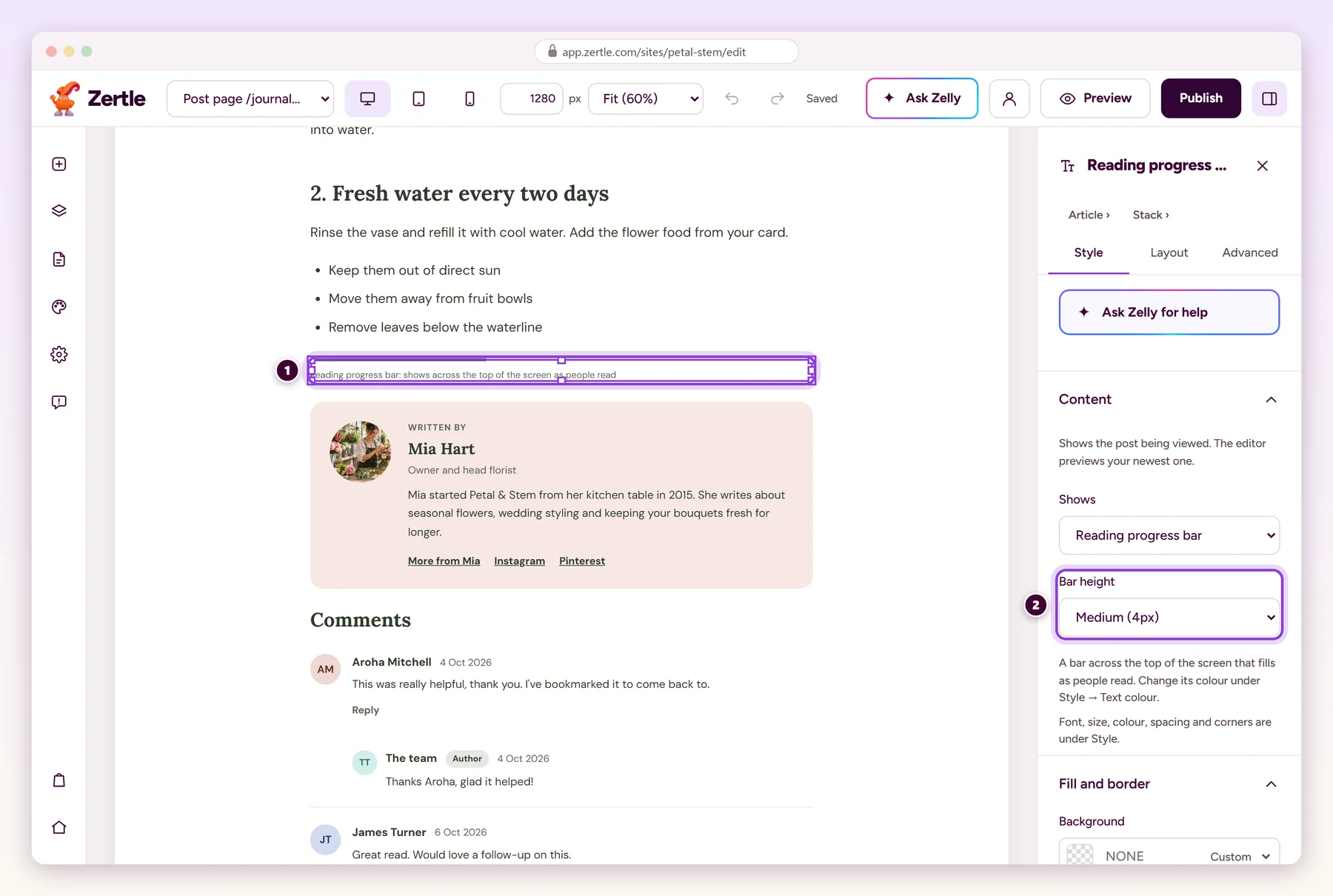
- In the editor, open Pages and choose Post page (the design for every post).
- Choose Add elements (the + at the top of the left-hand bar), then click Reading progress bar. It can go anywhere on the page: it always shows at the top of the screen.
- Choose its Bar height: Thin (2px), Medium (4px), Thick (6px) or Bold (8px).
- To change its colour, go to the Style tab and change Text colour. It uses your theme's main colour to start with.
- Publish your site to add it to every post.
Good to know
- It's tiny and doesn't slow your posts down.
- Screen readers skip it, as it's only a visual guide.
- It's only for post pages. On other pages, use your normal design.