- Choose Blog in your dashboard's menu, then your blog.
- Choose New post (or click a post to change it).
- Add a title, a short summary, a cover photo and your content.
- Set Status to Published and choose Save post.
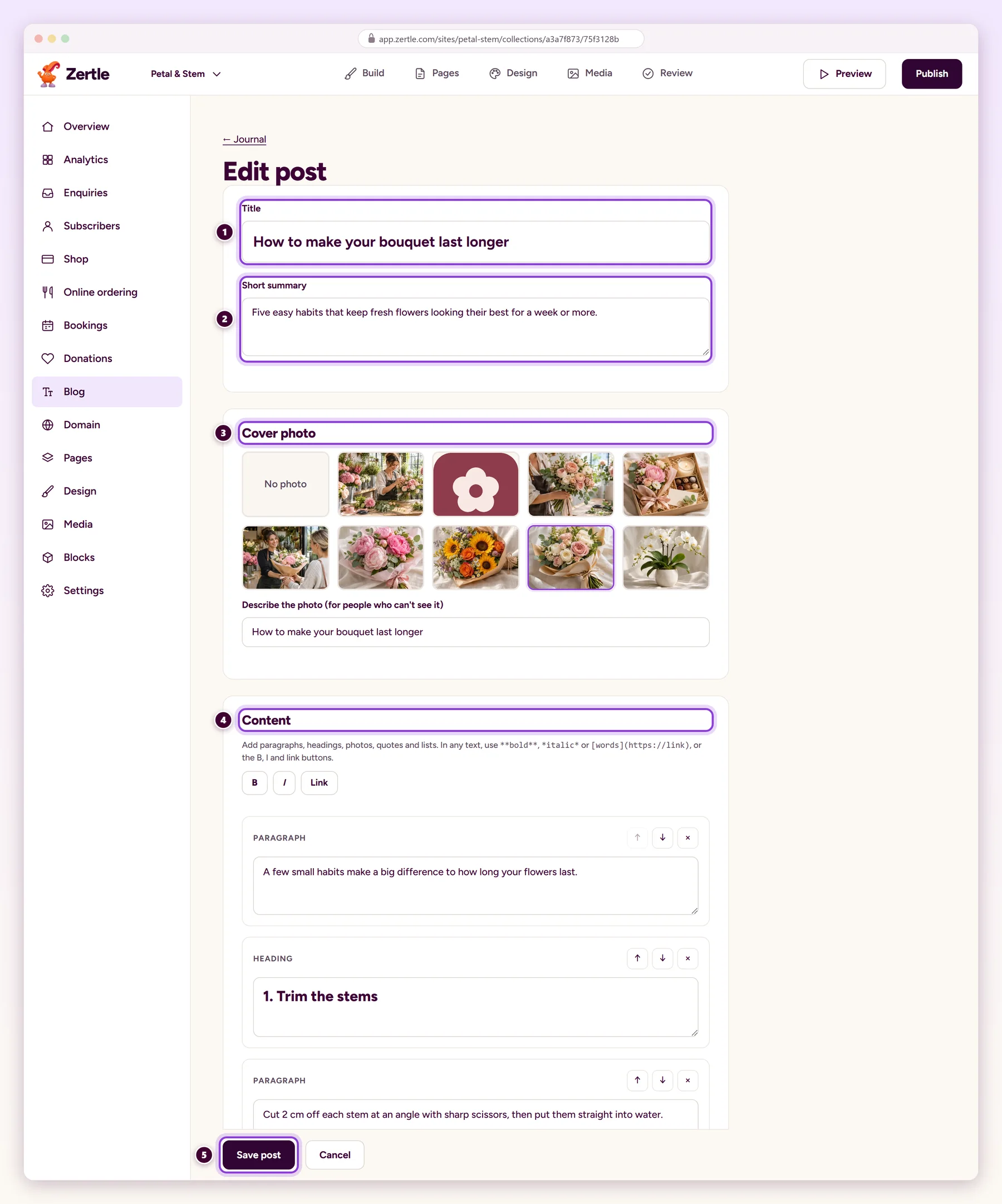
The basics
| Field | What it does |
|---|---|
| Title | The post's headline. |
| Short summary | One or two sentences shown on the list page and in Google. |
| Cover photo | Pick a photo from your media, or No photo. Then describe it for people who can't see it. |
Content
Build the post from blocks. Add one with the buttons at the bottom: + Paragraph, + Heading, + Subheading, + Photo, + Quote, + Bullet list, + Numbered list or + Divider. Each block has arrows to move it up or down, and × to remove it.
In any text, select words and use B (bold), I (italic) or Link. You can also type bold, *italic* or words.
Publishing
| Field | What it does |
|---|---|
| Status | Published, or Draft (hidden) while you're working on it. |
| Date | The post's date. Lists show newest first. |
| Category | One category, like "Flower care". Lists can show one category, with filter buttons. |
| Author | Optional. |
| Tags | Optional, separated by commas. Used for related posts. |
| Feature this post | Shown first where a list shows featured items. |
| Search engines and address | The post's web address, and its own search title and description. |
Choose Save post. New and changed posts appear on your live site the next time you publish.
← All blog and collections guides