Show posts on any page
Show your latest posts anywhere, like "Latest news" on your home page.
- Click the section you want it in, then choose Add elements and click Blog or collection list.
- In the panel on the right, choose Which items, the Style and how many to show.
- Publish your site.
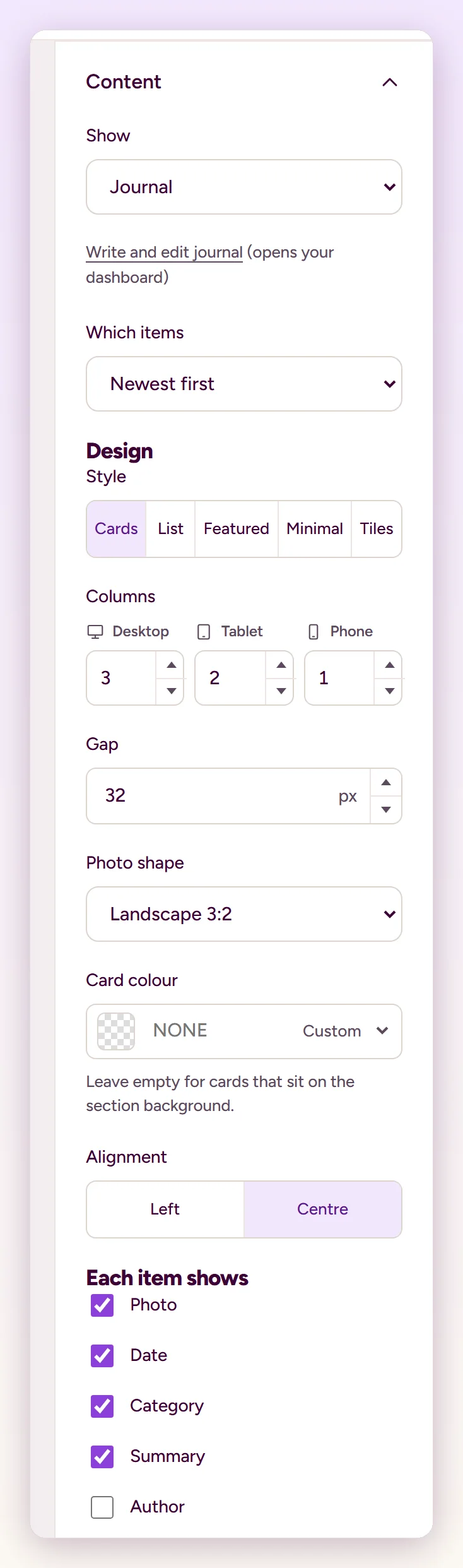
| Setting | What it does |
|---|---|
| Which items | Newest first, Featured first, One category, or Related (on a post page). |
| Style | Cards, List, Featured, Minimal or Tiles. |
| Columns and Gap | For desktop, tablet and phone. |
| Photo shape | Landscape 3:2, Wide 16:9, Classic 4:3, Square or Portrait 4:5. |
| Card colour | Leave empty for cards that sit on the section background. |
| Each item shows | Photo, Date, Category, Summary, Author and a "Read more" link (with your own words). |
| Most to show | How many. 0 shows all. |
| Category filter buttons | Buttons above the list that filter by category. |
Design the post page
Every post uses the post page design. Open it from Pages in the editor (it's marked "design for every post"). The canvas previews your newest post.
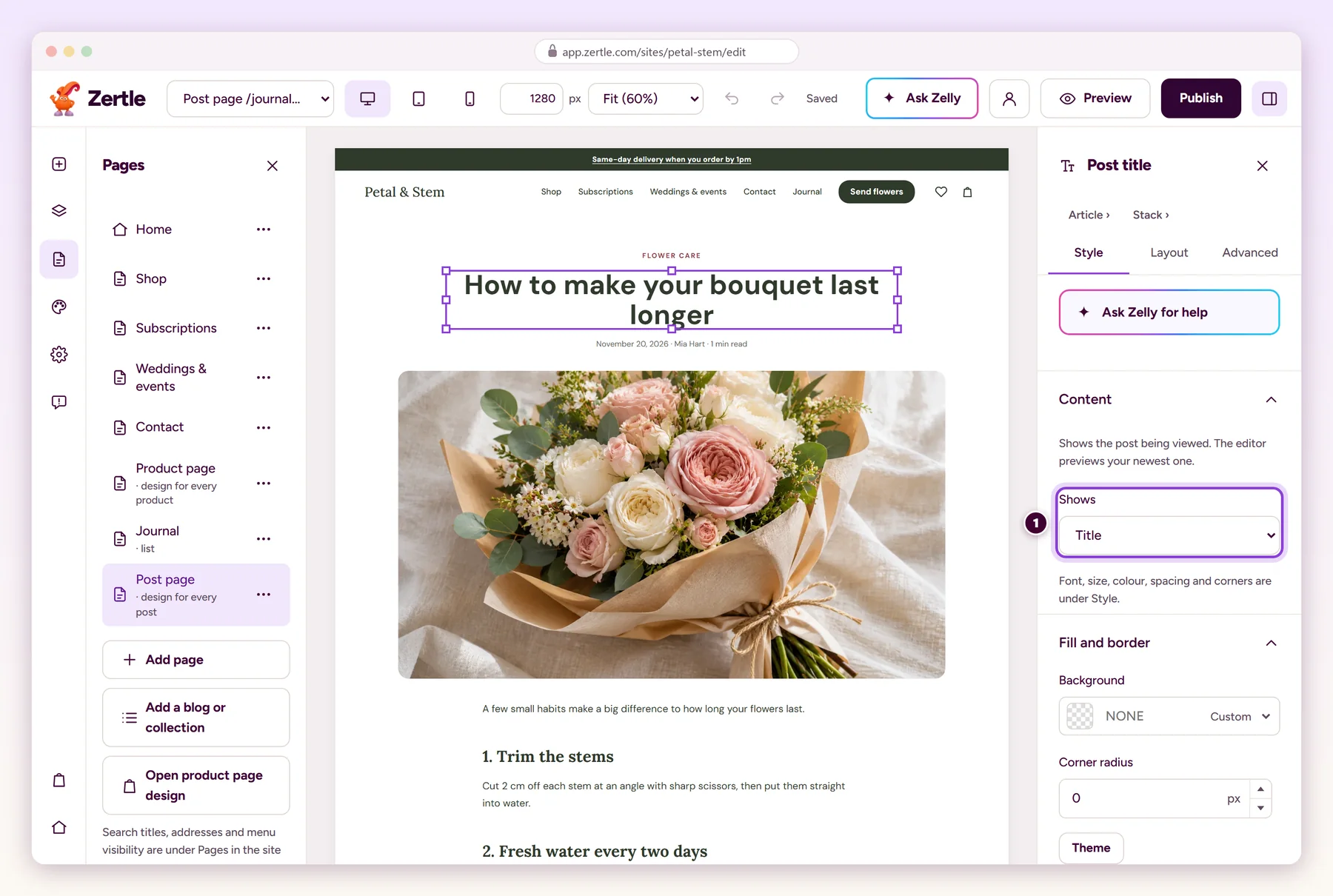
Each post part fills in with the post's own details. Add more from Add elements → Post content, and choose what it Shows: Title, Date author and reading time, Cover photo, Summary, Content, Date, Category, Author, Tags, All details (price, location…), One detail, Back to the list, Previous and next links, Share buttons, or Table of contents.
Useful extras for post pages
- Table of contents: jump links from the post's headings. It shows when a post has two or more headings. Great in a sidebar.
- Related posts: same category first, then shared tags.
- Cover background: a section setting that uses each post's cover photo as its background.
- Author box, Reading progress bar and Comments: add them from Add elements on your post page design. See Author profiles, Reading progress bar and Comments.