Zertle's bookings let customers choose a service, a day and a free time, and book in a few taps. Times are checked live, so nothing is double-booked, and you both get an email.
Set it up in three steps
- Add your services in Bookings → Services. See Booking services and hours.
- Set your hours and rules in Bookings → Hours and rules.
- Add an Online booking element to a page (we suggest a page called Book), then publish.
The Online booking element
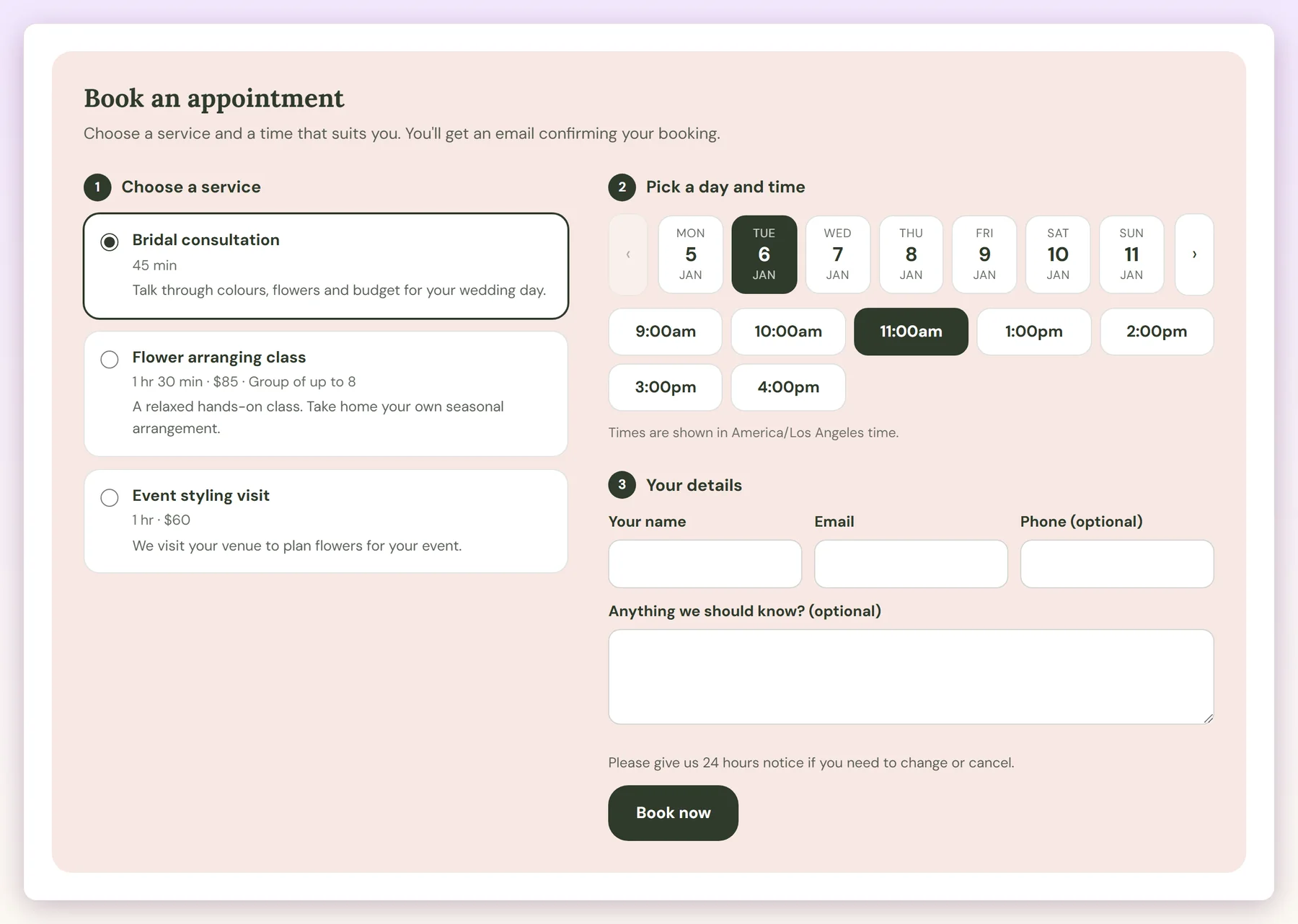
Select it in the editor to change it:
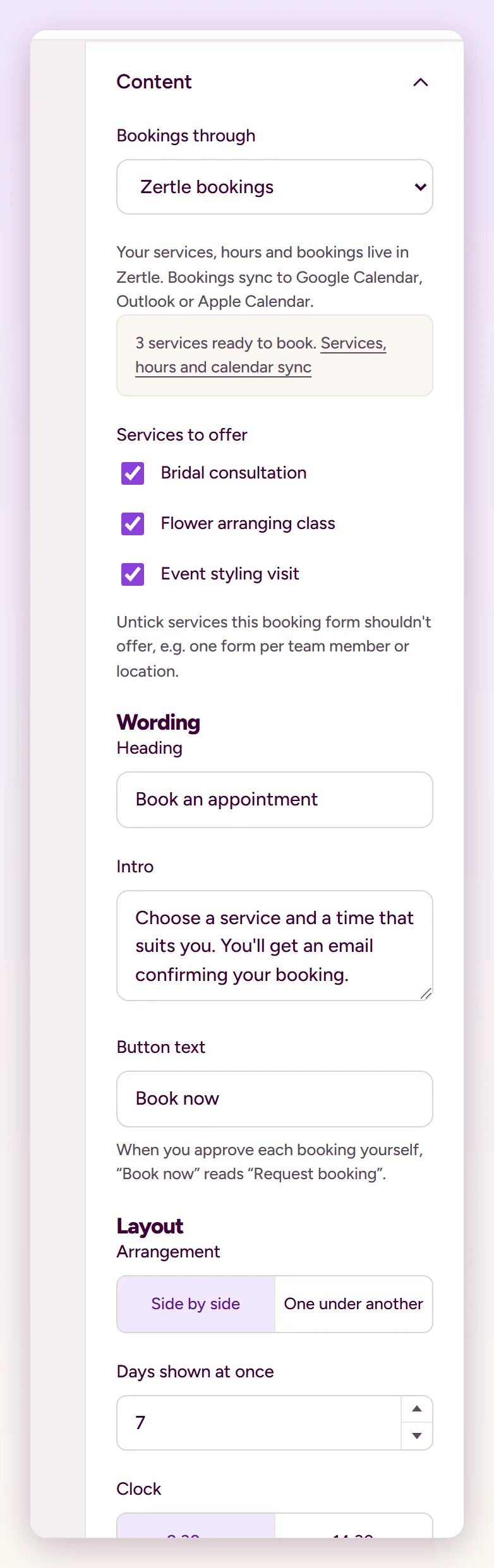
| Setting | What it does |
|---|---|
| Bookings through | Zertle bookings, or another system you already use: Google Calendar appointments, Calendly, Square Appointments, Acuity, Fresha, SimplyBook.me, Setmore, OpenTable, Resy, or another booking site. Others show on your page, or as a button where the system doesn't allow that. |
| Services to offer | Untick services this form shouldn't offer, like one form per team member or location. |
| Heading, Intro and Button text | The words. When you approve each booking yourself, "Book now" reads "Request booking". |
| Arrangement | Side by side or One under another. |
| Days shown at once | How many days fit in the date strip. |
| Clock | 2:30pm or 14:30. |
| Phone number | Don't ask, Optional or Required. |
| Let people add a note | A box for anything you should know. |
| Show prices, how long each service takes, service descriptions | Tick what to show. |
| Card colour and Highlight colour | The form's background, and the colour of the chosen day and time, step numbers and button. |
When someone books
- You get an email (to the addresses in Hours and rules, or your account email) and it appears in Bookings.
- The customer gets a confirmation with a link to manage or cancel it, and a reminder before it (if you turn reminders on).
- If you approve bookings yourself, the time is held until you accept or decline.
See Manage your bookings.
← All bookings, ordering, giving and members guides