- Choose Bookings in your dashboard's menu, then Calendars and connections.
- To see bookings in your own calendar, choose Add to Google Calendar, Add to Outlook or Add to Apple Calendar.
- To stop people booking when you're busy, paste your calendar's secret iCal address and choose Connect calendar.
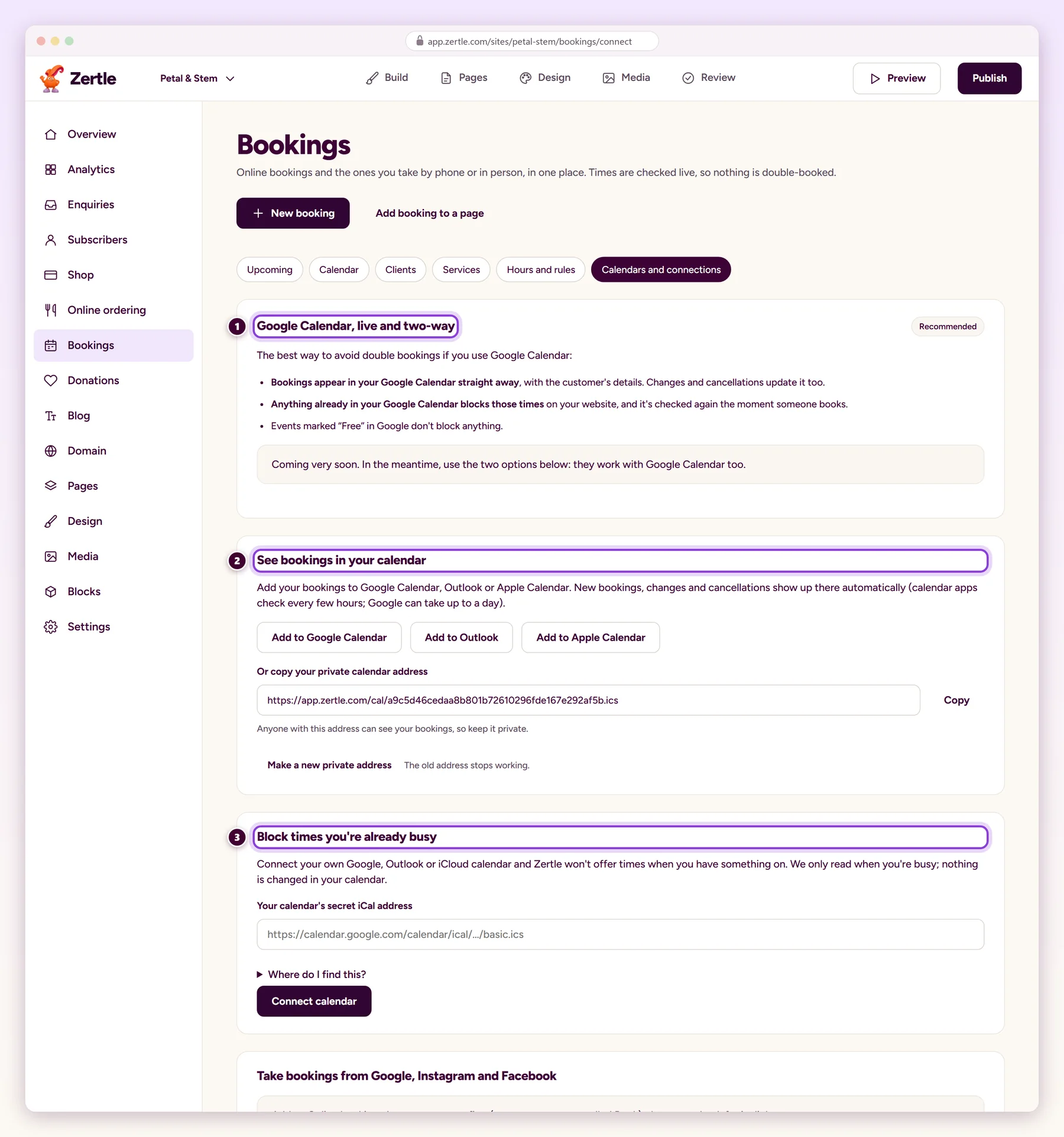
See bookings in your calendar
Choose Add to Google Calendar, Add to Outlook or Add to Apple Calendar. New bookings, changes and cancellations then show in your calendar automatically (calendar apps check every few hours). You can also copy your private calendar address into any other calendar app.
Block times you're already busy
Paste your calendar's secret iCal address and choose Connect calendar. Zertle then won't offer times when you have something on. It only reads when you're busy; nothing in your calendar is changed. Where do I find this? shows the steps for Google Calendar, Outlook and iCloud.
Google Calendar, live and two-way
Coming very soon: bookings appear in Google Calendar straight away, and anything in Google blocks those times instantly. Until then, the two options above work with Google Calendar too.
Take bookings from Google, Instagram and Facebook
Once your booking page is published, use its link as:
- your Google Business Profile appointment link (a Book button shows in Google Search and Maps),
- your Instagram "Book now" action button,
- your Facebook page "Book now" button.
Already use another booking system?
Keep it. Add an Online booking element and choose your system under Bookings through. See Take bookings online.
← All bookings, ordering, giving and members guides