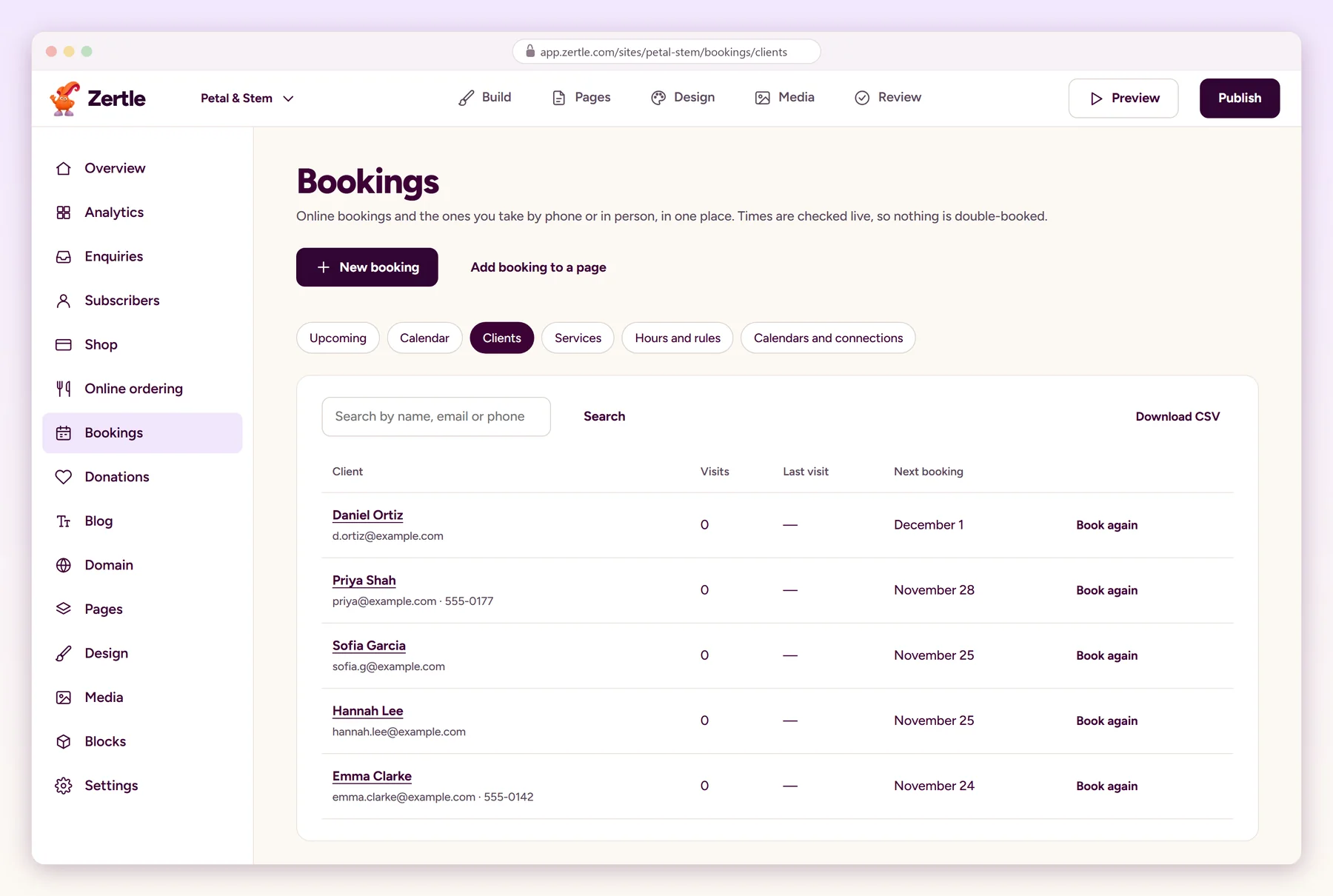
- Choose Bookings in your dashboard's menu.
- Use the tabs to see upcoming bookings, the calendar, your clients and your services.
- Click any booking to accept, decline or reschedule it, or add private notes.
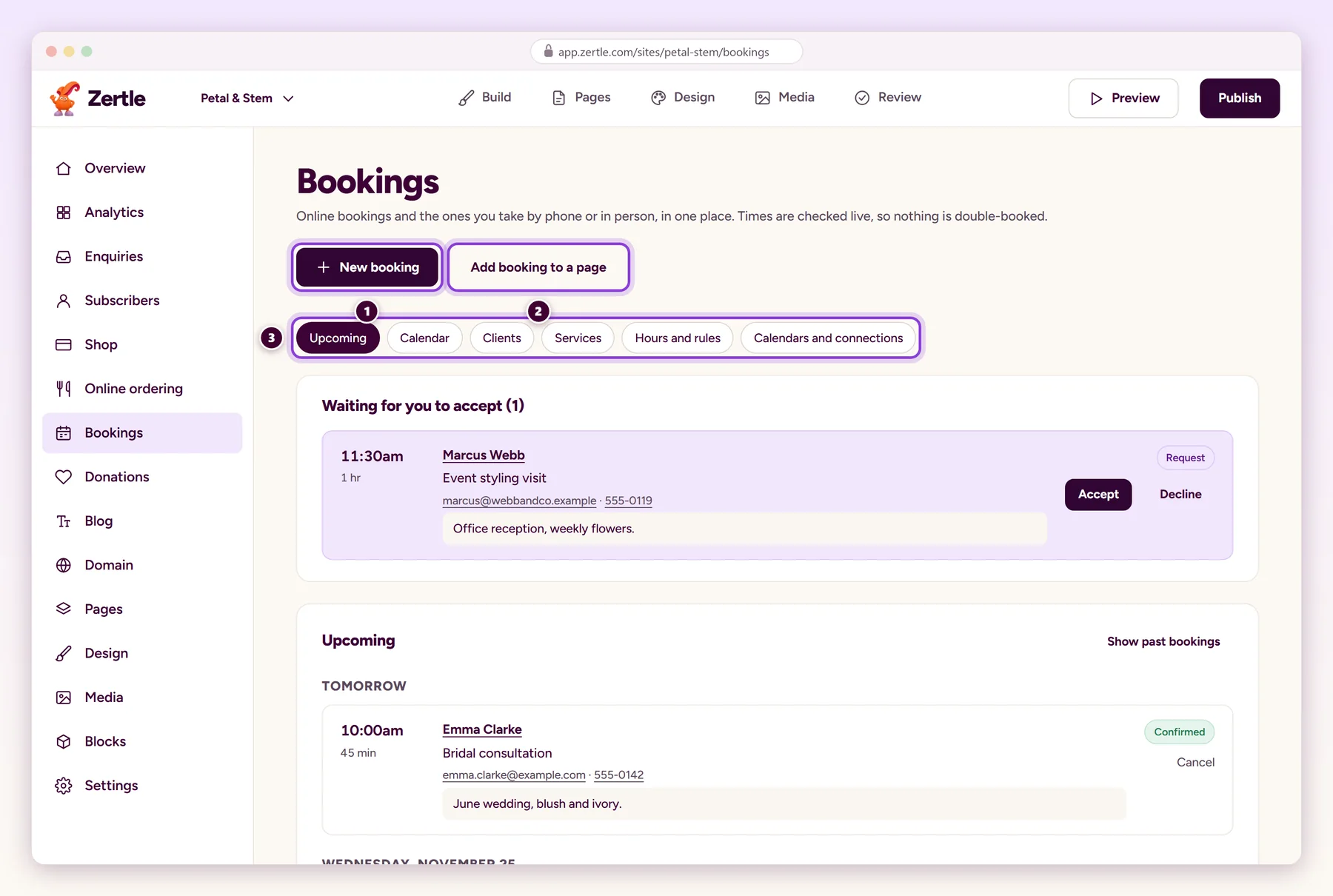
| Tab | What's there |
|---|---|
| Upcoming | Every upcoming booking, soonest first. Show past bookings to look back. |
| Calendar | A week at a glance. Click a day to add a booking. |
| Clients | Everyone who's booked, with their details and notes. Search, or download as a spreadsheet. |
| Services | What people can book. See Booking services, hours and rules. |
| Hours and rules | When and how people can book. |
| Calendars and connections | See bookings in your own calendar, block busy times, and take bookings from Google, Instagram and Facebook. See Calendar sync. |
The calendar
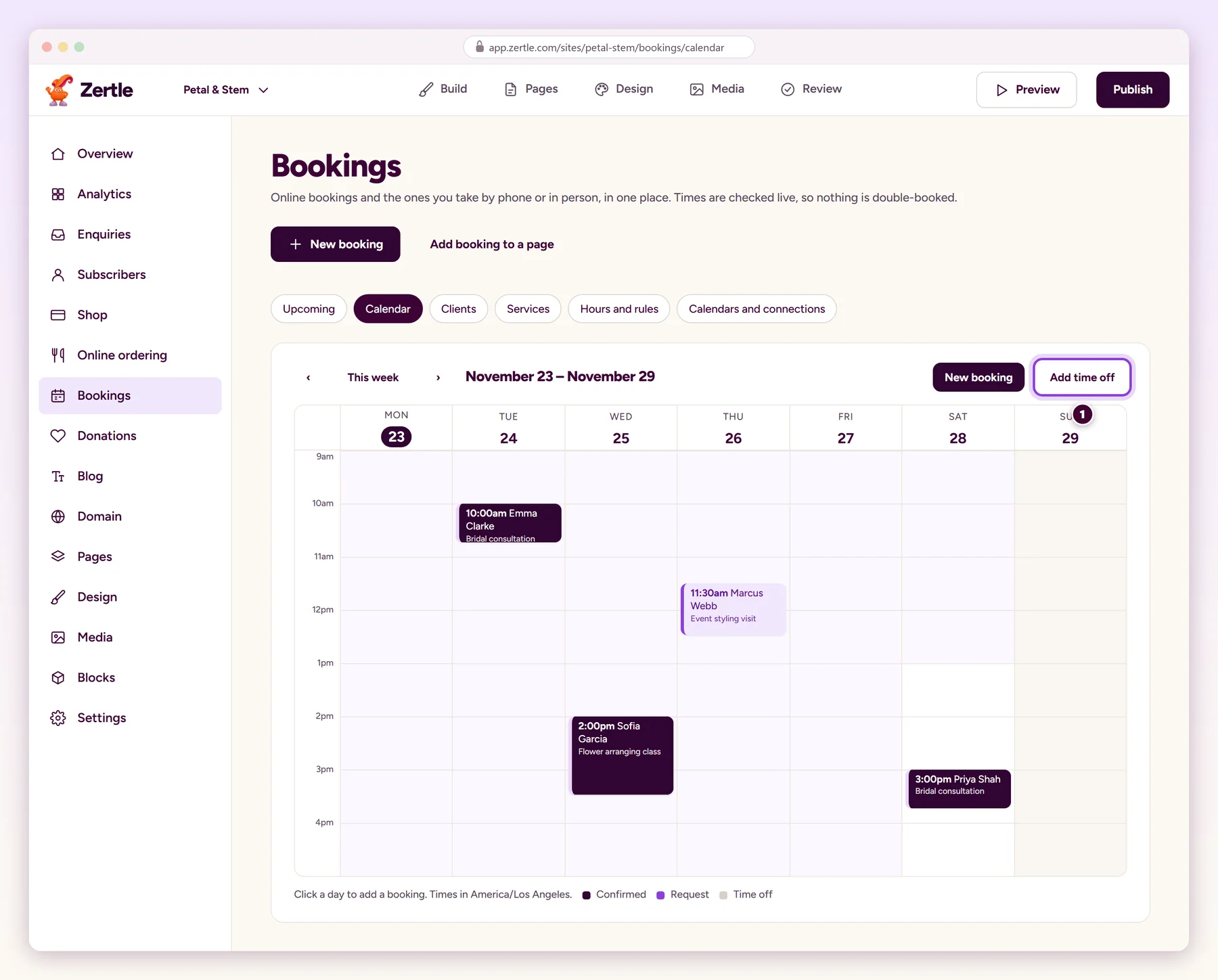
Use the arrows to move between weeks, and This week to come back. Choose Add time off to block a holiday or appointment, so nobody can book it.
A booking
Click any booking to open it.
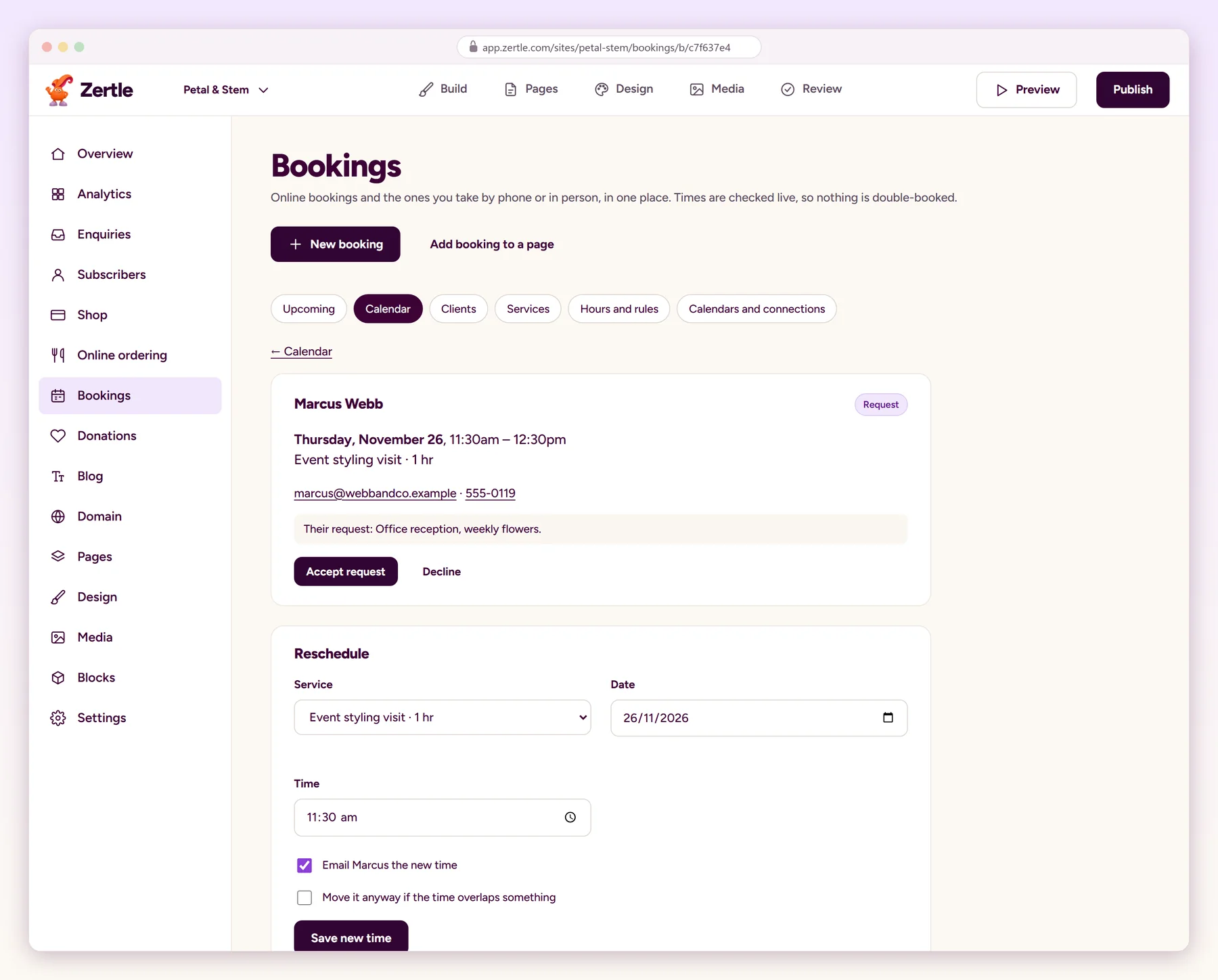
- Accept request or Decline (when you approve bookings yourself). The customer is emailed either way.
- Reschedule: choose a new service, date or time, and whether to email the customer the new time.
- Private notes: about this booking, or about the client (shown on all their bookings). Only you and your team see them.
- Cancel this booking: the customer is told.
Add a booking yourself
For phone or walk-in bookings, choose New booking.
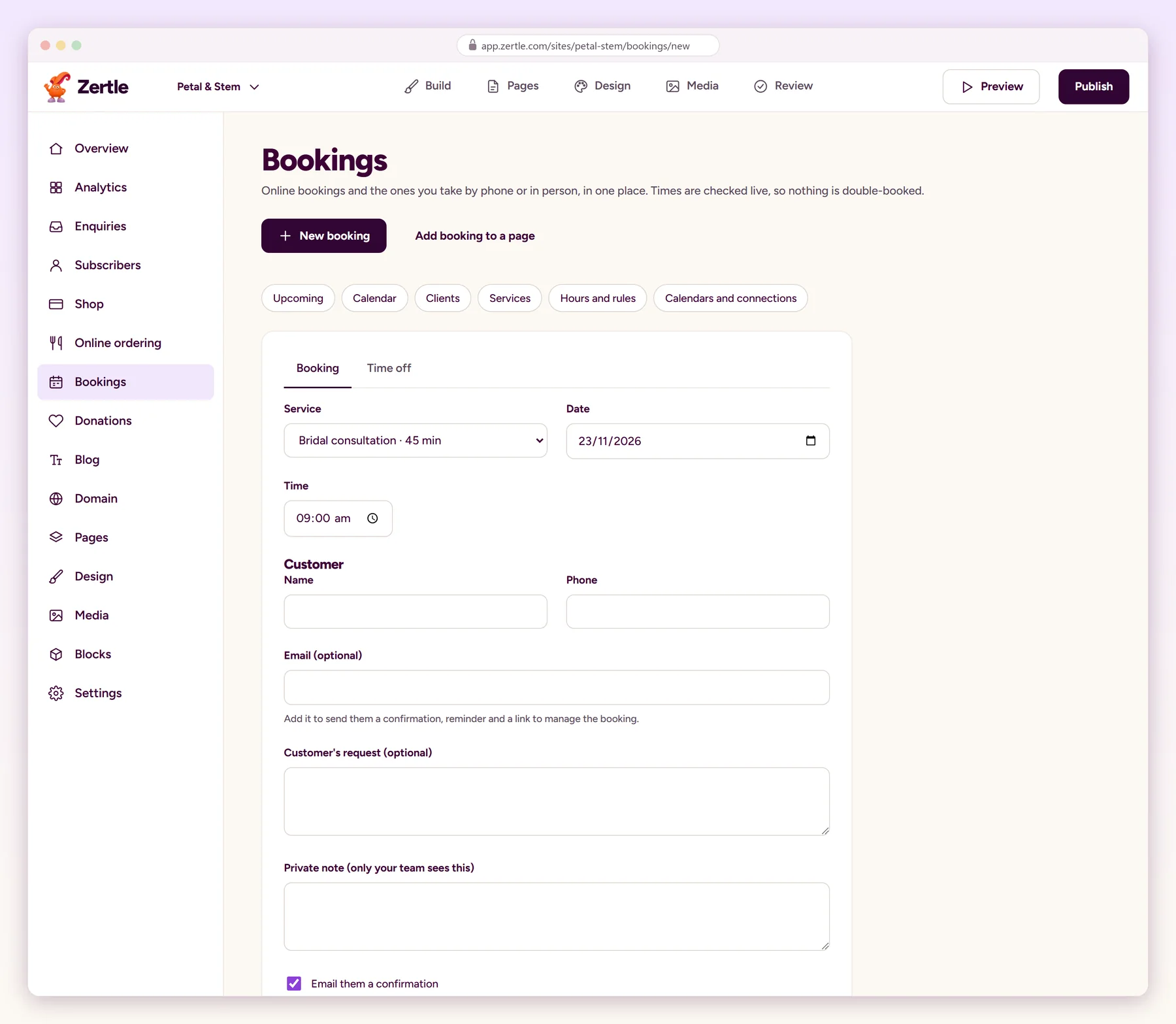
Choose the service, date and time, and add the customer's name and phone. Add their email to send a confirmation, reminder and a link to manage it. Tick Book it anyway to allow a time that overlaps something. Choose Time off at the top to block time instead.
Clients