Take pick-up and delivery orders straight from your website, with no commission.
- Build your menu in Online ordering → Menu.
- Set ordering hours, pick-up times, delivery and payment in Ordering settings.
- Add an Online ordering element to a page and publish.
- Keep the Kitchen board open to see orders come in.
Your menu
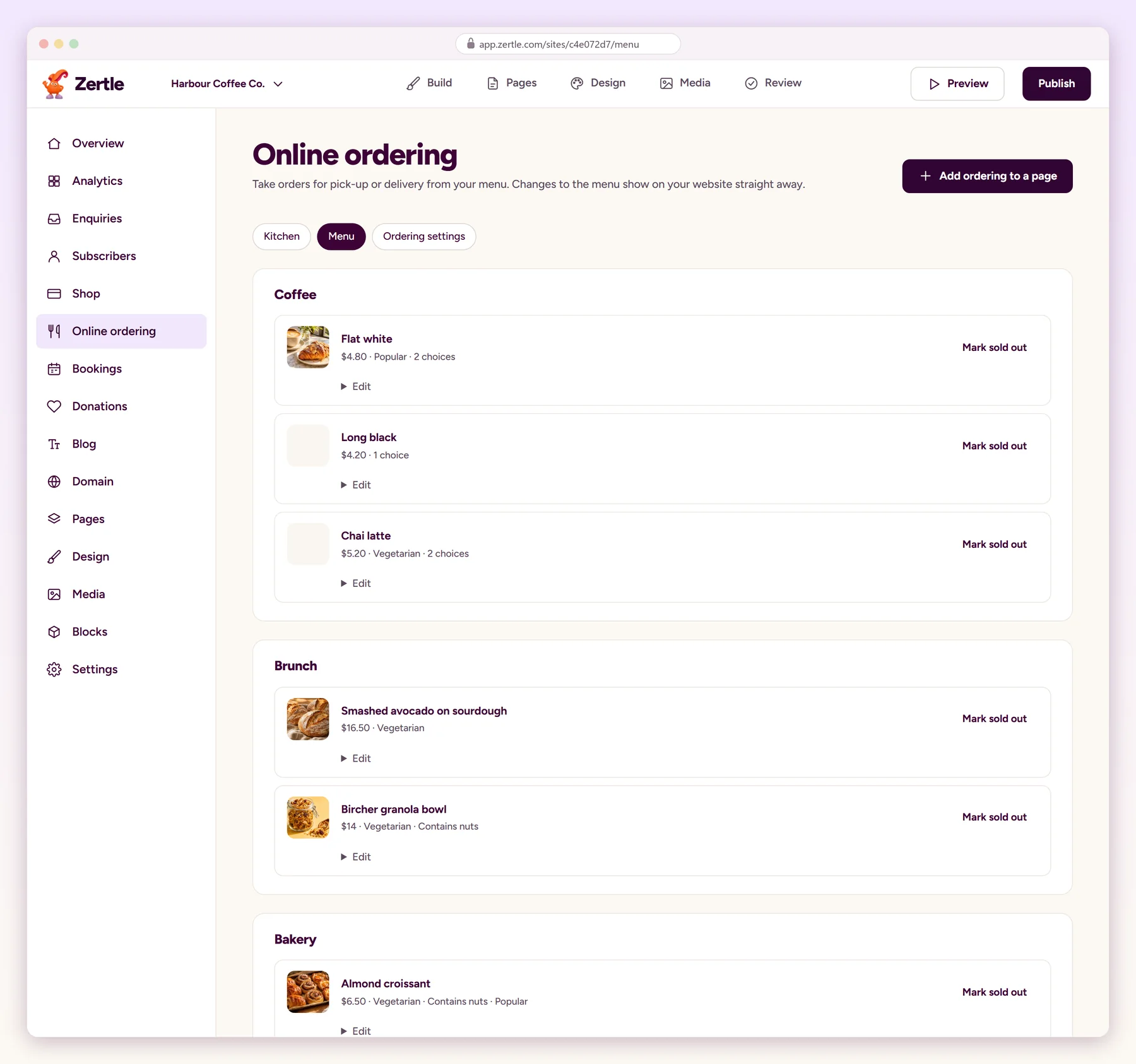
To add an item, fill in Add a menu item:
| Field | What it does |
|---|---|
| Name, Menu section | Like "Flat white" in "Coffee". Items are grouped by section. |
| Description, Price | A few words, and the price. |
| Labels | Vegetarian, Vegan, Gluten free, Dairy free, Spicy, Contains nuts, Popular. |
| Photo | Optional, from your media. |
| Choices and extras | Up to six groups, like Size or Milk. For each, customers must choose one, can choose one or can choose any. List options one per line, with any extra price after them (see below). |
For options that cost extra, write the price after a bar, like Large | 1.00 or Oat milk | 0.70.
Use Mark sold out to hide something for now. Menu changes show on your website straight away, without publishing.
Ordering settings
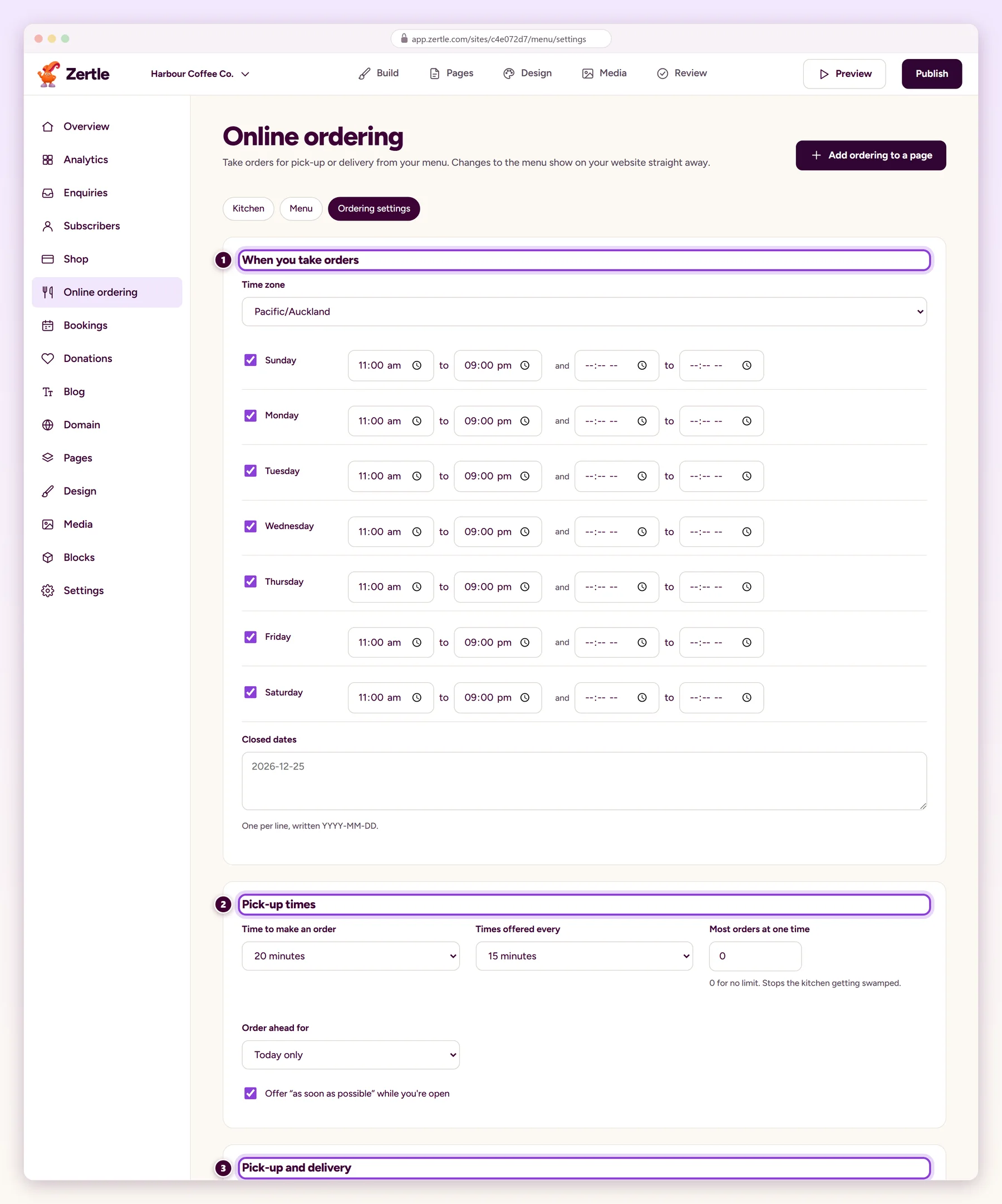
| Setting | What it does |
|---|---|
| When you take orders | Your time zone, the hours for each day (with a second range for a break), and closed dates. |
| Time to make an order | How soon the first pick-up time is. |
| Times offered every | The gap between pick-up times. |
| Most orders at one time | Stops the kitchen getting swamped. 0 means no limit. |
| Order ahead for | Today only, up to tomorrow, 3 days or a week ahead. |
| As soon as possible | Offer "as soon as possible" while you're open. |
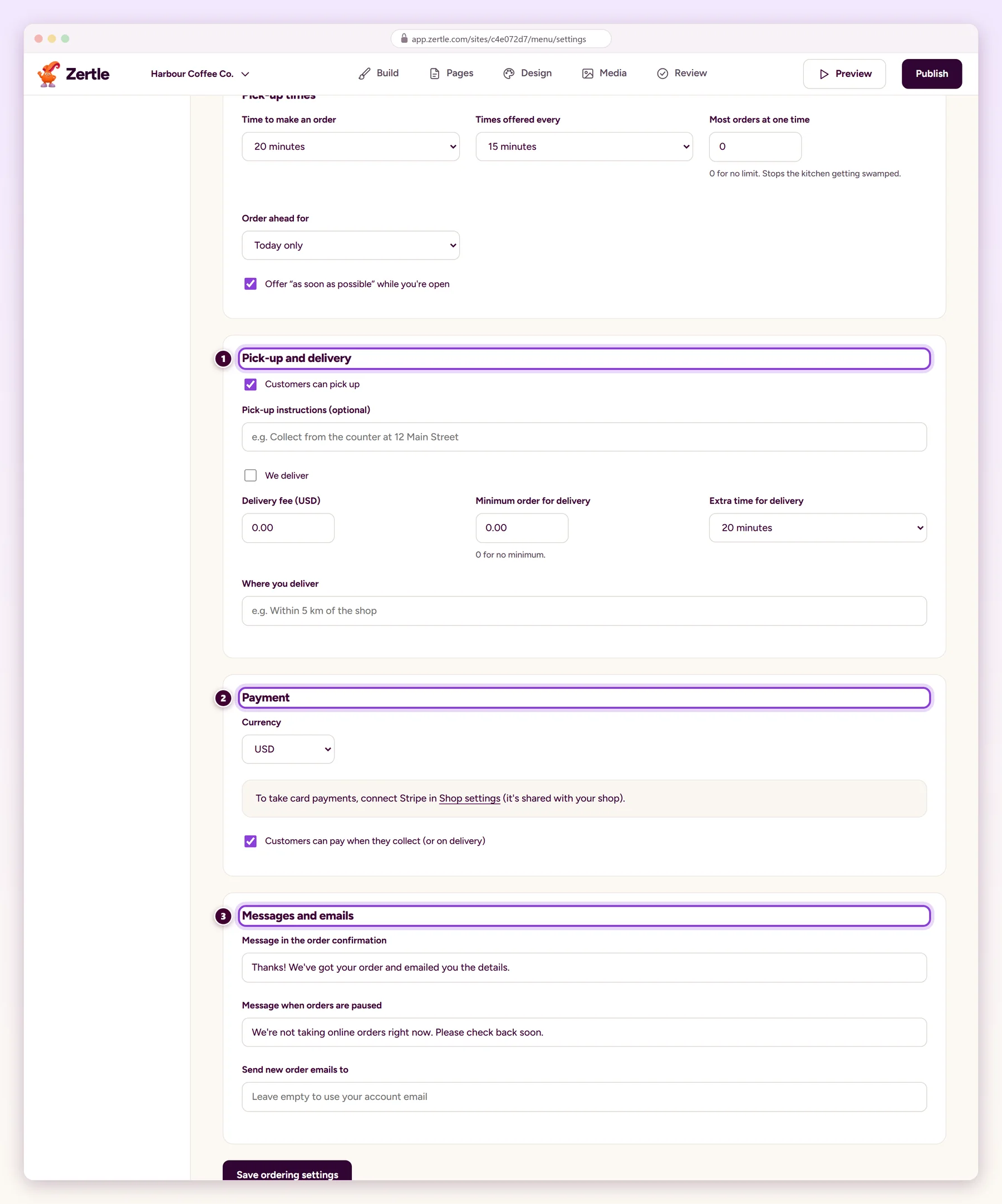
- Pick-up: turn it on, with optional instructions like "Collect from the counter".
- Delivery: turn it on, with a delivery fee, a minimum order, extra time for delivery and where you deliver.
- Payment: your currency. Card payments use the Stripe connection in Shop settings. Tick Customers can pay when they collect to allow paying later.
- Messages: the order confirmation message, a message for when orders are paused, and who gets new order emails.
The kitchen board
Keep Kitchen open on a tablet or computer in the kitchen. New orders appear by themselves (it updates every 15 seconds), with a sound if you turn it on.
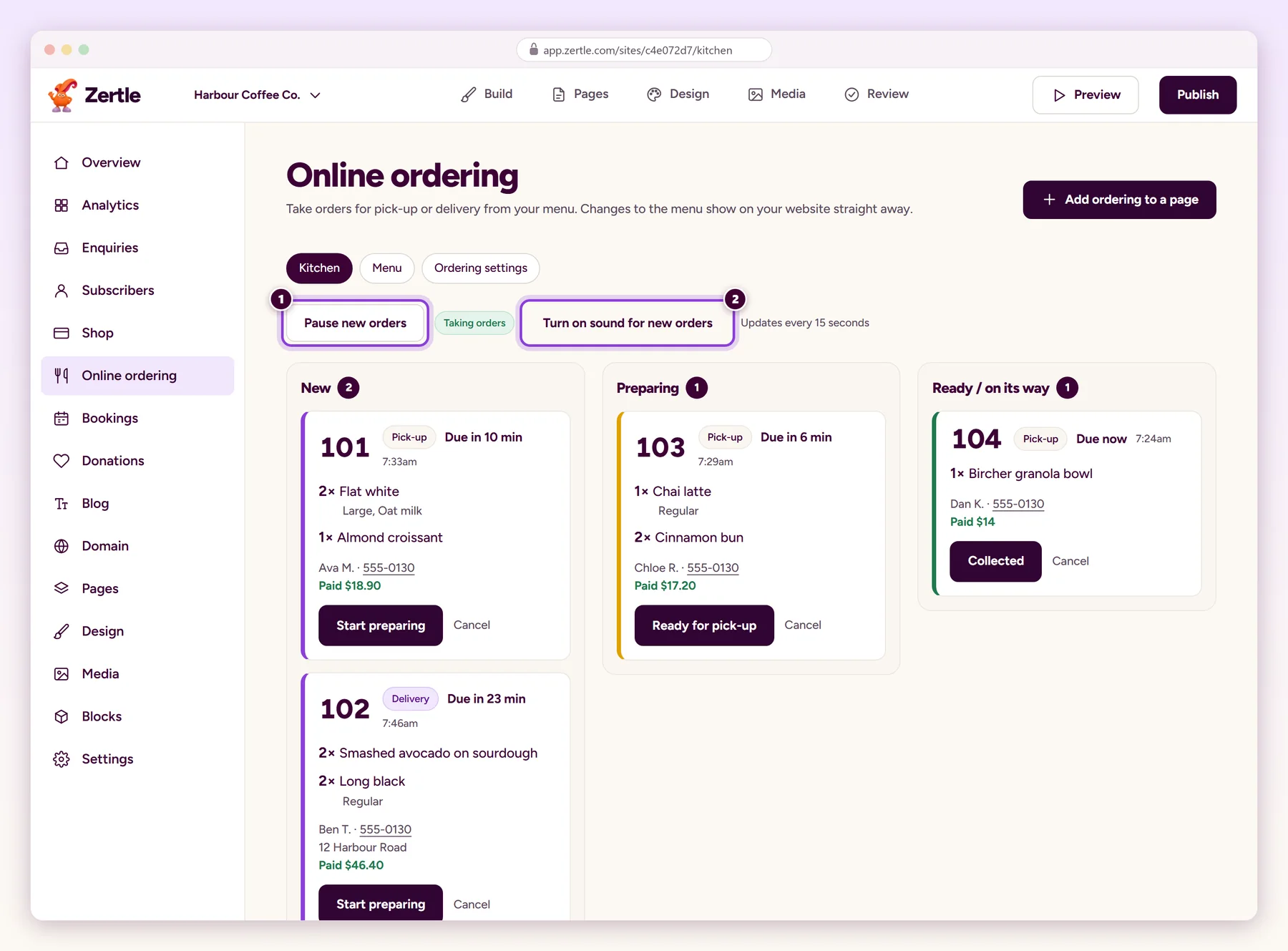
Orders move across three columns: New, Preparing and Ready / on its way. Each shows the order number, pick-up or delivery, when it's due, the items and choices, the customer, and whether it's paid. Choose Start preparing, then Ready for pick-up (or Out for delivery), then Collected. The customer is emailed when it's ready or on its way.
Pause new orders stops new orders straight away (customers see your paused message). Choose it again to start taking orders.
The Online ordering element
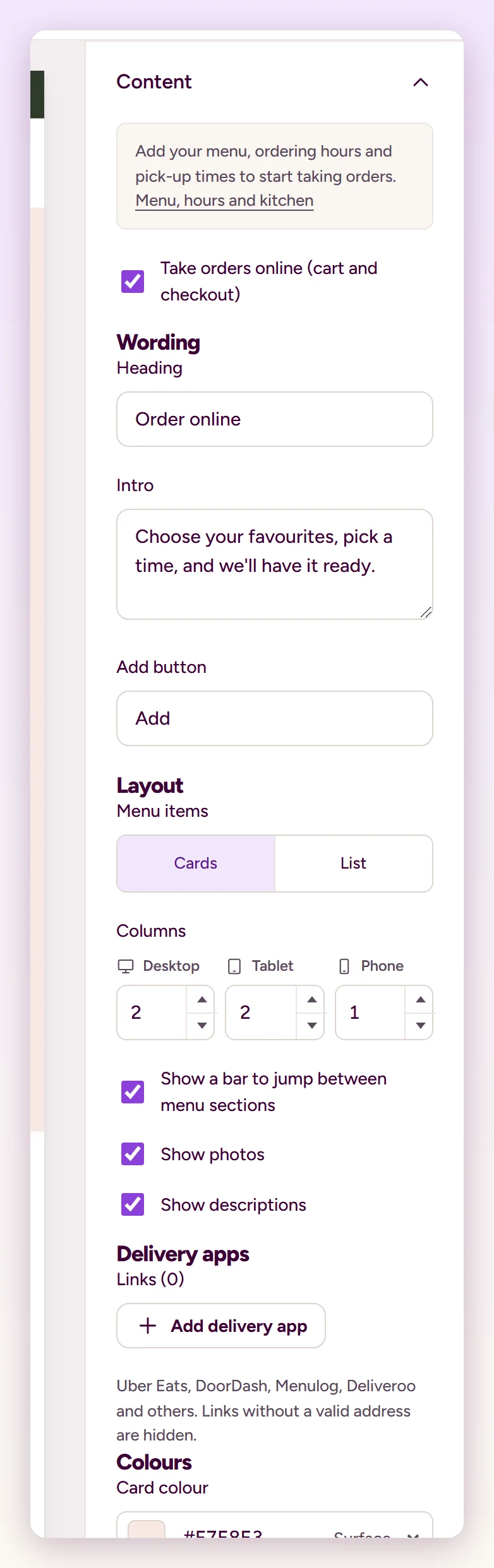
Choose whether to take orders online (cart and checkout) or just show the menu; the heading, intro and add-button words; Cards or List; columns; a bar to jump between menu sections; whether to show photos and descriptions; links to delivery apps (Uber Eats, DoorDash, Menulog, Deliveroo and others); and the card and highlight colours.
← All bookings, ordering, giving and members guides