- Choose Settings in your dashboard's menu, then Import and export.
- To make a backup, choose Full backup under Download and keep the file somewhere safe.
- To bring things in, pick the file under Restore a backup, Import products or Import posts, then choose the button under it.
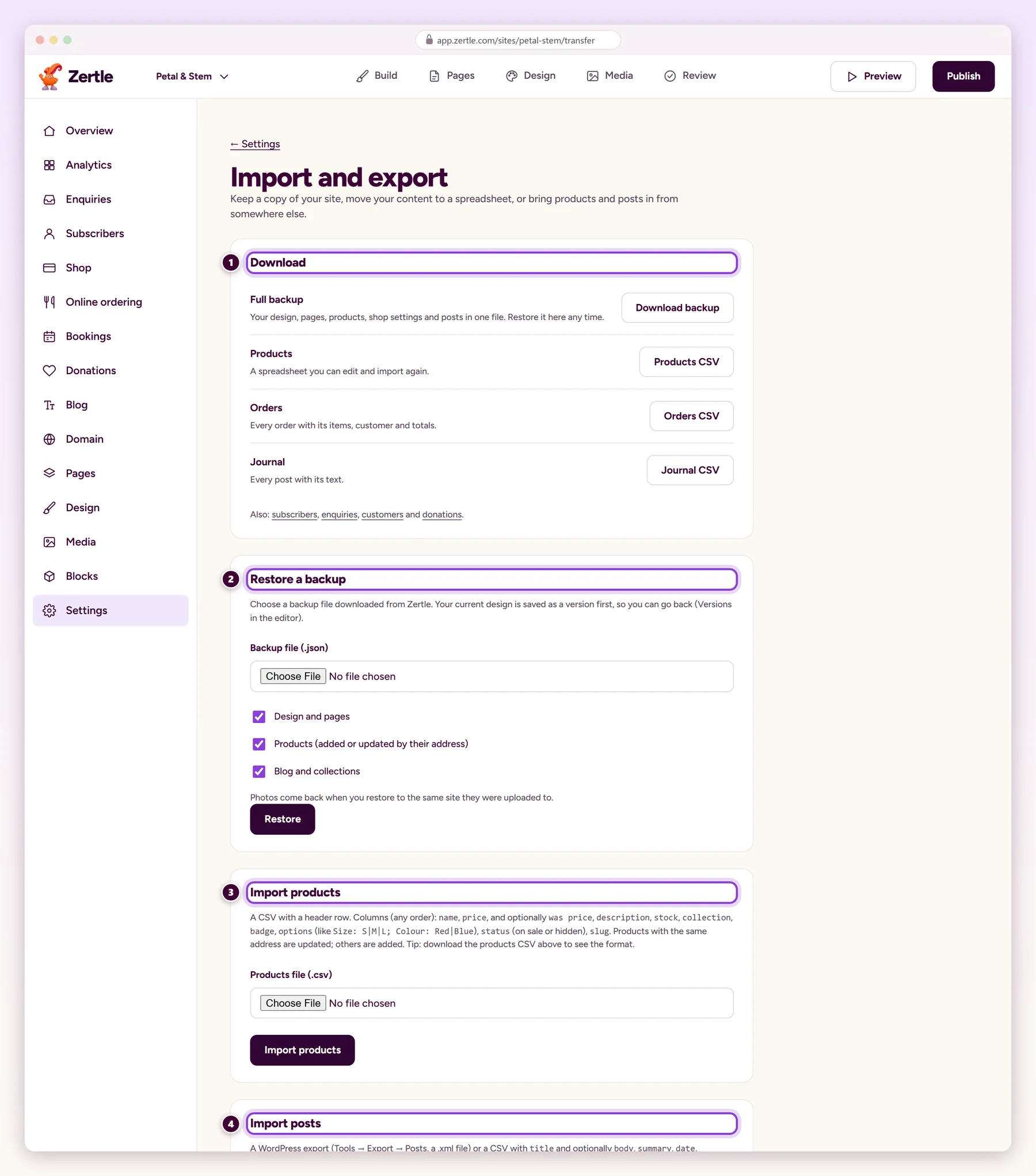
1. Download
- Full backup: your design, pages, products, shop settings and posts in one file. Restore it here any time.
- Products CSV: a spreadsheet you can edit and import again.
- Orders CSV: every order with its items, customer and totals.
- Also: subscribers, enquiries, customers and donations.
2. Restore a backup
Choose a backup file downloaded from Zertle, and tick what to restore: Design and pages, Products (added or updated by their address) and Blog and collections. Your current design is saved as a version first, so you can go back (see Versions). Photos come back when you restore to the same site they were uploaded to.
3. Import products
A CSV with a header row. Columns can be in any order: name, price, and optionally was price, description, stock, collection, badge and options (like Size: S|M|L; Colour: Red|Blue). Products with the same address are updated rather than duplicated. A spreadsheet exported from Zertle or most other shops works.
4. Import posts
A WordPress export or a CSV. See Move posts from WordPress.
← All account, team and billing guides