The Layers panel shows everything on the current page as an outline, top to bottom. It's the easiest way to select something small, find something hidden, or reorder sections. Open it with the layers icon (two stacked squares) on the left rail.
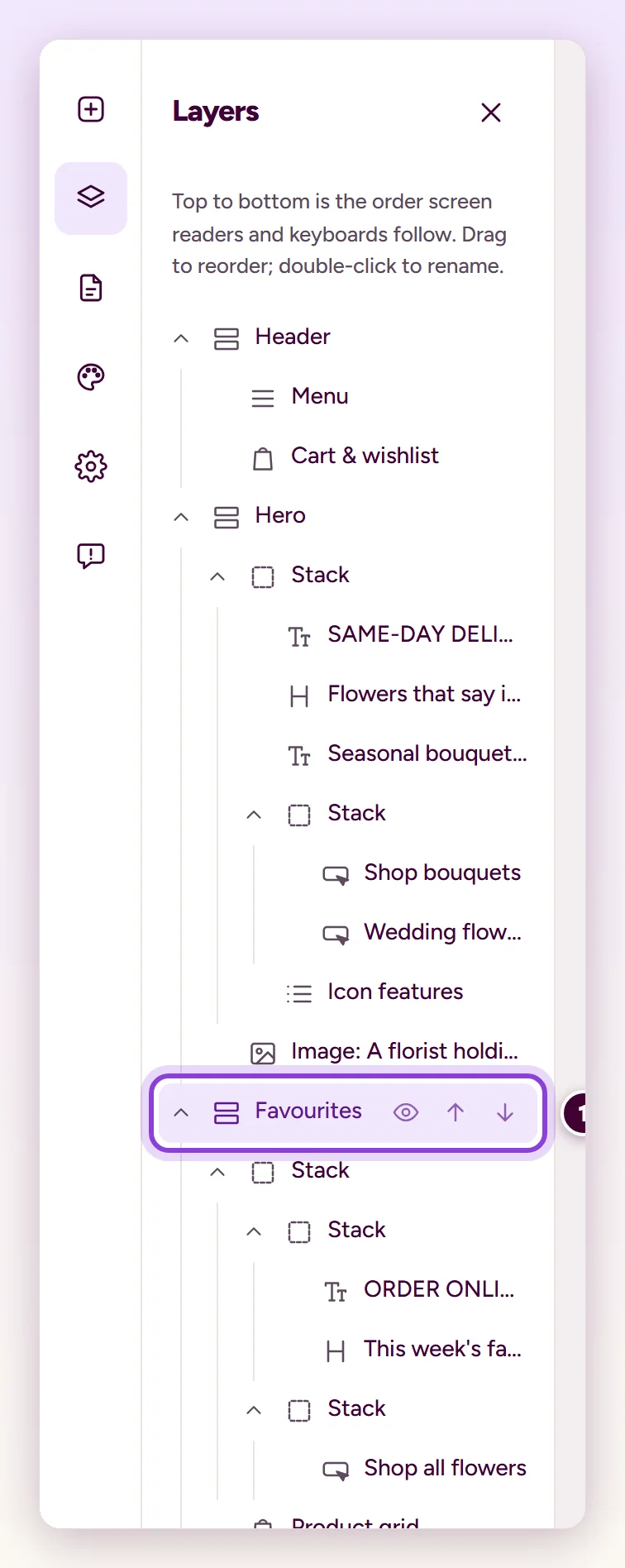
Use it
- In the editor, choose Layers (two stacked squares) on the left-hand bar.
- Click a row to select that element. The page scrolls to it.
- Drag a row up or down to move it, or double-click it to give it a name.
What you can do
- Select: click a row to select that element on the page. The page scrolls to it.
- Fold and unfold: use the arrow beside a section or stack to hide or show what's inside it.
- Rename: double-click a row and type a name, like "Spring offer". Names only show in the editor, and make big pages easier to find your way around. (You can also rename in the Advanced tab.)
- Reorder: drag a row up or down, or use the up and down arrows that appear on the selected row.
- Hide at this width: the eye icon hides the element at the screen size you're editing (desktop, tablet or phone). Hidden rows stay in the list so you can show them again.
Headers and footers
Your Header (menu and logo) and Footer sections appear at the top and bottom of the list. Changing them on one page doesn't change other pages, so if you want the same change everywhere, copy the section and paste it onto each page.
← All using the editor guides