The Pages panel in the editor
Open the page icon on the left rail.
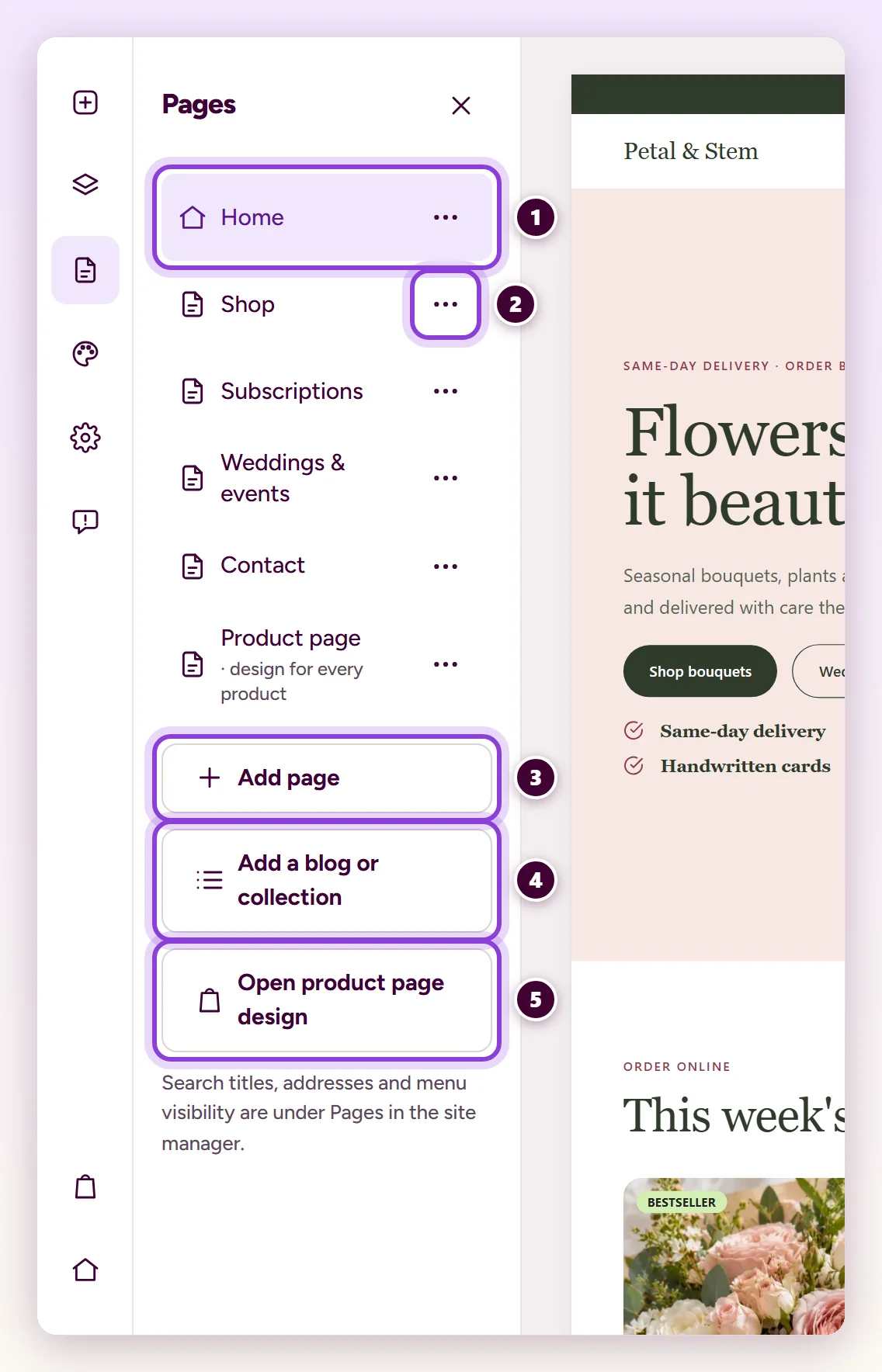
- Click a page to edit it. The current page is highlighted. (You can also switch pages from the Page menu in the top bar.)
- … opens the page's options.
- Add page makes a new page. It starts with your header and footer so it matches the rest of your site.
- Add a blog or collection adds a blog, portfolio or listings. See Start a blog.
- Open product page design (once you sell online) is the one design every product page uses. See Design your product pages.
Pages marked · list or · design for every post belong to a blog or collection.
Rename, duplicate or delete a page
Choose … next to the page:
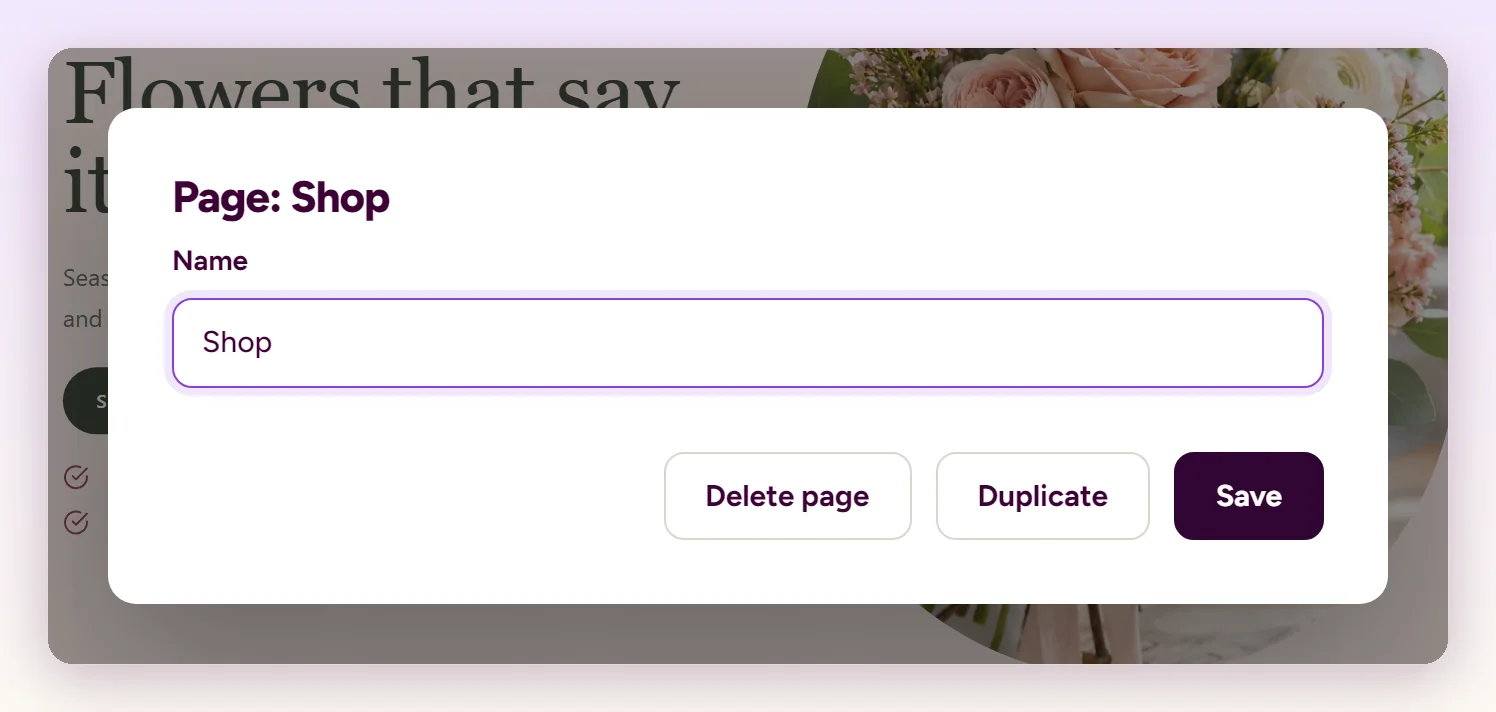
- Change the Name and choose Save.
- Duplicate makes a copy you can change, handy for similar service pages.
- Delete page removes it. You can undo this straight away with Undo.
Addresses, search settings and the menu
Each page's web address, search title and description are on your dashboard: open Pages from the site menu. See Page settings and search.
Add a page to the menu
New pages are added to your menu automatically. To change the order or names in the menu, select the menu on any page and edit Menu items. See Menu and logo.
← All using the editor guides