Select something
Click anything on the canvas to select it. A purple outline and small square handles show what's selected, and its settings open on the right.
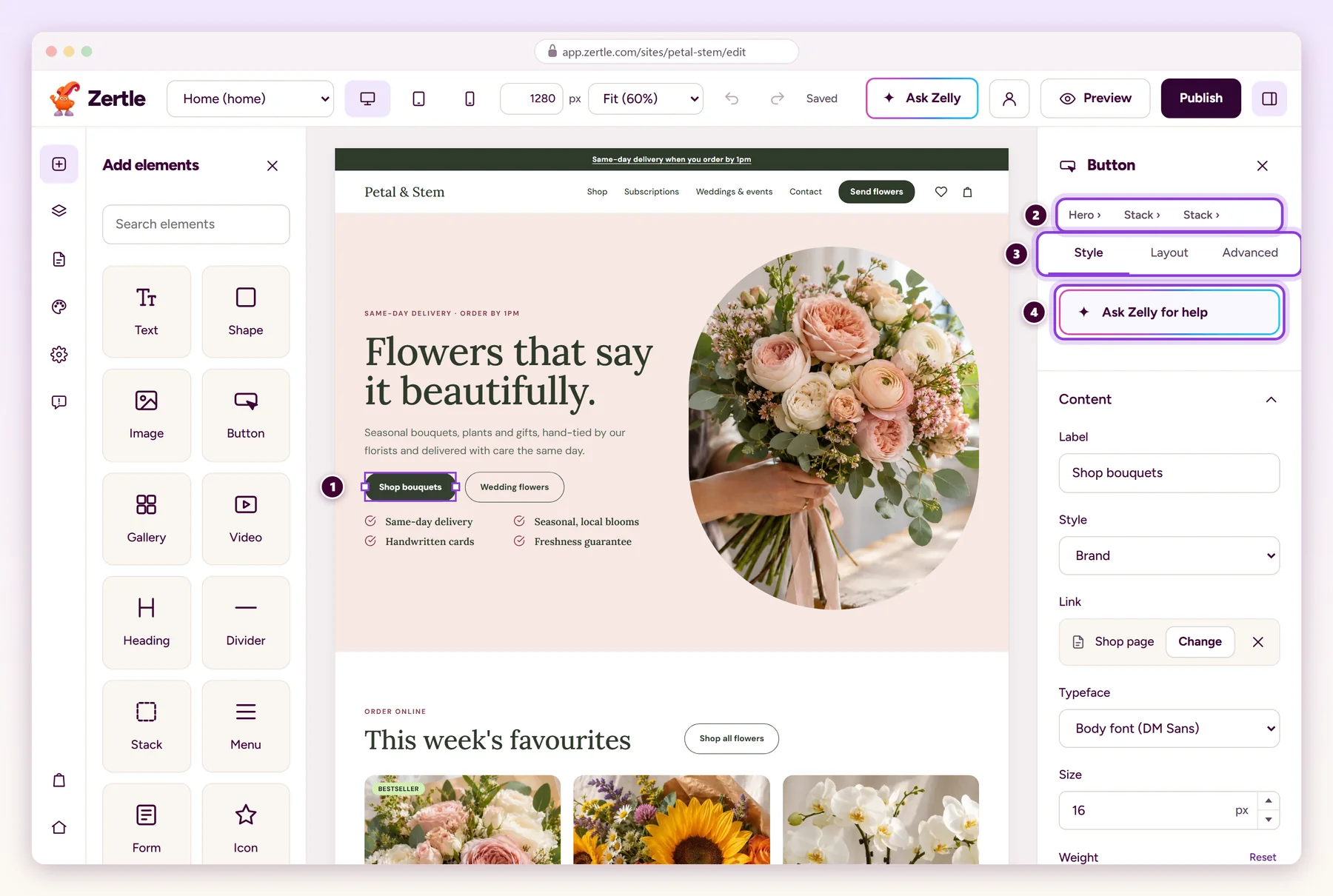
- The outline and handles show the selection. Drag a side or corner handle to resize it.
- The path at the top of the settings panel (like Hero › Stack › Stack ›) shows the containers it sits inside. Choose one to select that container. Pressing Escape does the same, one level at a time.
- Style, Layout and Advanced tabs hold every setting. See Style settings, Layout settings and Advanced settings.
- Ask Zelly for help to rewrite or restyle just this element. See Zelly.
Select more than one thing
Hold Shift and click to add or remove things from the selection. You can then style, move, duplicate, delete or group them together.
Select something that's hard to click
- Hold Alt and click to select the element behind the one on top.
- Use Tab and Shift+Tab to step through elements one by one.
- Or pick it in the Layers panel.
Edit text
Double-click any heading, paragraph or button to type straight onto the page (or select it and press Enter). Click outside it, or press Escape, when you're done. Your changes save automatically.
While you're typing, a toolbar appears above the text:
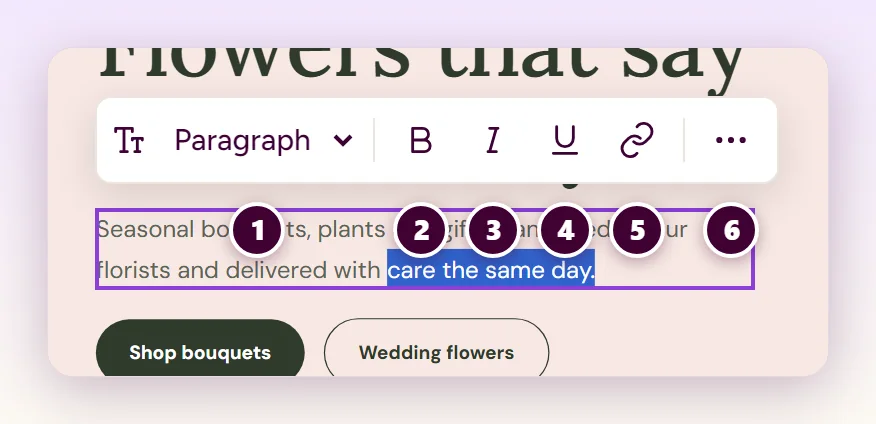
- Text style: Heading 1, Heading, Heading 3, Heading 4 or Paragraph. Use one Heading 1 per page (usually the main headline), then Heading for section titles. This helps Google understand your page.
- Bold (Ctrl+B)
- Italic (Ctrl+I)
- Underline (Ctrl+U)
- Link (Ctrl+K): select some words first, then choose where they go. See Links.
- More options: the same menu as right-clicking the element.
Move things
- Drag an element to a new spot. A purple line shows where it will land, including inside other sections and stacks.
- In a free section, things go exactly where you drop them. Nudge them with the arrow keys (Shift + arrows moves 10px).
- In the Layers panel, drag rows up and down, or use the arrow buttons on a row.
Resize things
Drag a handle on the selection. Hold Shift while dragging a corner to keep the shape the same. For exact sizes, use the Layout tab.
The right-click menu
Right-click anything on the canvas (or choose More options in the text toolbar) for quick actions:
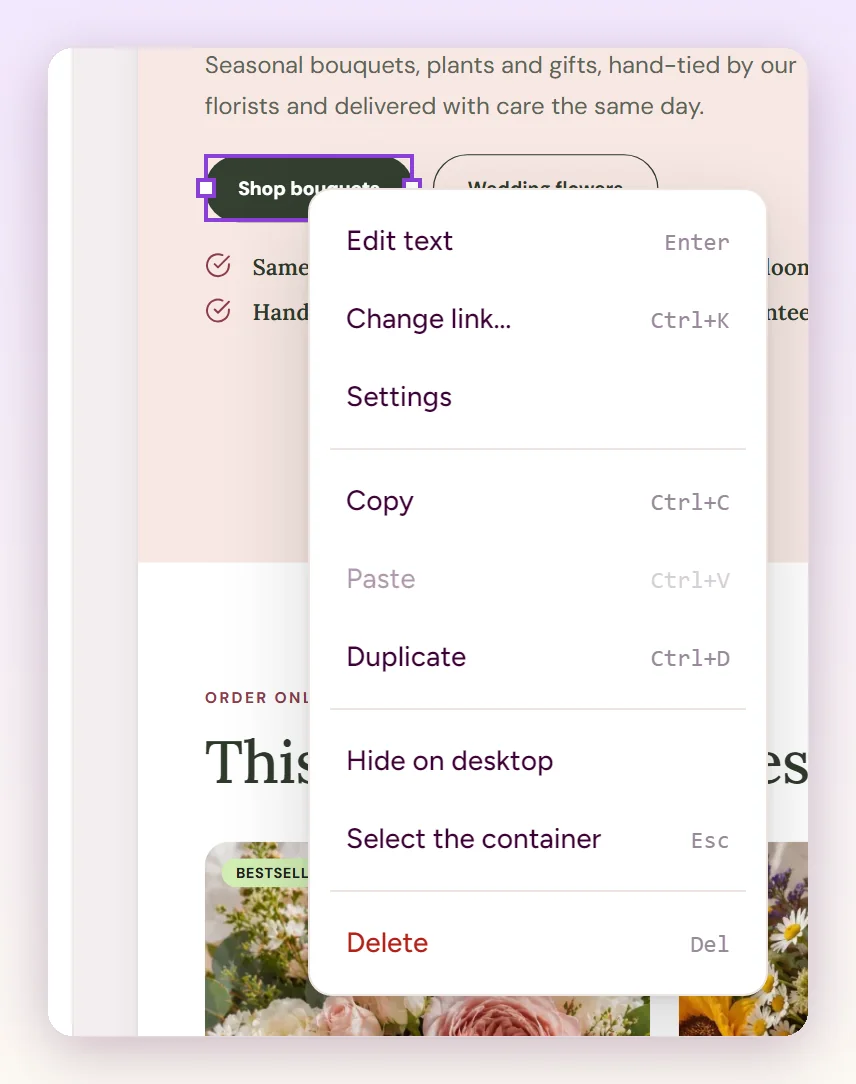
| Option | What it does |
|---|---|
| Edit text | Start typing in the selected text (Enter). |
| Change link… | Choose where a button or link goes (Ctrl+K). |
| Settings | Open the selected element's settings. |
| Copy / Paste | Copy and paste elements, even onto another page (Ctrl+C / Ctrl+V). |
| Duplicate | Make a copy straight after it (Ctrl+D). |
| Hide on desktop (or tablet, or phone) | Hide it at the screen size you're editing. |
| Bring forward / Send backward | In free sections: change which is on top (Ctrl+] / Ctrl+[). |
| Group into a stack | With several things selected: wrap them in a stack (Ctrl+G). |
| Ungroup | Take things back out of a stack (Ctrl+Shift+G). |
| Select the container | Select what it sits inside (Escape). |
| Delete | Remove it (Delete). |
Undo anything
Made a mistake? Choose Undo in the top bar or press Ctrl+Z. You can undo many steps, and Redo (Ctrl+Shift+Z) puts them back.
← All using the editor guides