Open the cog icon on the left rail (Versions and settings). It has settings that apply to every page, your local search details, saved versions and the keyboard shortcuts.
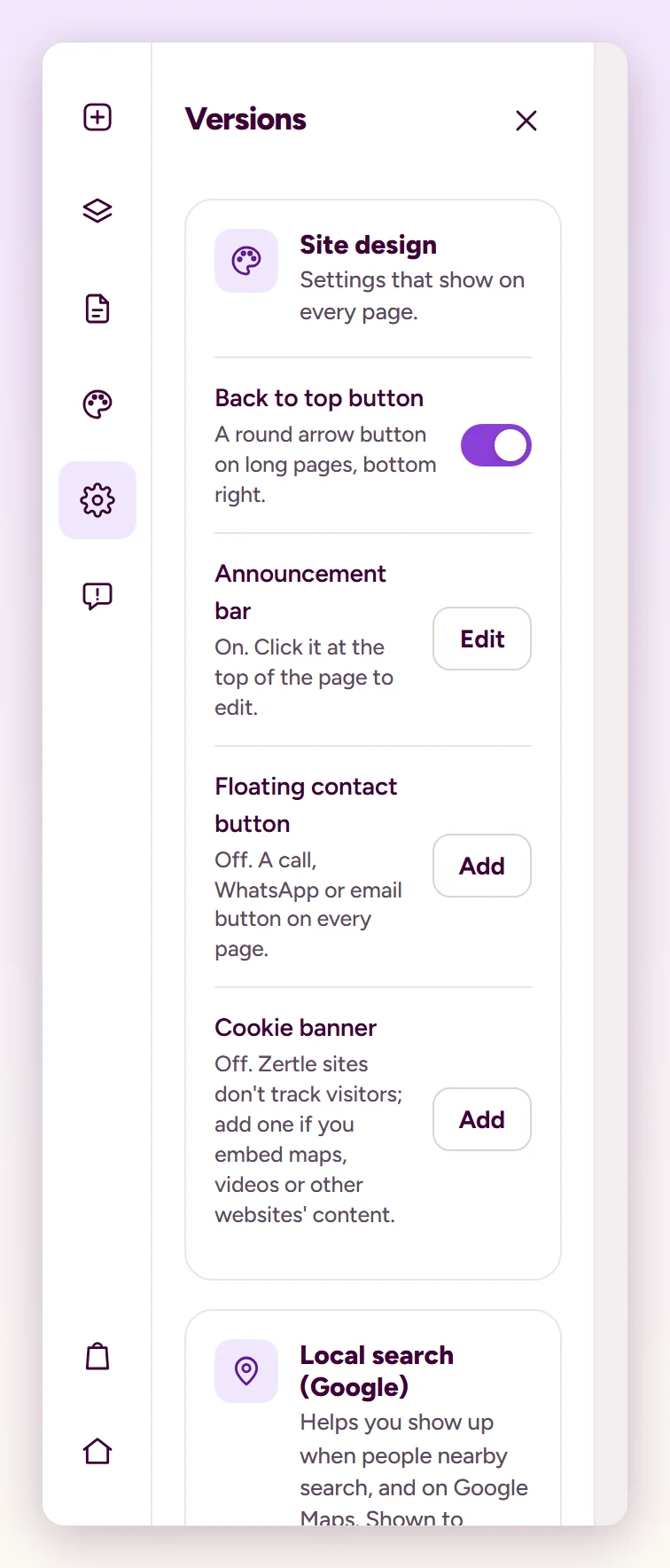
Site design
| Setting | What it does |
|---|---|
| Back to top button | A round arrow button that appears on long pages, bottom right. Tick to turn it on. |
| Announcement bar | A strip across the top of every page, for news or offers. Edit selects it so you can change the words, colours and link. See Bars, strips and floating buttons. |
| Floating contact button | A call, WhatsApp or email button in a bottom corner of every page. Edit selects it. |
| Cookie banner | Add a banner that tells visitors about cookies or asks first. See Cookie banner. |
Local search (Google)
These details help you show up when people nearby search, and on Google Maps. They're added to your pages for search engines; they don't appear as text.
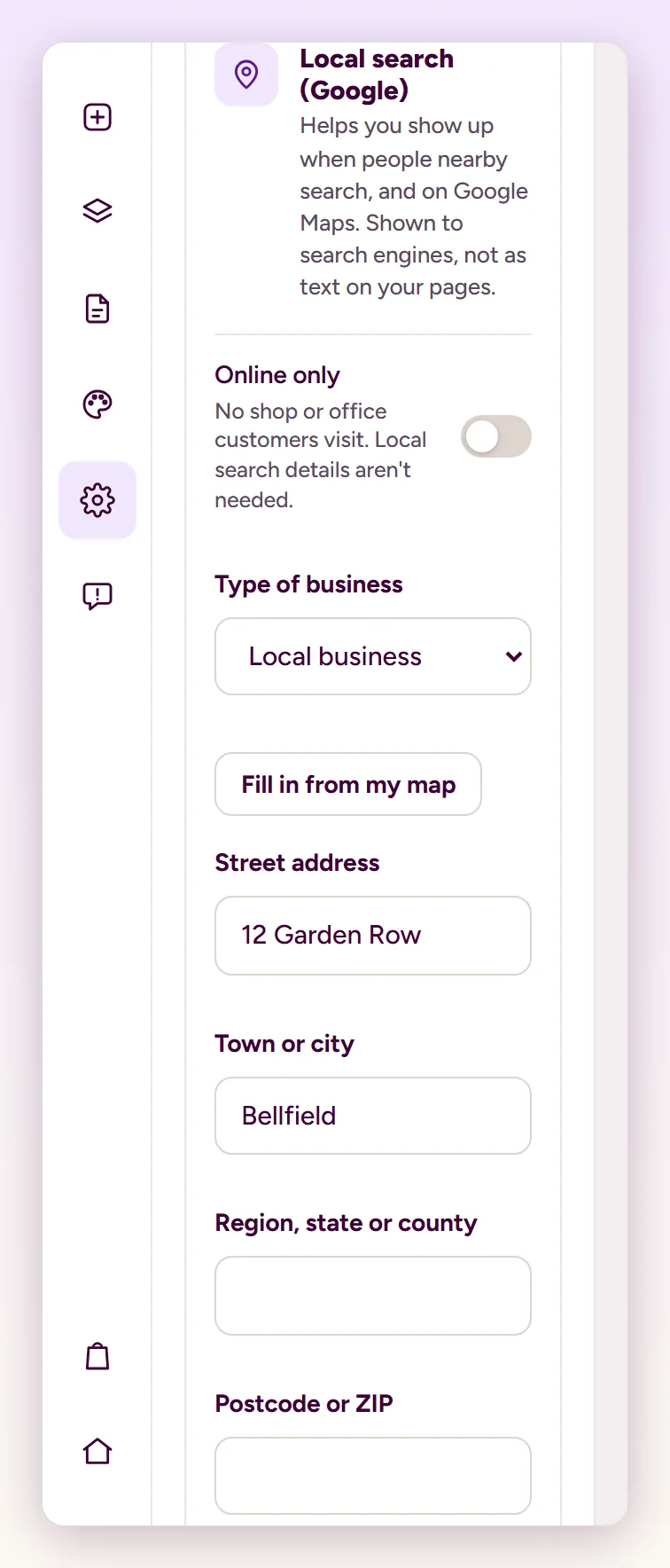
- If customers never visit you (an online-only business), tick Online only and skip the rest.
- Choose your Type of business, like Café, Plumber or Hair salon.
- Choose Fill in from my map to copy the address from a Map element on your site, or type your Street address, Town or city, Region, Postcode and Country.
- Add your Phone and Email.
- Add Opening hours, one line each, like "Mon–Fri 8am–5pm".
- Optionally, list the Areas you serve.
Versions and shortcuts
Further down are Versions (save and restore copies of your design, see Versions) and the Keyboard shortcuts list (see Keyboard shortcuts).
← All using the editor guides