Anything that can be clicked uses the same link window: buttons, words in text, photos, icons, cards and menu items.
Add a link
- Select the button, photo or icon (or double-click text and select the words).
- Choose Add a link (or Change), or press Ctrl+K.
- Choose where it goes: a page, part of this page, another website, an email address or a phone number.
- Choose Save link.
Open the link window
- A button: select it, then choose Change (or Add a link) under Link in the Style tab. Or press Ctrl+K.
- Words in text: double-click the text, select the words, then choose the link icon in the text toolbar (Ctrl+K).
- A photo or icon: select it and choose Add a link in its settings.
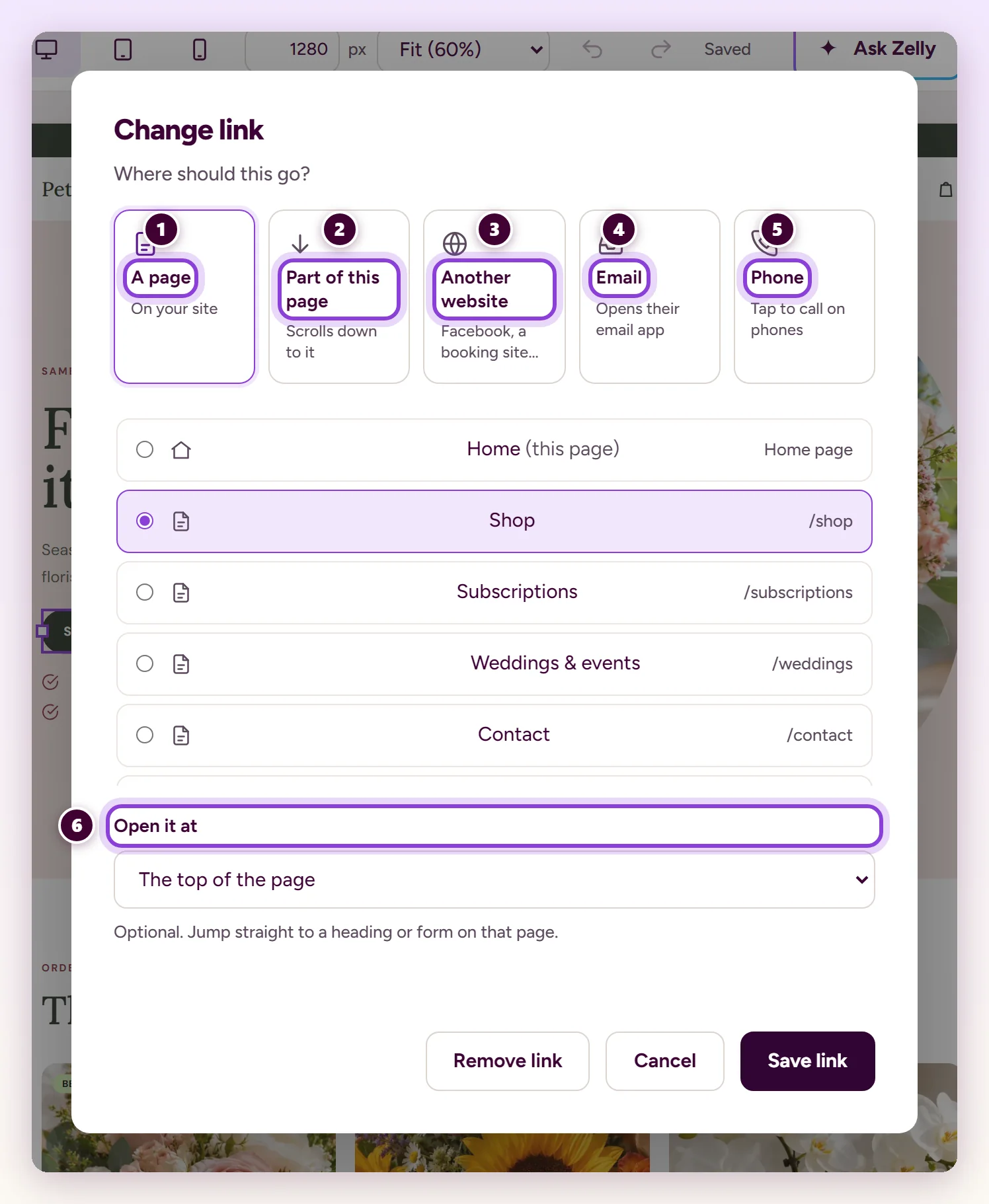
Where a link can go
| Type | Use it for |
|---|---|
| A page | Any page on your site. Choose the page from the list. Optionally, under Open it at, jump straight to a heading or form on that page. |
| Part of this page | Scroll down to a section or element on the same page, like "See our prices". Elements need Link to this element turned on in their Advanced tab (sections are listed automatically). Popups appear here too. |
| Another website | A full web address like https://instagram.com/yourname, or a booking site. These open in a new tab. |
| Opens the visitor's email app with your address filled in. | |
| Phone | On phones, one tap calls you. Type the number with your country code if you have customers abroad. |
Choose Save link to finish, or Remove link to take it off.
Files
To let people download a PDF menu or price list, use the File downloads element.
← All using the editor guides