Everything on a page is an element (a heading, a photo, a button, a booking form) sitting inside a section (a full-width band of the page). You add both from the Add elements panel.
Open the Add elements panel
Choose the + at the top of the left rail. The panel lists every element as a tile. Scroll down for Sections.
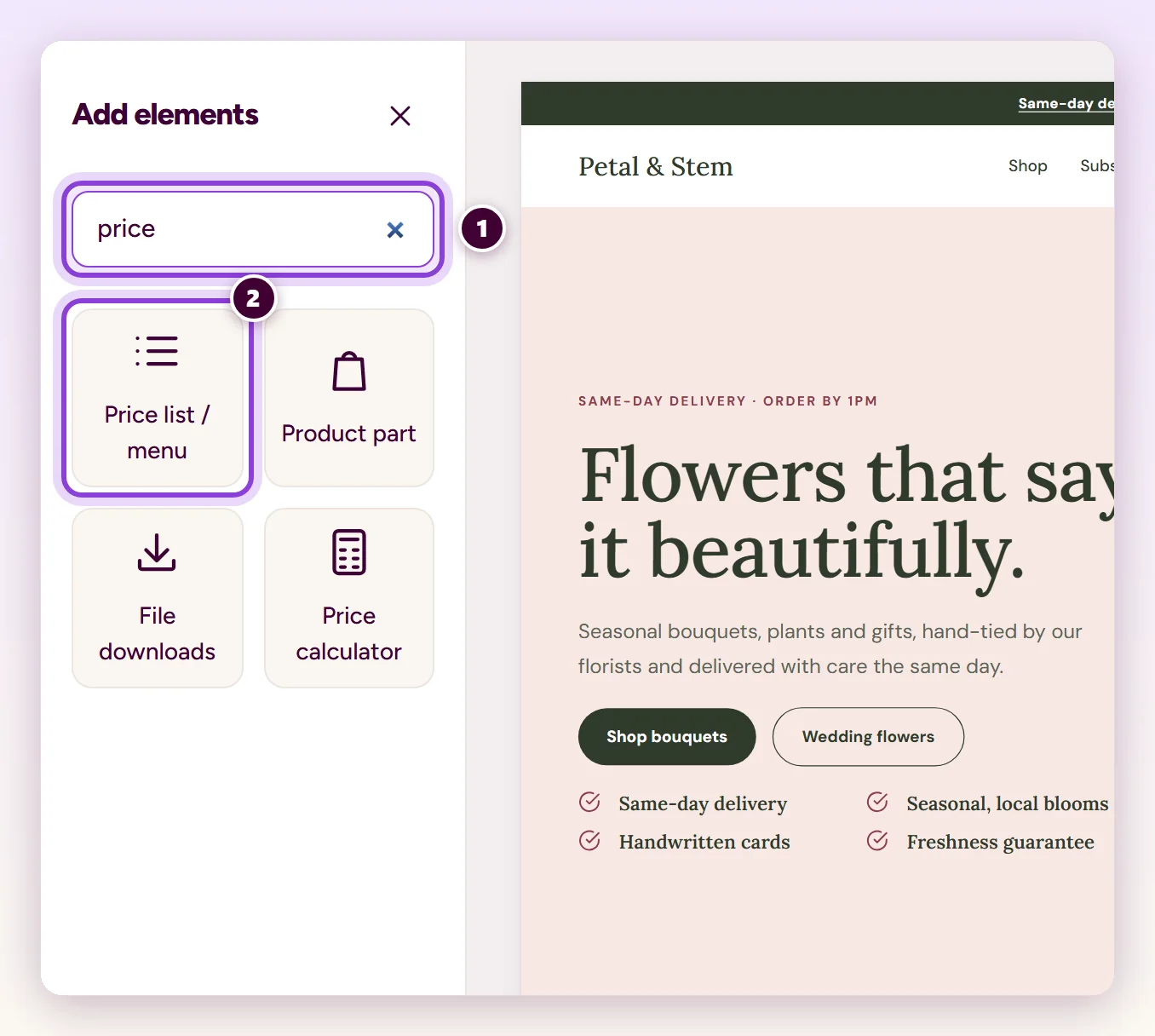
Find what you need
Type in Search elements. Search understands what things are for, not just their names. For example:
| Type | You'll find |
|---|---|
| price | Price list / menu, Price calculator, Pricing plans |
| reviews | Testimonials, Star rating |
| faq | Accordion |
| book | Online booking |
| photos | Image, Gallery, Slideshow, Instagram grid |
| sale | Countdown, Promo card, Sticker badge |
If nothing matches, try a simpler word like "photo", "button" or "columns".
Add an element
There are two ways:
- Click a tile. Zertle places it for you (see below).
- Drag a tile onto the page and drop it where the purple line shows.
Where a clicked tile goes:
- If a section or stack is selected, it goes inside it, at the end.
- If an element is selected, it goes straight after it.
- If nothing is selected, it goes into the first section below your header.
The new element is selected straight away, with its settings open on the right. It's designed to look finished, so often you only need to change the words.
Add a section
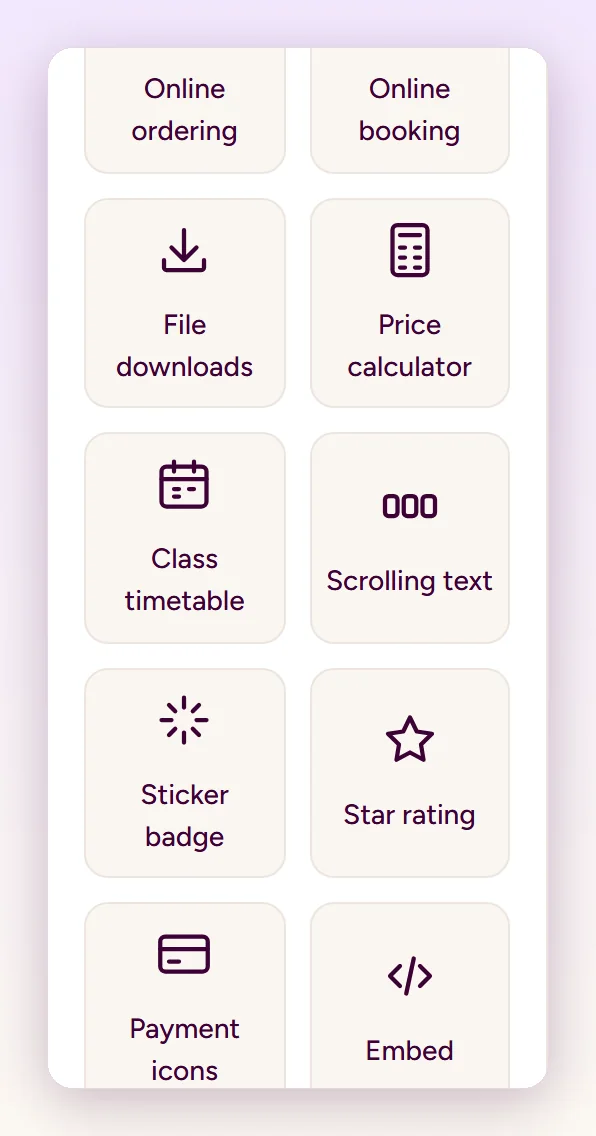
Sections are the building blocks of a page: a hero, a row of services, a gallery band, a footer. At the bottom of the panel you'll find three kinds:
| Section | Best for |
|---|---|
| Stacked section | Content that flows down the page, one item under another (or across). Most sections are this kind. |
| Free section | Placing things exactly where you like, overlapping if you want. Great for heroes and creative layouts. |
| Grid section | Columns of equal cards, like services or team members. |
A new section is added below the section you have selected (or at the end of the page). You can change a section's kind later in its Layout tab. See Sections, columns and layout.
Elements your plan doesn't include
Some tiles show a small lock and a plan name, like Business. You can still add them and see how they look, but you'll need that plan to publish them. See Plans and billing.
Site-wide elements
A few elements belong to the whole site rather than one page: the Announcement bar, Header info strip and Floating contact button. Adding one puts it on every page, and selecting it on any page edits it everywhere. See Bars, strips and floating buttons.
Every element explained
Each element has its own guide listing every setting. Start at Elements.
← All using the editor guides