- Choose Pages in your dashboard's menu. Every page is listed with its settings.
- Change the page's title, address, or how it shows in Google.
- Choose Save page settings, then publish your site.
To design a page instead, choose Edit design.
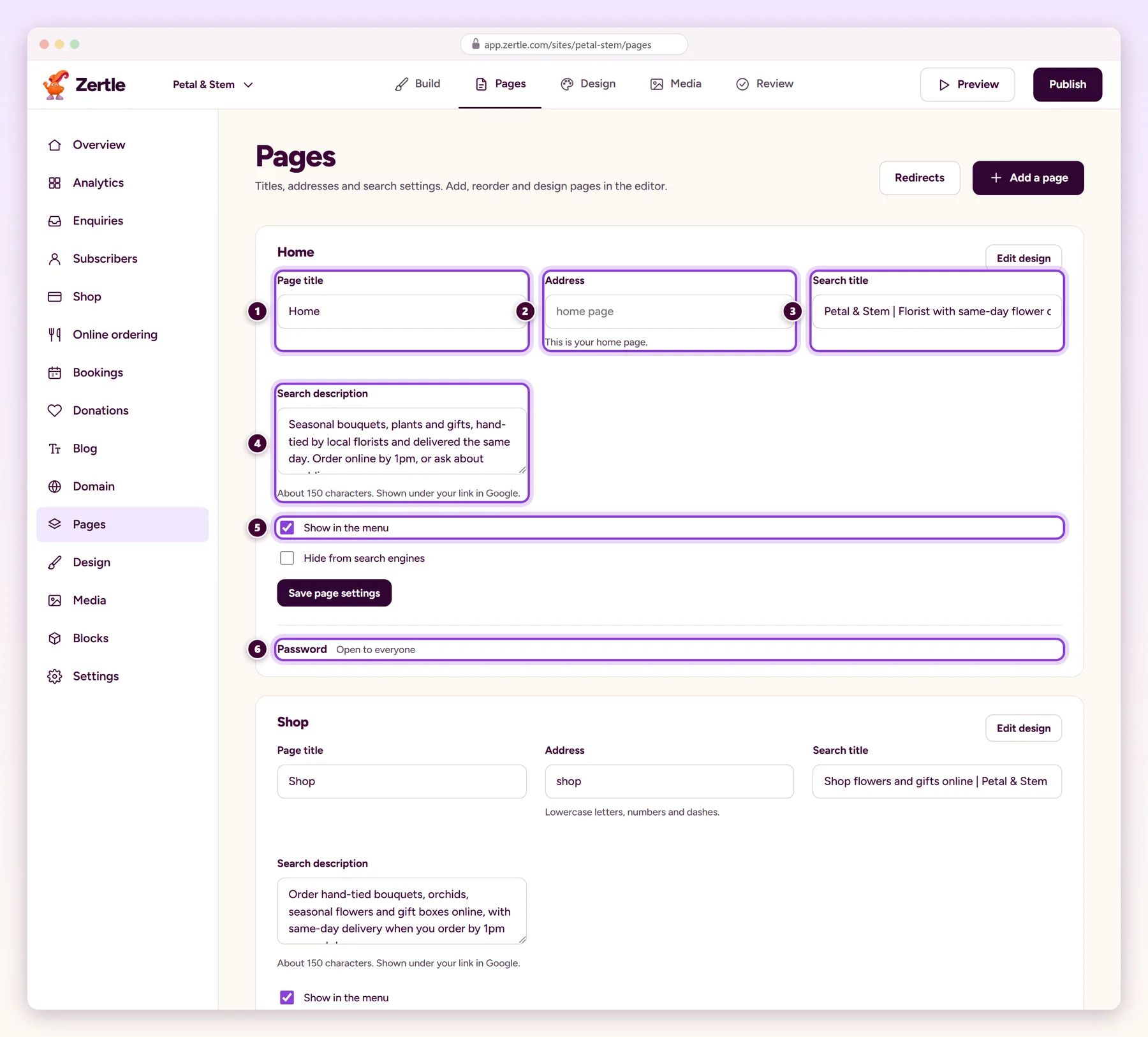
| Setting | What it does |
|---|---|
| Page title | The page's name, used in your menu and the editor. |
| Address | The end of the page's web address, like /weddings. Lowercase letters, numbers and dashes. Your home page has none. |
| Search title | The blue headline Google shows for this page. About 50 to 60 characters: what the page is about, then your business name. |
| Search description | The words under it in Google. About 150 characters. |
| Show in the menu | Untick to keep the page out of your menu (people can still reach it by link). |
| Hide from search engines | Ask Google not to show this page, like a thank-you page. |
Choose Save page settings. Changes go live the next time you publish.
Password
Open Password on a page to keep it private. See Password-protect a page.
← All your dashboard guides