Every photo on your site lives in Media. Open it from your site's menu, or choose Choose photo on any element in the editor.
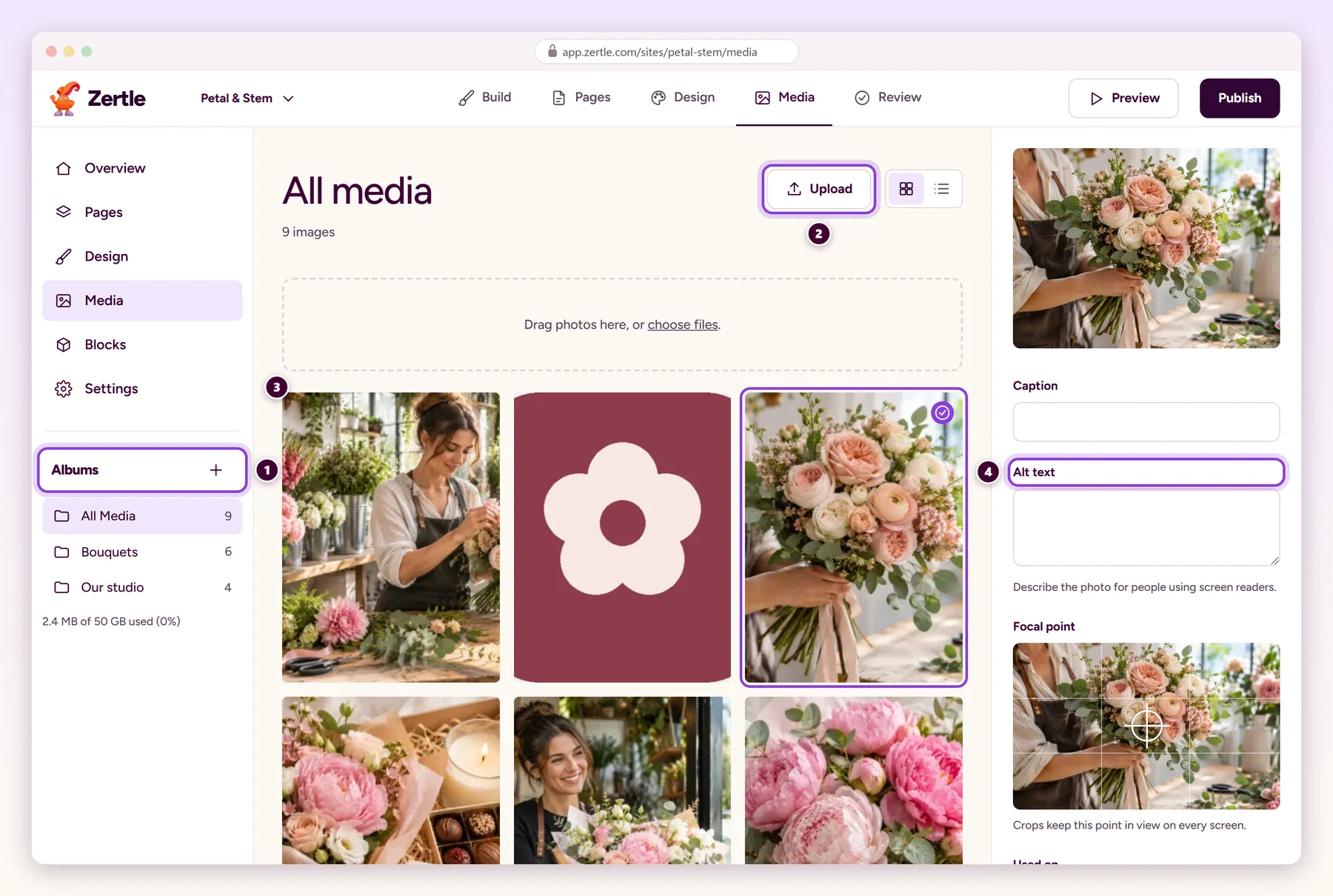
- Choose Media in your dashboard's menu.
- Drag photos onto the page, or choose Upload.
- Click a photo to add its Alt text (what's in it) and click the part that matters to set its focal point.
Upload photos
Drag photos onto the page, or choose Upload to pick files. JPEG, PNG, WebP, GIF and AVIF all work, up to 25 MB each. Zertle makes smaller copies of every photo automatically, so each visitor gets the right size and pages stay fast.
Photo details
Click a photo to see and change its details:
| Detail | What it does |
|---|---|
| Name | So you can find it. |
| Alt text | Describes the photo for people using screen readers, and helps Google. |
| Caption | Shown under it in galleries and slideshows when captions are on. |
| Focal point | Click the part of the photo that matters. Crops keep this point in view on every screen. |
| Used on | The pages using it. |
Shift + click to select several photos, then add them to an album or archive them together.
Albums
Albums group photos for galleries, slideshows, Instagram grids and logo strips. Choose New album, name it, and add photos with Add to album. You can put albums inside other albums, choose an Album cover, and rename or delete albums from Album options. Deleting an album doesn't delete its photos.
Free stock photos
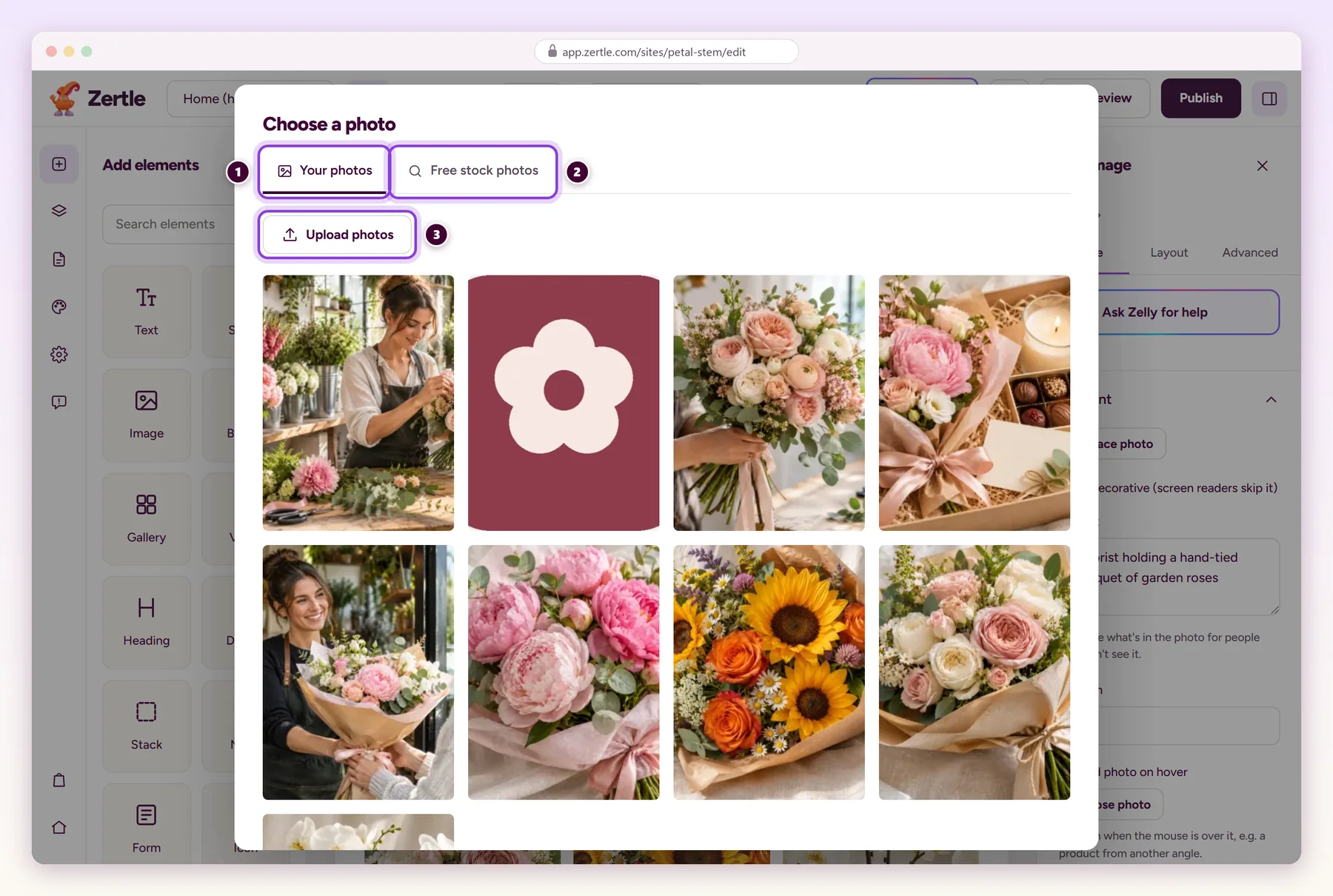
In the editor's photo picker, choose Free stock photos and search, like "wedding flowers". Photos come from Pixabay, free to use. The one you pick is saved into your media.
Storage
The bar under your albums shows how much photo storage you've used. Each plan includes a set amount; archive photos you no longer use to free up space.
← All your dashboard guides