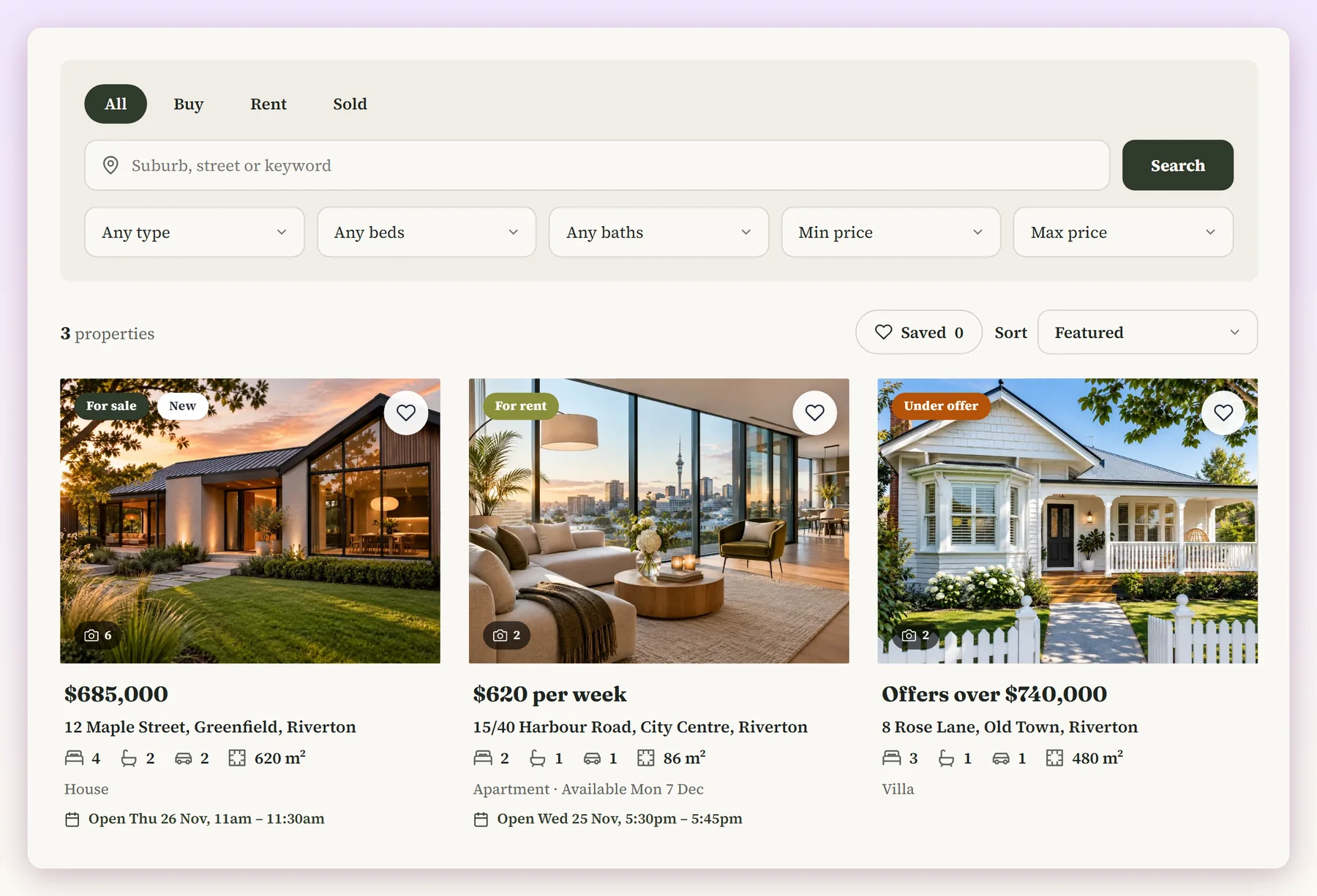
The Listings grid element shows your listings as cards, with a search and filter bar if you like. Use it on your listings page with everything turned on, or on your home page to show a few featured listings. Add it from Add → Listings grid. Its tabs, filters and sorting follow what you list (see Listing types).
- Click the section you want it in, then choose Add elements and click Listings grid.
- Select it and choose what to Show, and whether to have a filter bar and tabs.
- Choose the card design, then publish your site.
Select it to change its settings:
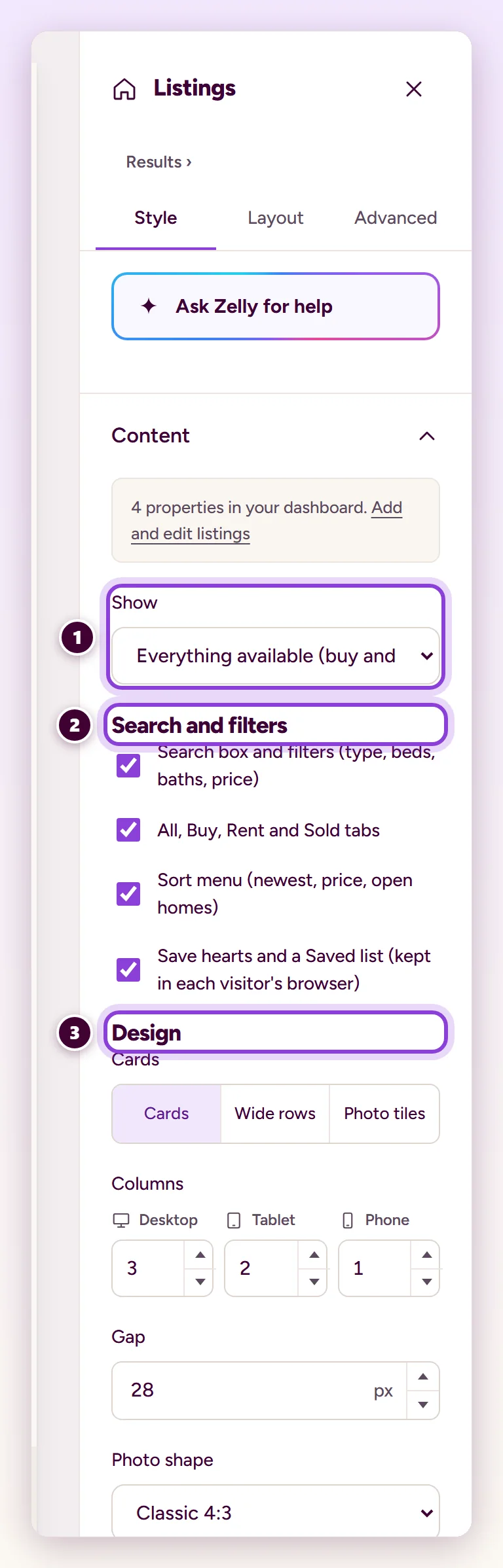
| Setting | What it does |
|---|---|
| Show | Everything current, Featured only, sold, filled or past listings, and (where they apply) For sale, For rent or With dates coming up. |
| Filter bar | A search box with filters for your kind of listing (for jobs: category, job type, workplace, experience and salary). On phones the filters fold behind a Filters button. |
| Tabs | Tabs above the search, like All, Buy, Rent and Sold for property or Full-time and Remote for jobs. |
| Sort | Featured, Newest, price, A to Z or soonest date, depending on what you list. |
| Save | A heart on every card and a Saved button that shows the visitor's saved properties. |
| Cards | Cards (photo above), Wide rows (photo or logo beside the details, great for jobs) or Photo tiles (details over the photo). |
| Columns, Gap and Photo shape | How the grid is laid out on desktop, tablet and phone. |
| Card colour | Give cards a background. Leave empty for cards on the section colour. |
| Each card shows | Status and badge, price, address, beds, baths, cars and area, the next open home or auction, swipe through photos, headline and summary, and the agent. |
| Per page and Show more button | How many show first. Visitors get a Show more button for the rest; leave its words empty for no button (handy for a few featured homes beside your own View all link). 0 shows all. |