The Listing search element is the search box you see on portal home pages. Visitors type what they want (a suburb, a job title, a make), pick a couple of filters and land on your listings page with their results. Add it from Add → Listing search, usually inside your hero.
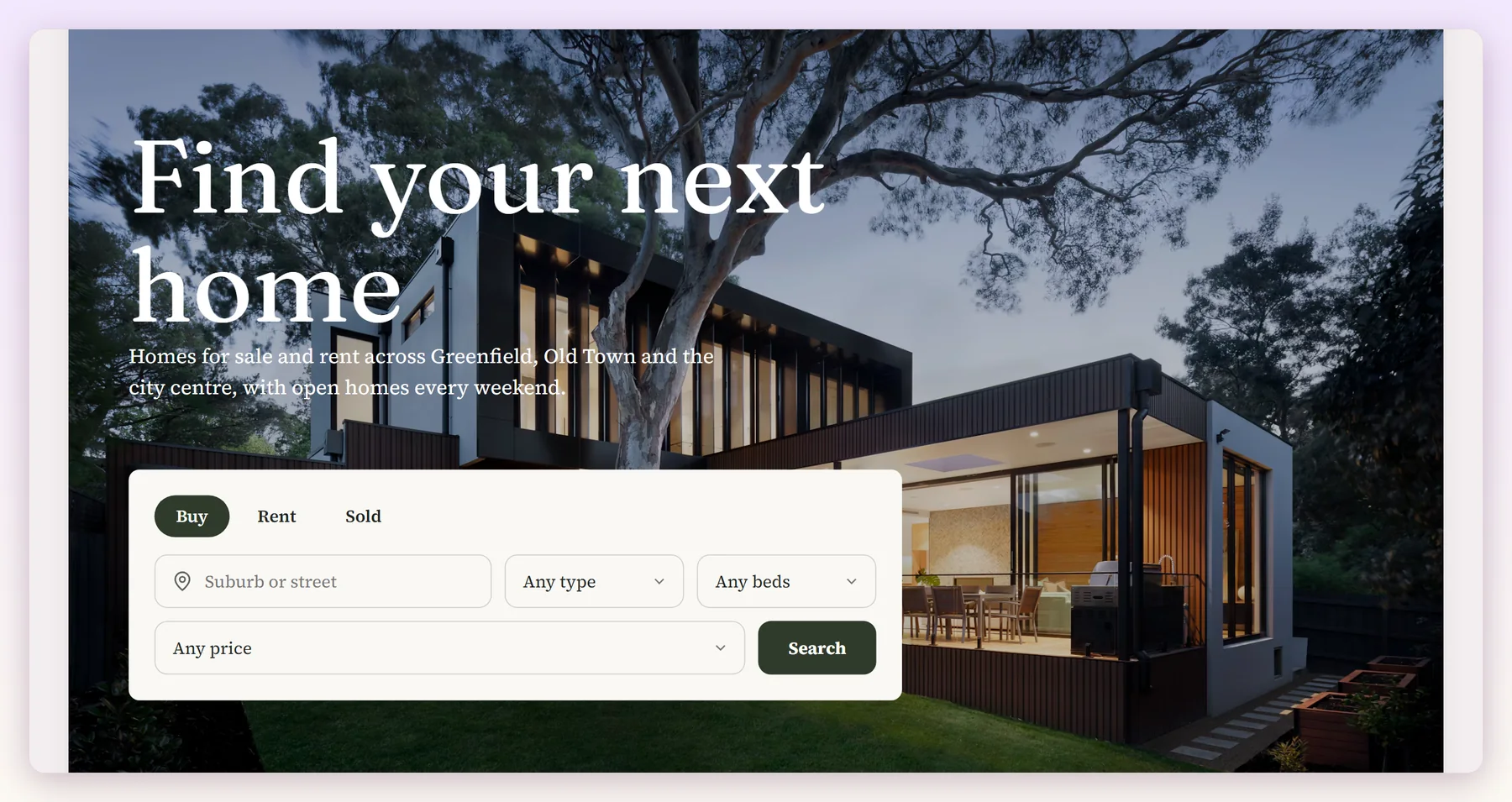
- Click your home page's hero section, then choose Add elements and click Listing search.
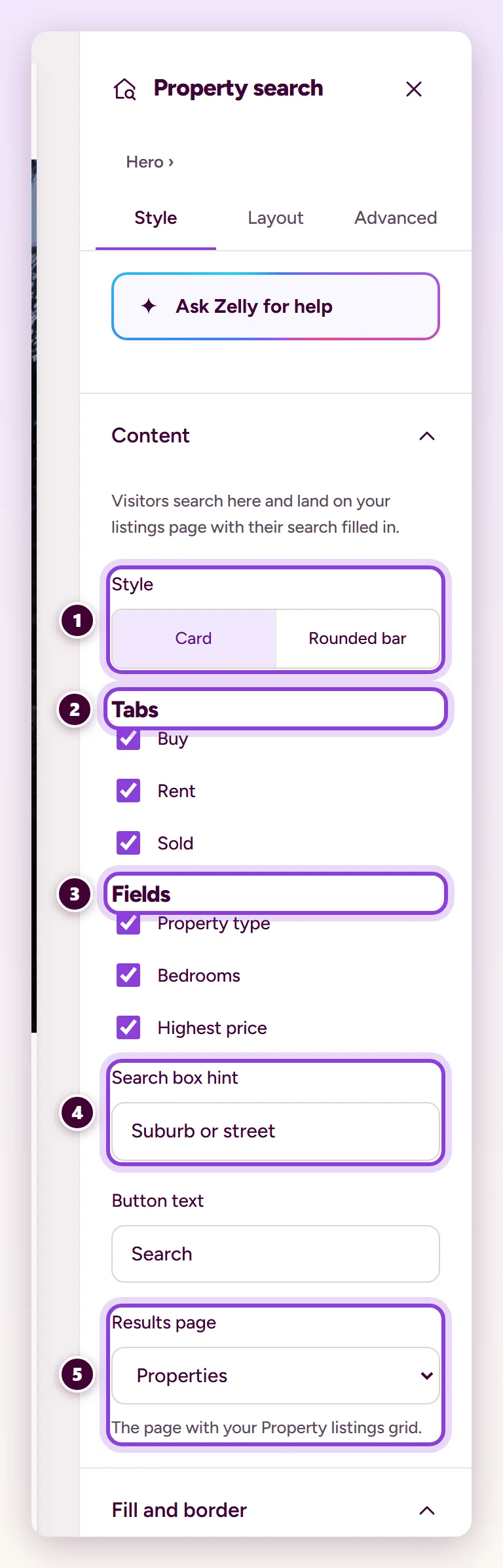
- Choose its Style, Tabs and Fields in the panel on the right.
- Leave Results page on Your listings page, then publish your site.
| Setting | What it does |
|---|---|
| Style | Card (a white panel with a shadow) or Rounded bar (one pill-shaped row, great over a photo). |
| Tabs | For property, which of Buy, Rent and Sold to offer. For other kinds, whether to show their tabs (like Full-time and Remote). |
| Fields | The type or category, a second filter (bedrooms for property, job type for jobs…) and price or salary. |
| Search box hint and Button text | The words in the box and on the button. |
| Results page | The page with your Property listings grid. Leave it on Your listings page. |