Send news, offers and new products to everyone who signed up through a Newsletter element on your website. There's no separate email tool to set up: write your email in your dashboard, check the preview, and send it now or on a date you choose.
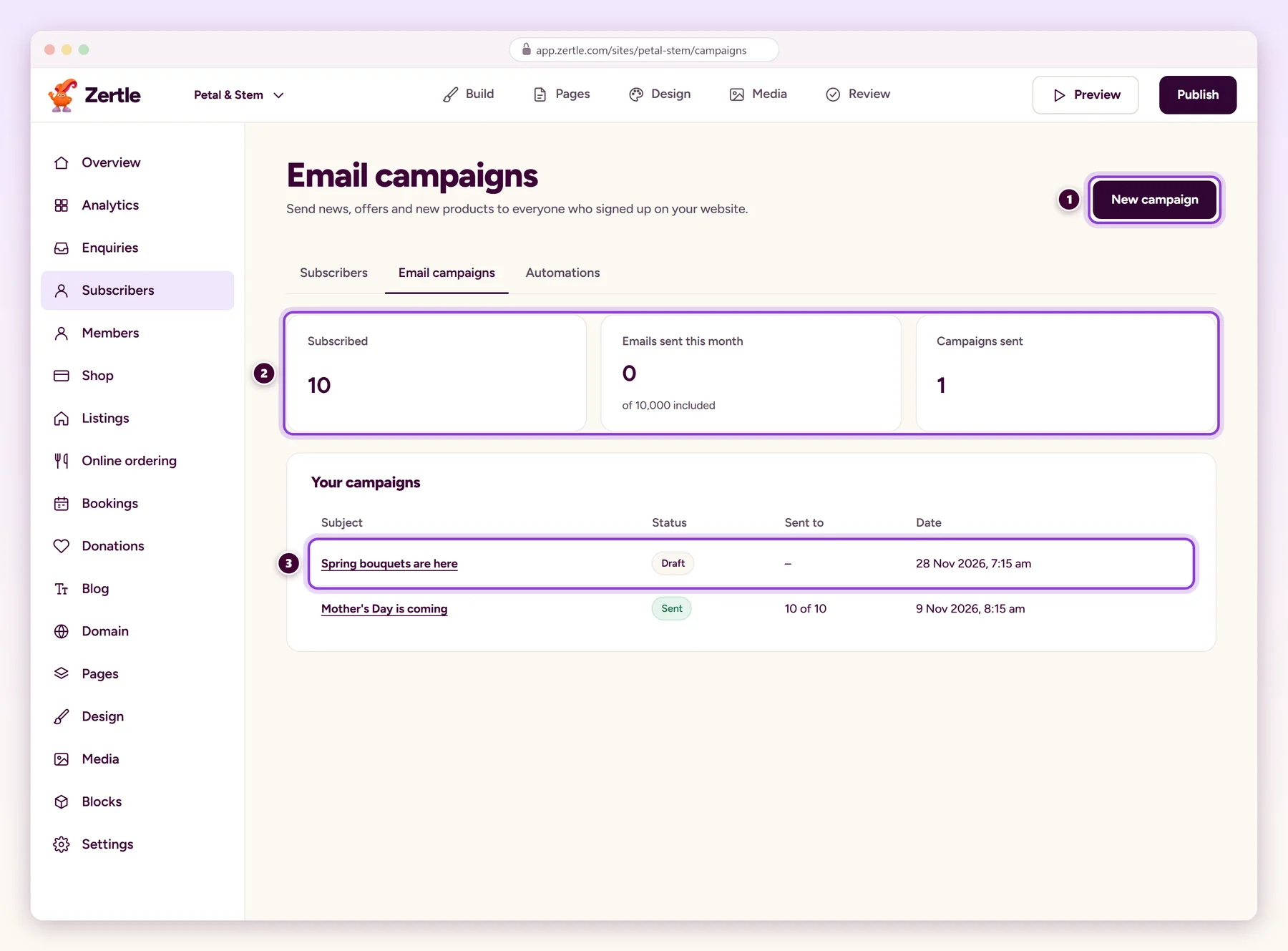
- Choose Subscribers in your dashboard's menu, then the Email campaigns tab.
- Choose New campaign.
- Write your email and choose Save.
- Choose Email me a test to check it in your own inbox.
- Choose Send now, or pick a date and choose Schedule.
Write your email
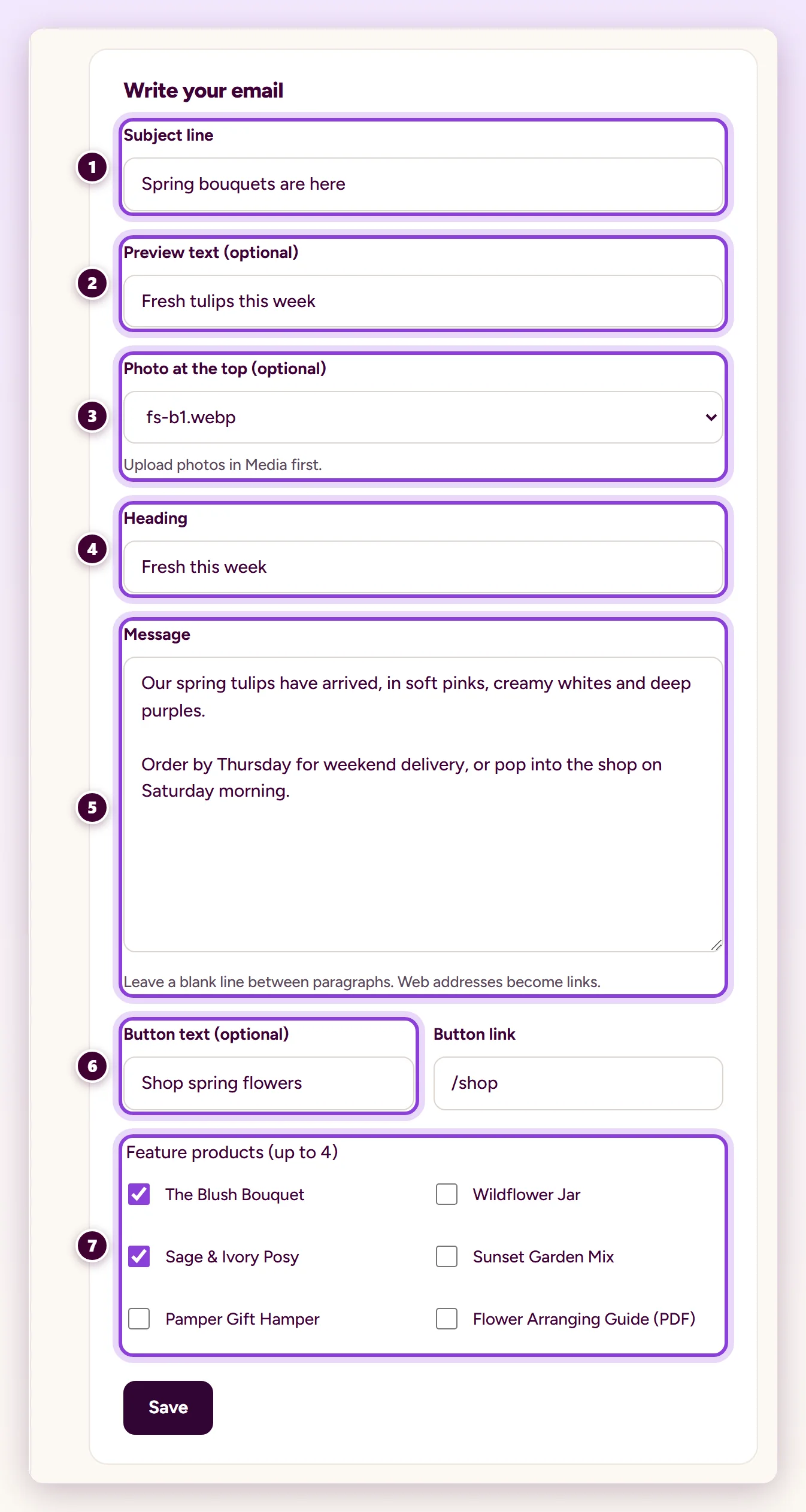
| Part | Tips |
|---|---|
| Subject line | Short and specific, like *Our spring flowers are here*. It's the first thing people see. |
| Preview text | Optional. The line shown after the subject in most inboxes. Use it to add a reason to open. |
| Photo at the top | Optional. Pick any photo from Media. Upload new photos there first. |
| Heading | The big line at the top of your email. |
| Message | Leave a blank line between paragraphs. Web addresses become links automatically. |
| Button text and Button link | Optional. One clear button, like *Shop the collection*. Use a page on your website, like /shop, or a full web address starting with https://. |
| Feature products | Up to 4 products from your shop, each with its photo, name, price and a link. |
Choose Save as you go. The preview updates each time you save.
Check it, then send
The preview shows your email as subscribers will see it. Every email ends with an unsubscribe link, added for you.
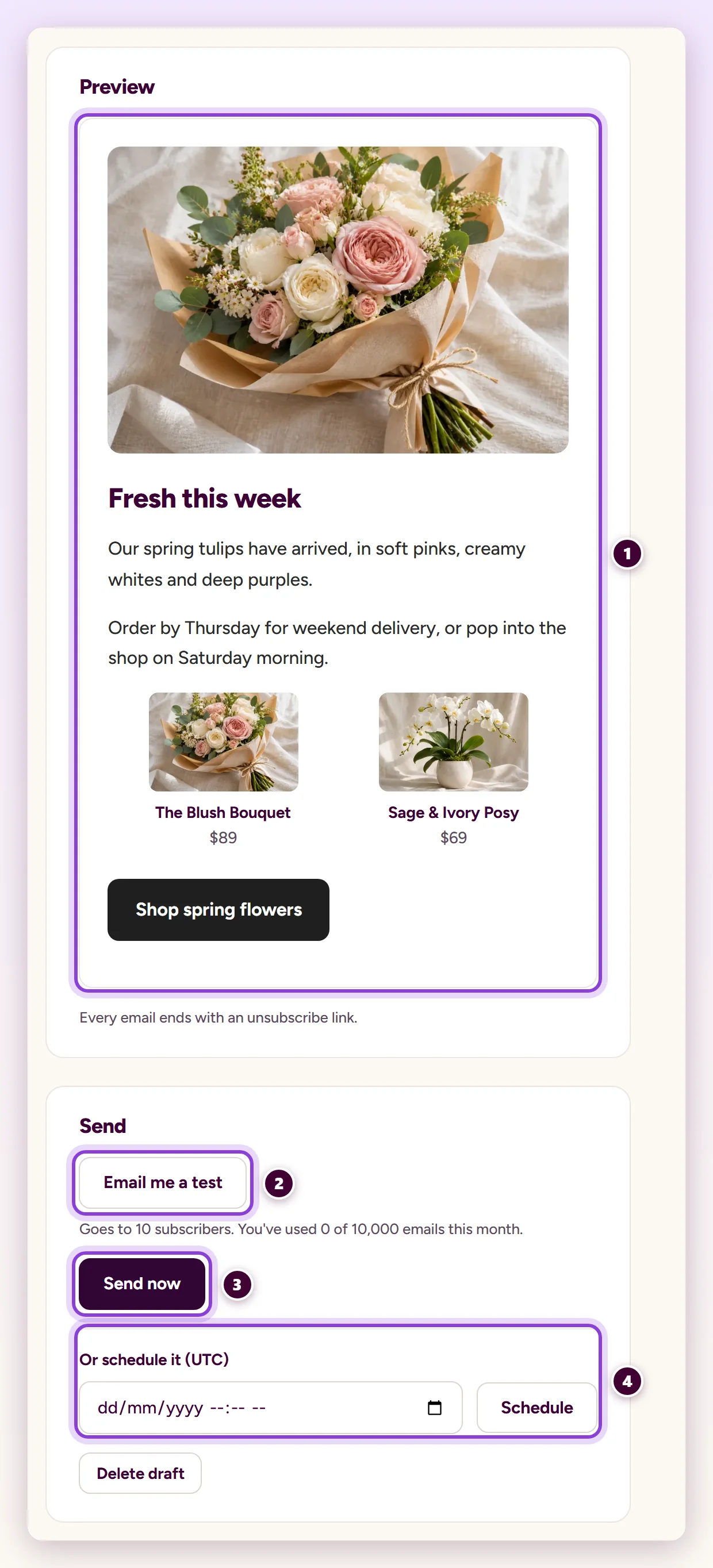
- Choose Email me a test. It goes to your own email address, so you can check it on your phone too.
- When you're happy, choose Send now. Large lists take a few minutes to finish sending.
- Or, to send it later, pick a date and time under Or schedule it (UTC) and choose Schedule. Times are in UTC, so check the time difference where you are.
To change a scheduled email, choose Cancel the schedule and edit. Drafts you no longer need can be removed with Delete draft.
After sending
Your campaigns list shows each email's status (Draft, Scheduled, Sending or Sent), how many people it went to and when. Emails come from your website's name (sent via Zertle), so subscribers know who they're from.
People who choose Unsubscribe are taken off your list straight away and never get another campaign.
How many emails you can send
Each email to one subscriber counts as one email. Emails sent this month shows how many you've used. Your allowance starts again on the 1st of each month.
| Plan | Emails a month |
|---|---|
| Business | 2,500 |
| Store | 10,000 |
| Elite | 25,000 |
If a campaign would go over what's left, Zertle tells you before sending anything.
Emails that send themselves
On the Elite plan, the Automations tab adds three emails that send automatically: a welcome for new subscribers, a thank-you after a purchase, and a *We miss you* email for customers who haven't ordered for a while. Write each one like a campaign, choose when it goes, and add a discount code if you like. They share your monthly email allowance.
Good to know
- Only email people who signed up. Never add addresses you bought or copied from somewhere else.
- One clear message and one button work better than lots of news at once.
- To grow your list, add a Newsletter element to your home page and footer.