Add it
- Click the section you want it in.
- Choose Add elements (the + at the top of the left-hand bar) and click Newsletter. You can also type its name in the search box.
- Select it and change the button text and thank-you message in the panel on the right.
Settings
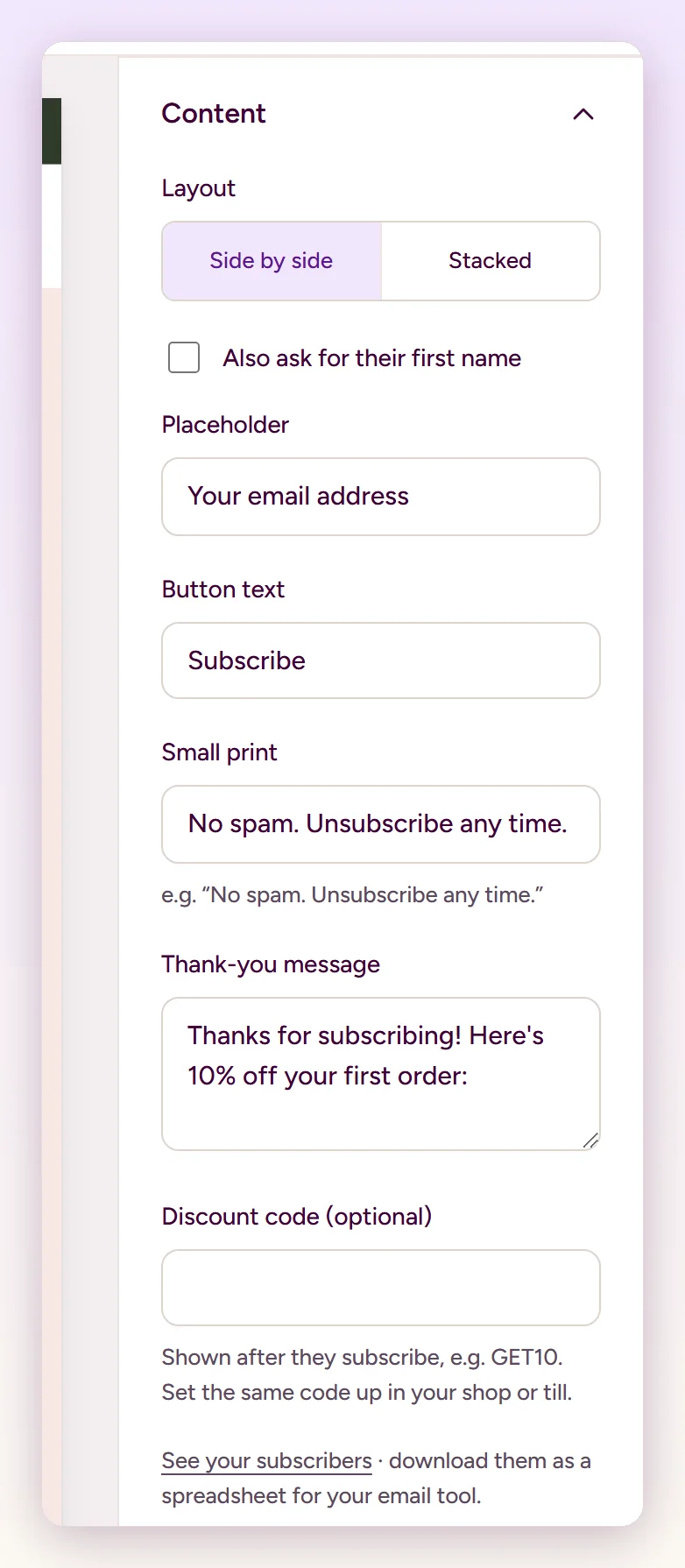
| Setting | What it does |
|---|---|
| Layout | Side by side (email and button in one row) or Stacked. |
| Also ask for their first name | Adds a first name box. |
| Placeholder | The hint in the email box. |
| Button text | Like "Subscribe" or "Get 10% off". |
| Small print | Like "No spam. Unsubscribe any time." |
| Thank-you message | Shown after they sign up. |
| Discount code | Shown after they subscribe, like GET10. Set the same code up in your shop's discount codes so it works. |
Everyone who signs up appears in Subscribers, which you can download for your email tool.
Every element also has the shared Style, Layout and Advanced settings: colours, spacing, borders, effects, size, visibility per screen and custom CSS.
← All elements guides