Add it
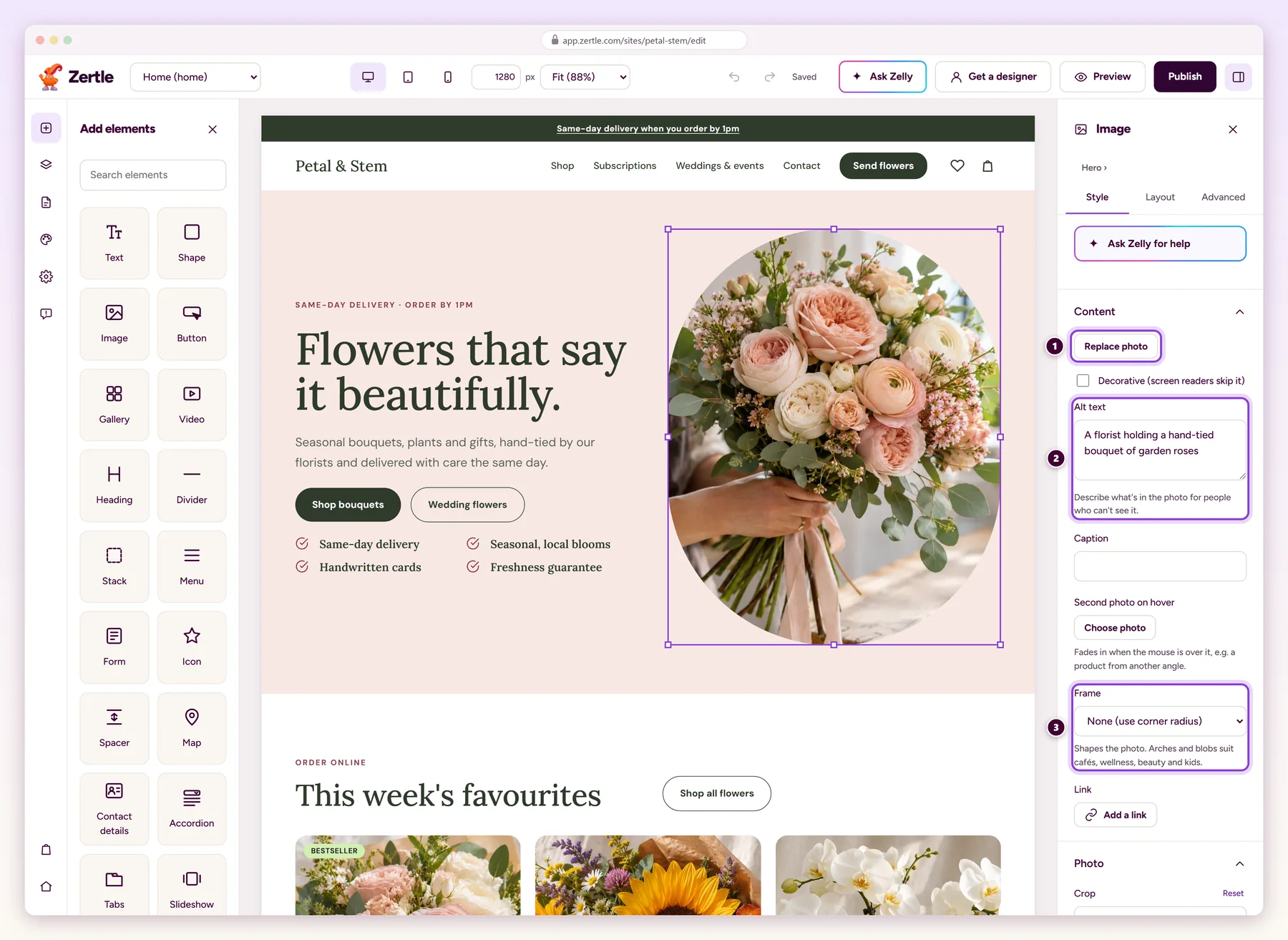
- Click the section you want it in.
- Choose Add elements (the + at the top of the left-hand bar) and click Image. You can also type its name in the search box.
- Choose Choose photo in the panel on the right, and add Alt text describing the photo.
Choose or replace the photo
Select the image and choose Choose photo (or Replace photo). Pick one you've uploaded, upload new ones, or search free stock photos. See Photos and media.
Content settings
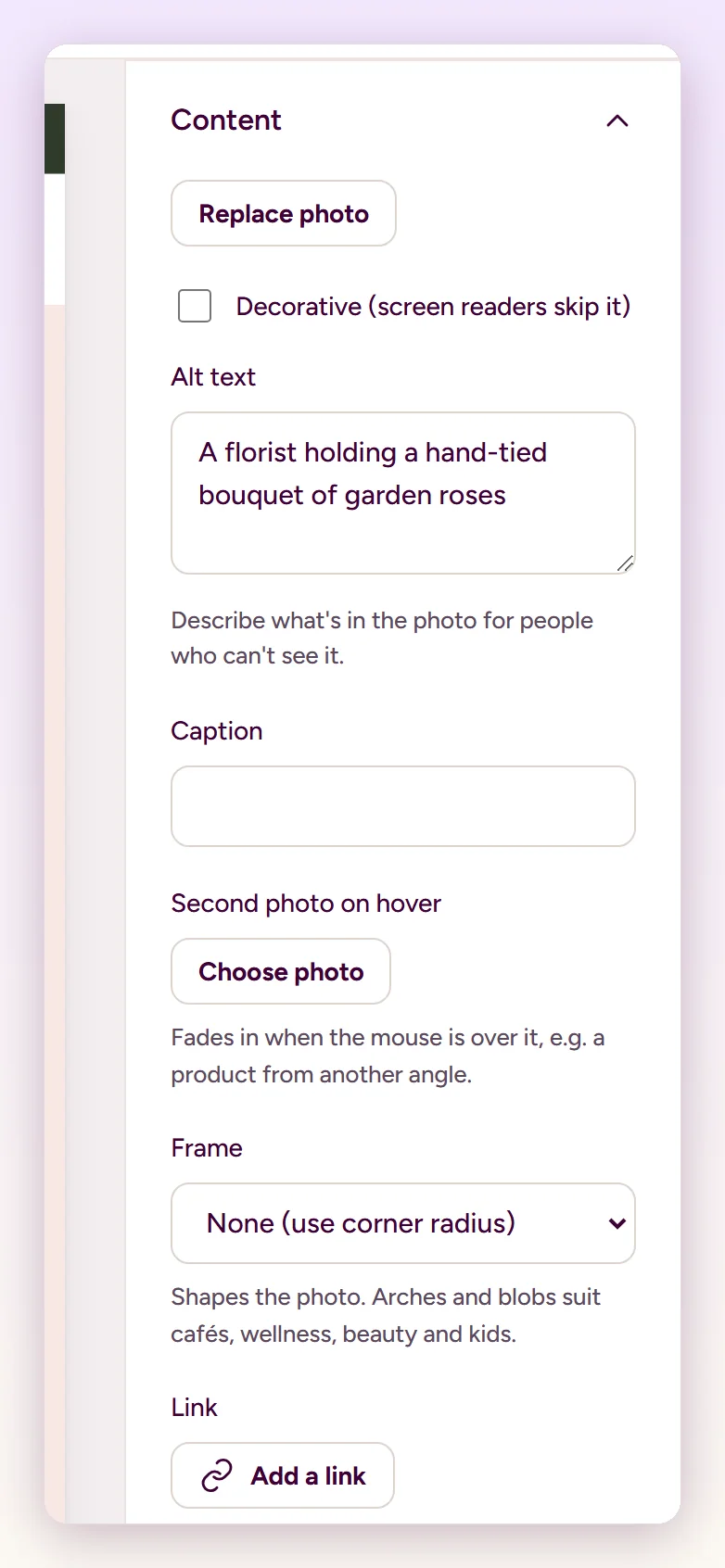
| Setting | What it does |
|---|---|
| Decorative | Tick for purely decorative photos: screen readers skip them. |
| Alt text | Describe what's in the photo for people who can't see it, like "Bride holding a bouquet of blush garden roses". Google reads it too. |
| Caption | Optional words shown under the photo. |
| Second photo on hover | Fades in when the mouse is over it, like a product from another angle. |
| Frame | Shape the photo: None (uses corner radius), Arch, Pill, Organic blob, Organic blob 2 or Leaf. |
| Link | Make the photo clickable. |
| Crop | Original, Square 1:1, 4:3, 3:2, 16:9, Portrait 3:4 or Portrait 2:3. |
| Fit | Fill the frame (crops to fit) or Show it all (no cropping). |
| Focal point | The part of the photo that always stays in view when it's cropped. |
| Hover effect | Lift up, Grow a little, Add a shadow, Darken or Zoom the photo. |
Every element also has the shared Style, Layout and Advanced settings: colours, spacing, borders, effects, size, visibility per screen and custom CSS.
← All elements guides