Add it
- Click the section you want it in.
- Choose Add elements (the + at the top of the left-hand bar) and click Video. You can also type its name in the search box.
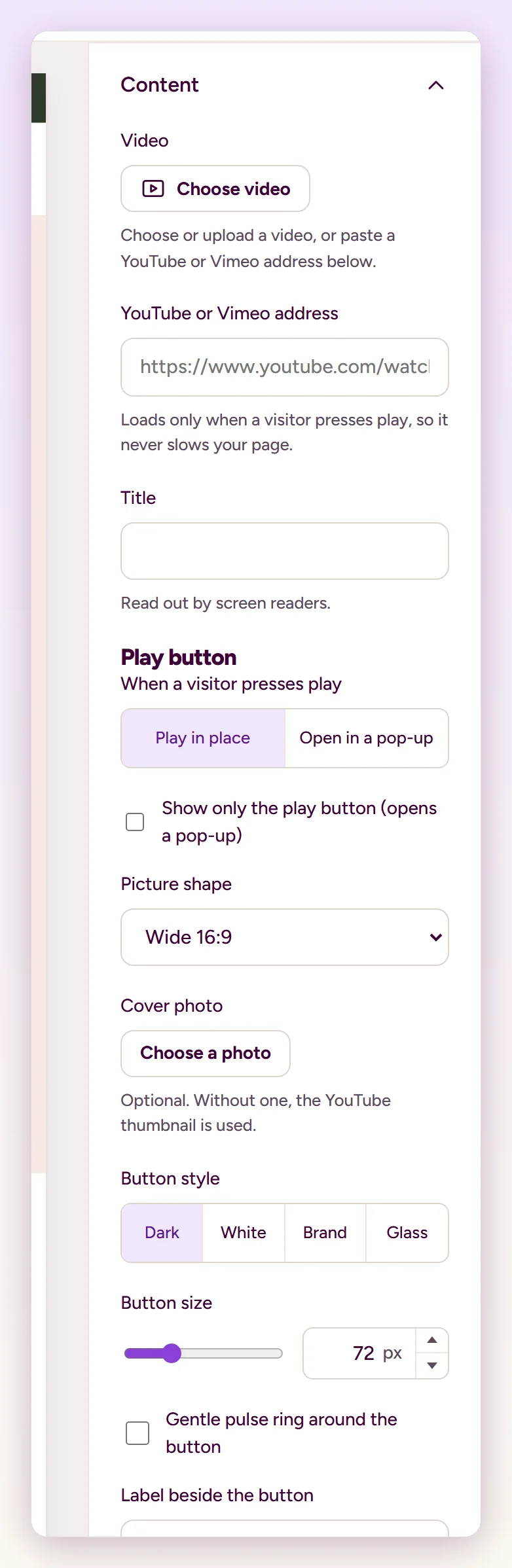
- Select it and choose Choose video, or paste a YouTube or Vimeo address.
Choose the video
- Choose video to upload your own or pick one you've uploaded, or
- paste a YouTube or Vimeo address. It loads only when a visitor presses play, so it never slows your page.
Give it a Title: screen readers read it out.
Play button
| Setting | What it does |
|---|---|
| When a visitor presses play | Play in place or Open in a pop-up. |
| Show only the play button | Just a play button that opens the video in a pop-up. Great beside a heading. |
| Picture shape | Wide 16:9, Cinema 21:9, Classic 4:3, Square, Portrait 4:5 or Tall 9:16 (reels). |
| Cover photo | The picture before it plays. Without one, YouTube's thumbnail is used. |
| Button style | Dark, White, Brand or Glass. |
| Button size | Size of the play button. |
| Gentle pulse ring | A soft pulsing ring that draws the eye. |
| Label beside the button | Optional words like "Watch our story". |
Every element also has the shared Style, Layout and Advanced settings: colours, spacing, borders, effects, size, visibility per screen and custom CSS.
← All elements guides