Buttons are the main way visitors take action: book, buy, call or get a quote.
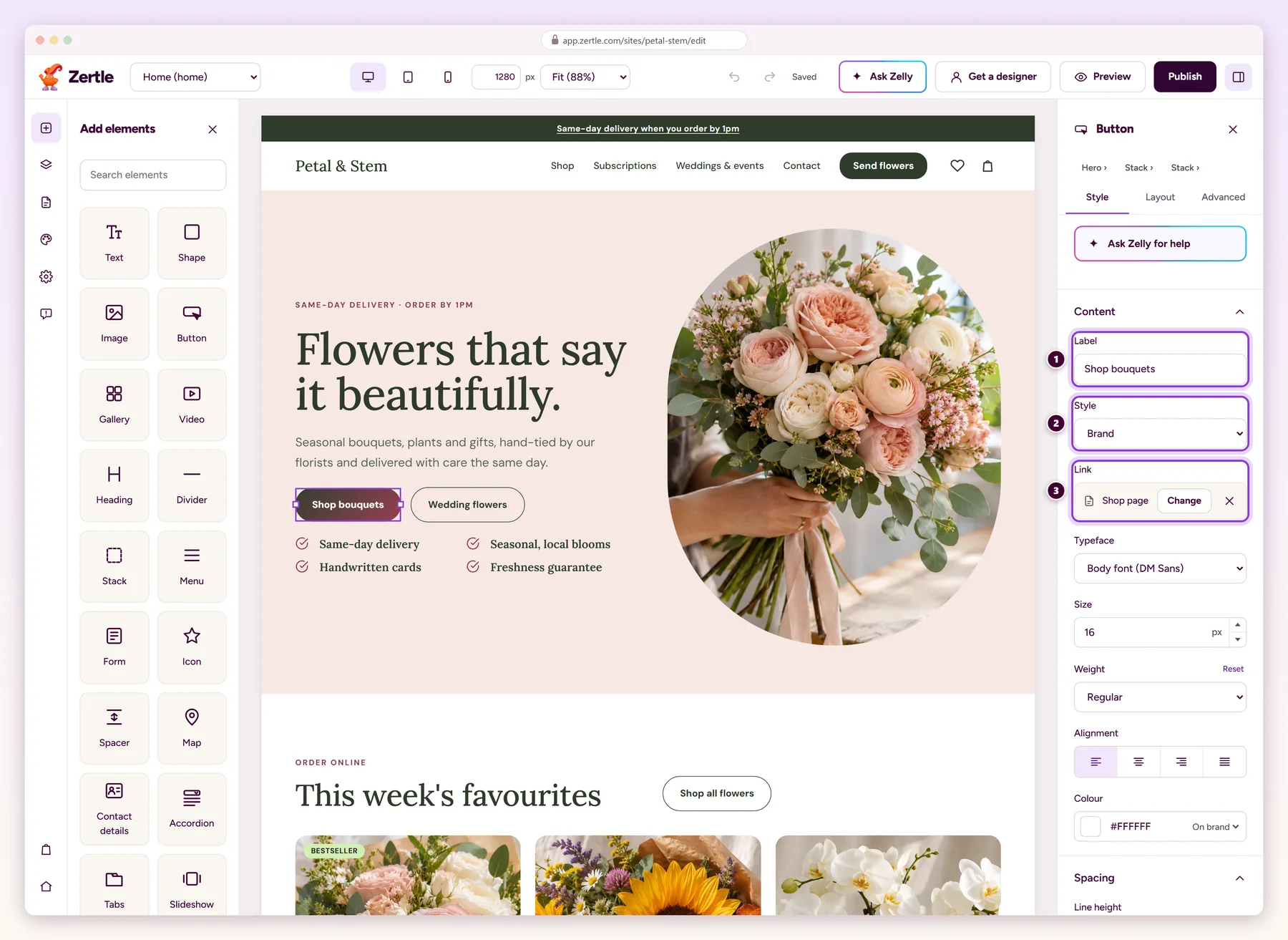
Add it
- Click the section you want it in.
- Choose Add elements (the + at the top of the left-hand bar) and click Button. You can also type its name in the search box.
- Double-click it to change its words, then choose Add a link in the panel on the right so it goes somewhere.
Content
| Setting | What it does |
|---|---|
| Label | The words on the button. Keep it short and clear, like "Book a table". You can also double-click the button to type. |
| Style | Brand (filled with your brand colour), Dark, Outline or Text link. |
| Link | Where it goes: a page, part of a page, a popup, another website, email or phone. Choose Change to pick, or × to remove. See Links. |
Make it stand out
- Use Brand for the one main action in each section, and Outline for a second choice beside it.
- Change its colours, corners (999 makes a pill), border and shadow in Fill and border.
- Add a hover effect like Lift up in Effects.
- On phones, set Width to Fill (Layout tab) so it's easy to tap.
Every element also has the shared Style, Layout and Advanced settings: colours, spacing, borders, effects, size, visibility per screen and custom CSS.
← All elements guides