Forms collect enquiries. Everything people send arrives by email and in Enquiries on your dashboard.
Add it
- Click the section you want it in.
- Choose Add elements (the + at the top of the left-hand bar) and click Form. You can also type its name in the search box.
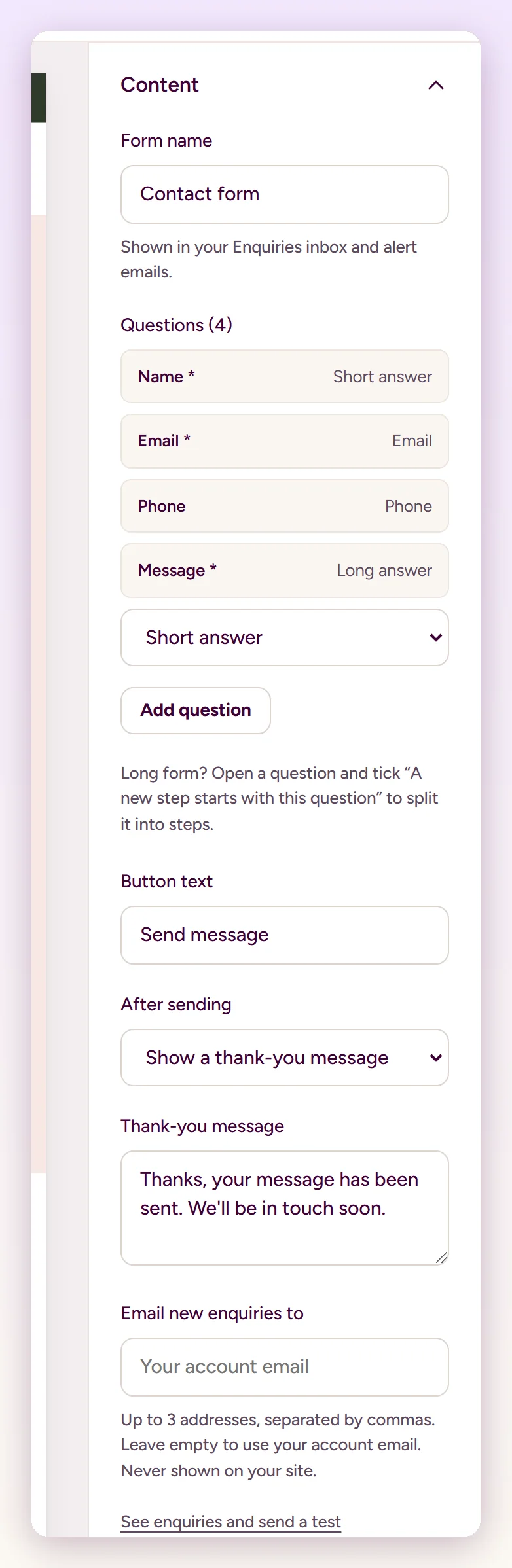
- Select it, then change the questions and fill in Email new enquiries to in the panel on the right.
Content
| Setting | What it does |
|---|---|
| Form name | Shown in your Enquiries inbox and alert emails, like "Wedding enquiry". |
| Questions | Every question on the form. Open one to change it. |
| Add question | Choose the answer type in the box above it, then Add question. |
| Button text | The words on the send button. |
| After sending | Show a thank-you message, or Go to a page (like a thank-you page). |
| Thank-you message | What people see after sending. |
| Automatic reply | Tick Email the visitor a thank-you to send them an email, with your subject and message, as soon as they send the form. It goes to the address they enter in the Email question, and replies come to you. Their answers aren't included, and one address gets it at most twice a day. |
| Email new enquiries to | Up to 3 addresses, separated by commas. Leave empty to use your account email. Never shown on your site. |
Each question
| Setting | What it does |
|---|---|
| Question | The label, like "Your name". |
| Answer type | Short answer, Email, Phone, Long answer, Dropdown, Choose one, Tick boxes, Number, Date, Time, Website address, Agreement tick box (like "I agree to the terms"), or File upload. |
| Example text in the box | A hint inside the box, like "e.g. 12 March". |
| Help text | Optional words under the question. |
| Required | People must answer it before sending. |
| Half width | Sits beside the next question on wider screens, like First name and Last name. |
| Show this question | Always, or only when an earlier Dropdown, Choose one, Tick boxes or Agreement question has a certain answer, like showing "Upload your plans" only when someone picks "New build". Hidden questions aren't required and aren't sent. |
| A new step starts with this question | Splits a long form into steps, with a progress bar. |
File uploads
Choose File upload as the answer type to let people send photos or documents with their enquiry.
| Setting | What it does |
|---|---|
| Files allowed | Photos (JPG, PNG, WebP, GIF, HEIC), Documents (PDF, Word, Excel, TXT, CSV), or Photos and documents. |
| How many files | One file, or up to 5. |
Each file can be up to 10 MB, and up to 20 MB per enquiry. Every file is checked when it arrives: files that aren't really one of the allowed types, such as programs or web pages, are refused. Files are kept private and never appear on your website. Download them from the enquiry in Enquiries.
Uploads count toward your plan's storage. If it's full, the enquiry still arrives, but without its files: the visitor is told, and you see which files were missed. Uploaded files are deleted automatically 12 months after the enquiry arrives (the enquiry itself is kept). You can change this, or keep files forever, under Uploaded files at the bottom of Enquiries.
Spam protection
Every form is protected from spam automatically, with no puzzles for your visitors.
Test it
After publishing, use Send a test enquiry in Enquiries to check the alert email reaches you.
Every element also has the shared Style, Layout and Advanced settings: colours, spacing, borders, effects, size, visibility per screen and custom CSS.
← All elements guides