Six list elements share the same simple editor: open an item to change it, Add more, and use Move up, Move down or Remove. All of them have Columns (desktop, tablet and phone) and Gap.
Add it
- Click the section you want it in.
- Choose Add elements (the + at the top of the left-hand bar) and click Price list / menu, Stats, Process steps, Pricing plans or Icon features. You can also type its name in the search box.
- Select it, then open each item in the panel on the right to change it.
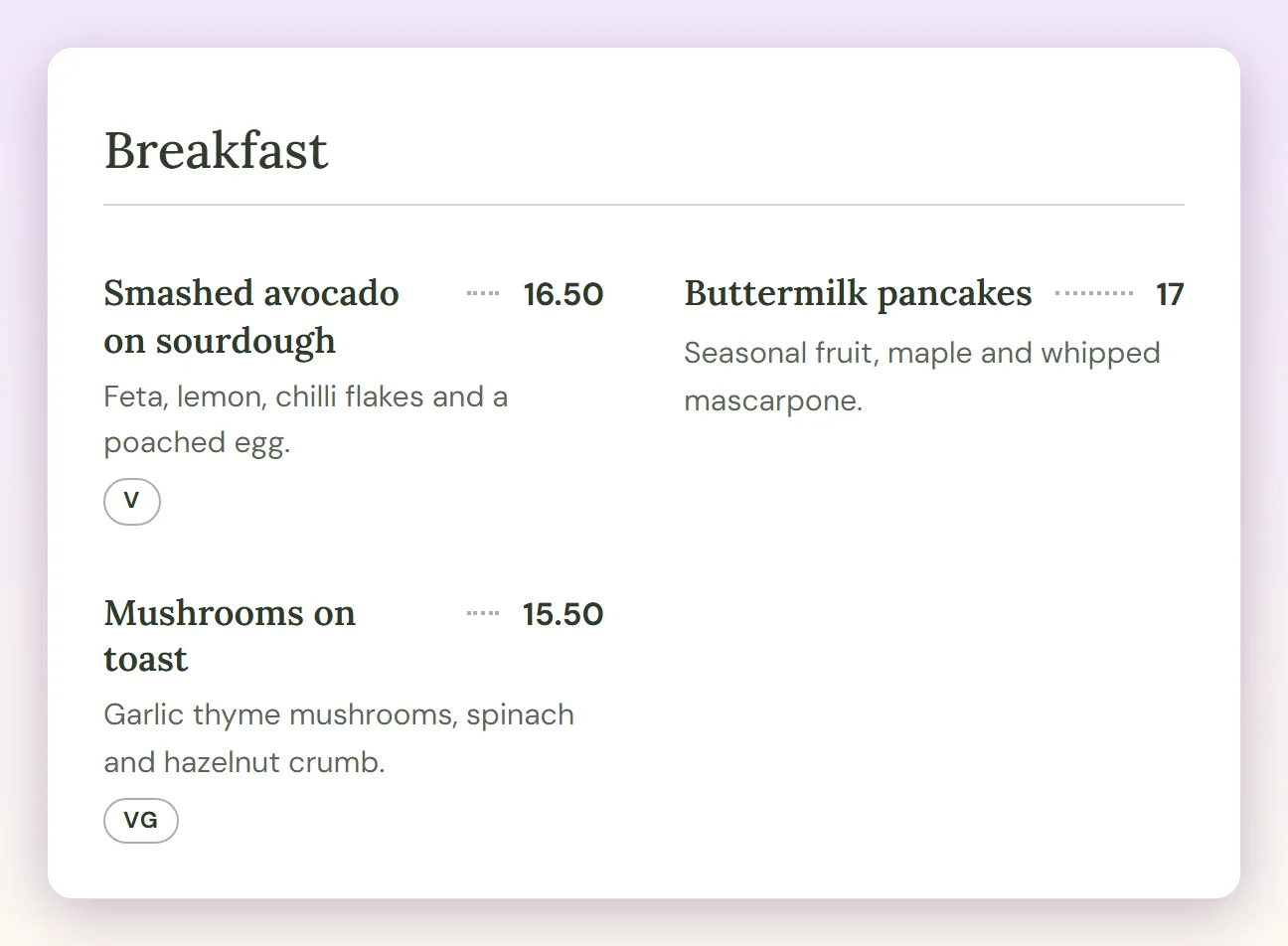
Price list / menu
For cafés, restaurants, salons and anything with prices.
| Setting | What it does |
|---|---|
| This row is a category heading | Turns a row into a heading like "Breakfast", with an optional note under it. |
| Name, Price, Description | Each dish or service. |
| Labels | Comma separated, like V, GF, New. |
| Photo | Optional small photo. |
| Dotted line between name and price | The classic menu look. |
Stats
Big numbers with a Label, like "Years open: 12". Each has a Number (like 250+ or 4.9) and optional Small print. Tick Numbers count up when they scroll into view for a lively effect.
Process steps
Numbered steps like Choose, Confirm, Enjoy. Each has a Step title and Description.
Pricing plans
Side-by-side plans. Each has a Plan name, Price, Period (like /month), Features (one per line), Button text and Link. Tick Highlight this plan on one, and set the Highlight label (like "Most popular").
Icon features
A row of promises like Free delivery, Quality guaranteed, Friendly help. Each has an Icon, Title and Short description. Choose the Icon style (Circle, Square or Plain), size and colours, and whether the icon sits beside the words or above.
Category tiles
Shop-style tiles like "Bouquets", "Plants", "Gifts". Each has a Label, Photo, Tile colour (great behind product cut-outs) and Link. Choose the Tile shape: Circle, Rounded or Square.
Every element also has the shared Style, Layout and Advanced settings: colours, spacing, borders, effects, size, visibility per screen and custom CSS.
← All elements guides