- Choose Shop in your dashboard's menu, then Shop settings.
- Work down the page: customer accounts, card payments, delivery, discounts and more.
- Save the part you changed (most use Save shop settings at the bottom of the page). Publish your site to update the live shop.
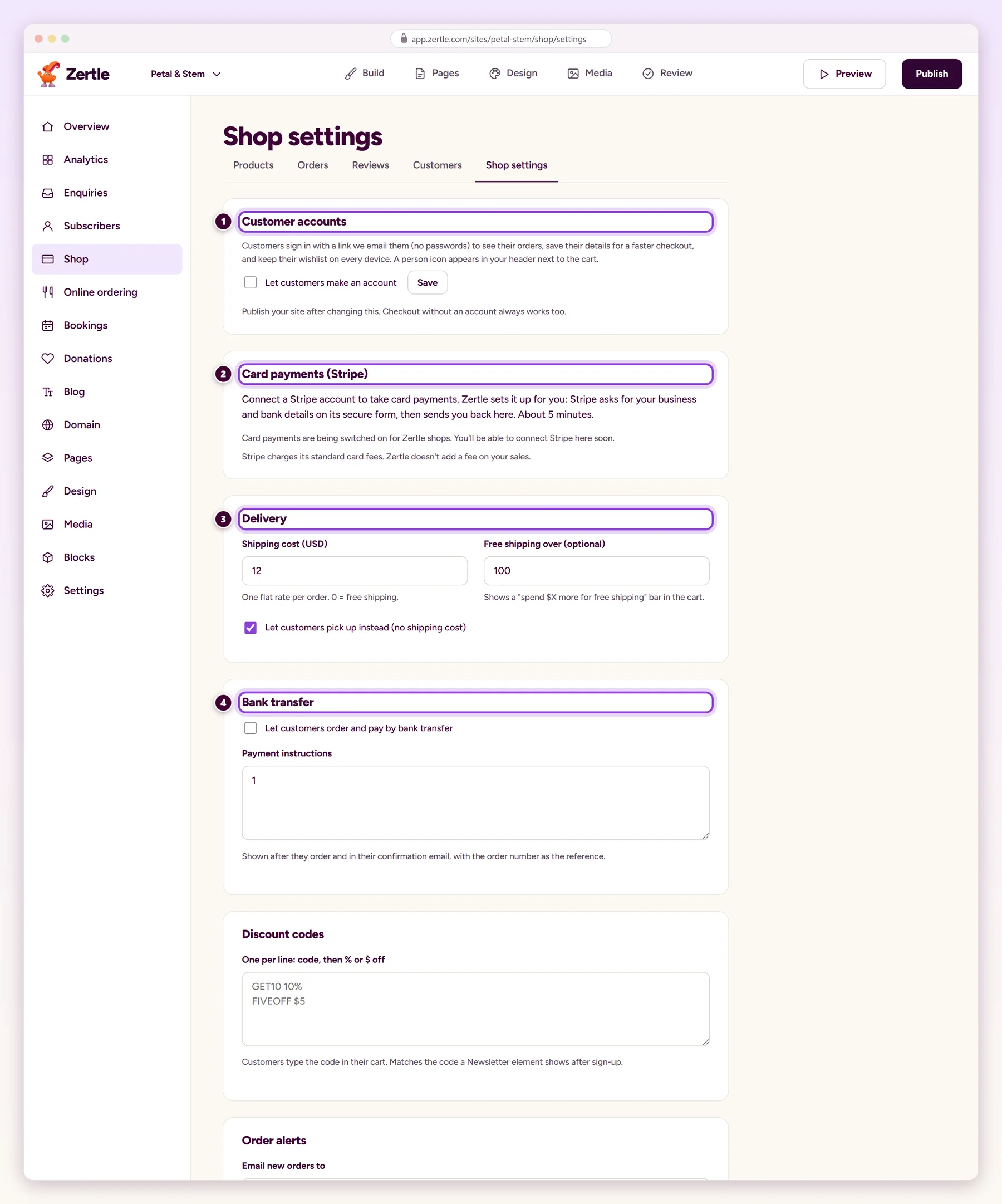
Customer accounts
Tick Let customers make an account and publish. Customers sign in with an emailed link (no passwords) to see their orders, save their details for a faster checkout and keep their wishlist on every device. Checkout without an account always works too. See Orders and customers.
Card payments (Stripe)
Connect Stripe to take card, Apple Pay and Google Pay payments. See Take card payments with Stripe. Stripe charges its standard card fees; Zertle doesn't add a fee on your sales.
Delivery
| Setting | What it does |
|---|---|
| Shipping cost | One flat rate per order. 0 means free shipping. |
| Free shipping over | Optional. Shows a "spend $X more for free shipping" bar in the cart. |
| Let customers pick up instead | Adds a free pick-up choice at checkout. |
Shipping zones and delivery options
Ship to as many countries as you like, each with its own prices and delivery times. Group countries into zones (like Domestic, Europe and Rest of the world), then give each zone one or more delivery options, like Standard, Express and Local delivery.
| Zone setting | What it does |
|---|---|
| Zone name | Like "Domestic" or "Europe". |
| Countries | Country names separated by commas, like "United States, Canada". Type a group to add many at once: European Union, Europe, North America or Asia Pacific. Every country and territory in the world is available. |
| Everywhere else | Covers every country not in another zone. Without it, countries outside your zones can't choose delivery. |
For each delivery option:
| Option setting | What it does |
|---|---|
| Option name | What customers see, like "Express". |
| Delivery time | Optional, like "1–2 business days". Shown beside the price. |
| How it's priced | One price per order; Price per item (the first item, then each extra item); By order total (price bands, like "Up to 50: 8"); or By weight (price bands, like "Up to 1 kg: 8"). |
| Price bands | One band per line: "Up to [amount]: [price]", then "Over: [price]". Leave "Over" out to stop offering the option above the last band, like a light-parcel service. |
| Free over | Orders worth this much ship free with this option. |
| Only these postcodes | For local delivery: exact postcodes, a start like 90*, or a range like 1000-1999. |
| Only for orders between | Offer an option only for certain order totals, like Express from 50 or Freight over 500. |
At checkout, customers choose their country and add their postcode, then pick from every option that applies, cheapest first. The total updates as they choose, and the option is checked again when they order. It shows on their confirmation, your order email and the order in your dashboard.
Products priced By weight use each product's weight (set on the product, or for each size or colour). Choose kilograms or pounds in Delivery. Products that don't need shipping (services, downloads, gift cards) add no shipping, and an order of only those skips the address.
Pick-up locations
With Let customers pick up instead ticked, add each place customers can collect from: its name, address, opening hours, how soon orders are ready, an optional fee and instructions (like "Collect from the side door"). At checkout, customers choose a location; it shows on their confirmation and on the order. With no locations, they simply choose "I'll pick it up".
Delivery estimate on product pages
Tick Show an estimated delivery date to show a line like "Arrives Mon 1 Dec – Thu 4 Dec to United States" by the Add to cart button. It adds your processing time (how many business days you take to send an order) to the delivery time of the shopper's options for their country. Without shipping zones, it uses the Delivery time for the flat rate. Weekends are skipped.
Extra shipping for bulky items
On a product, Extra shipping per item adds that amount to every delivery option for each one ordered, even when shipping is otherwise free. It isn't added to pick-up.
Bank transfer
Tick Let customers order and pay by bank transfer and write your Payment instructions (your account name and number). They're shown after the customer orders and in their confirmation email, with the order number as the reference.
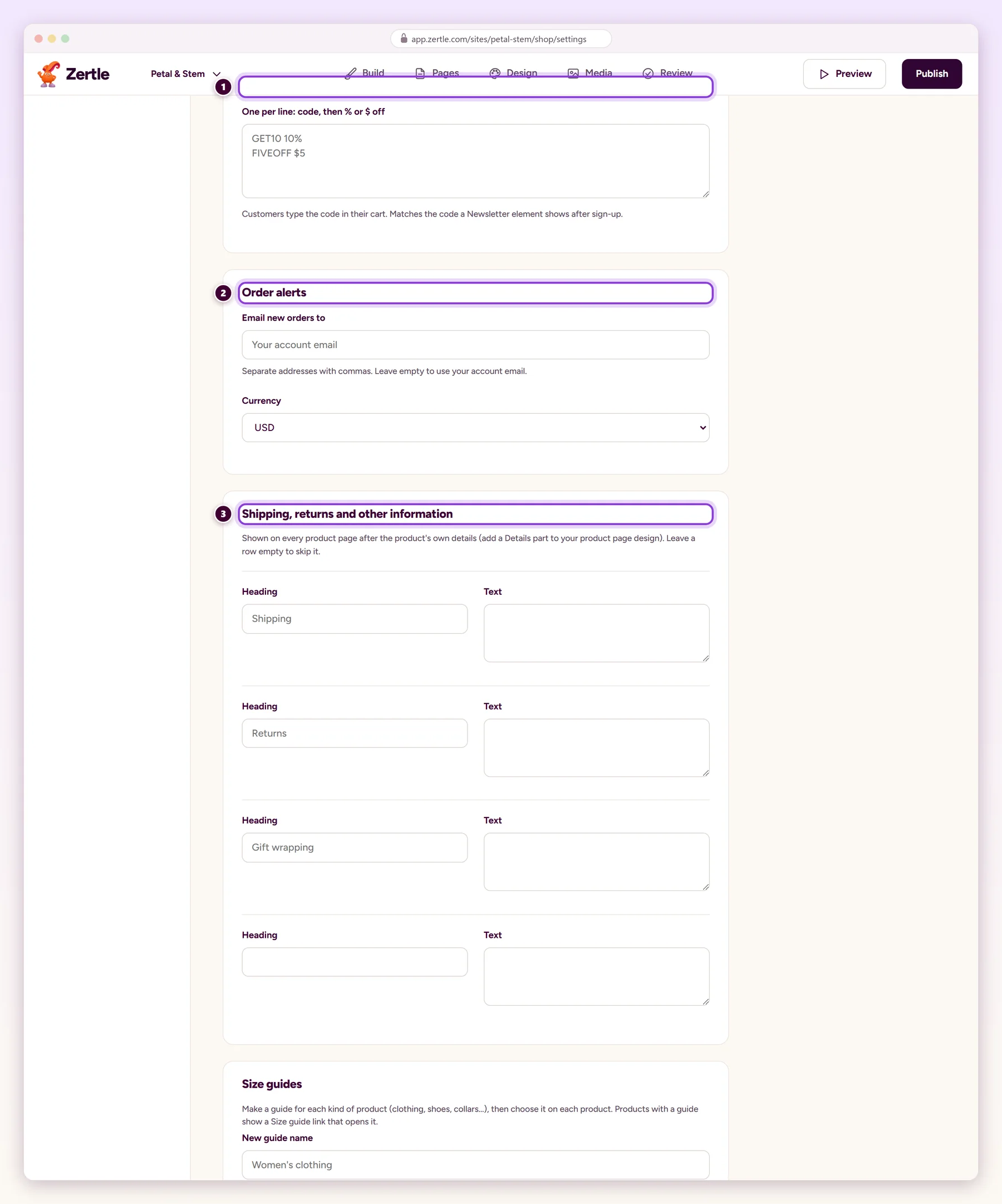
Discount codes
One per line: the code, then the amount off as a percentage or dollars, like:
- GET10 10%
- FIVEOFF $5
Customers type the code in their cart. Use the same code as your Newsletter element's sign-up reward.
Order alerts and currency
- Email new orders to: addresses separated by commas. Leave empty to use your account email.
- Currency: USD, EUR, GBP, AUD, CAD, NZD, SGD, ZAR, CHF, SEK, NOK, DKK, HKD or MXN.
Shipping, returns and other information
Up to four shop-wide sections (like Shipping, Returns and Gift wrapping), shown on every product page after the product's own details. Leave a row empty to skip it.
Size guides
See Sizes, colours, swatches and size guides.
Choose Save shop settings, then publish.
← All online shop guides