Options
Each product can have up to three options, like Size and Colour.
- Open Shop → Products and click the product.
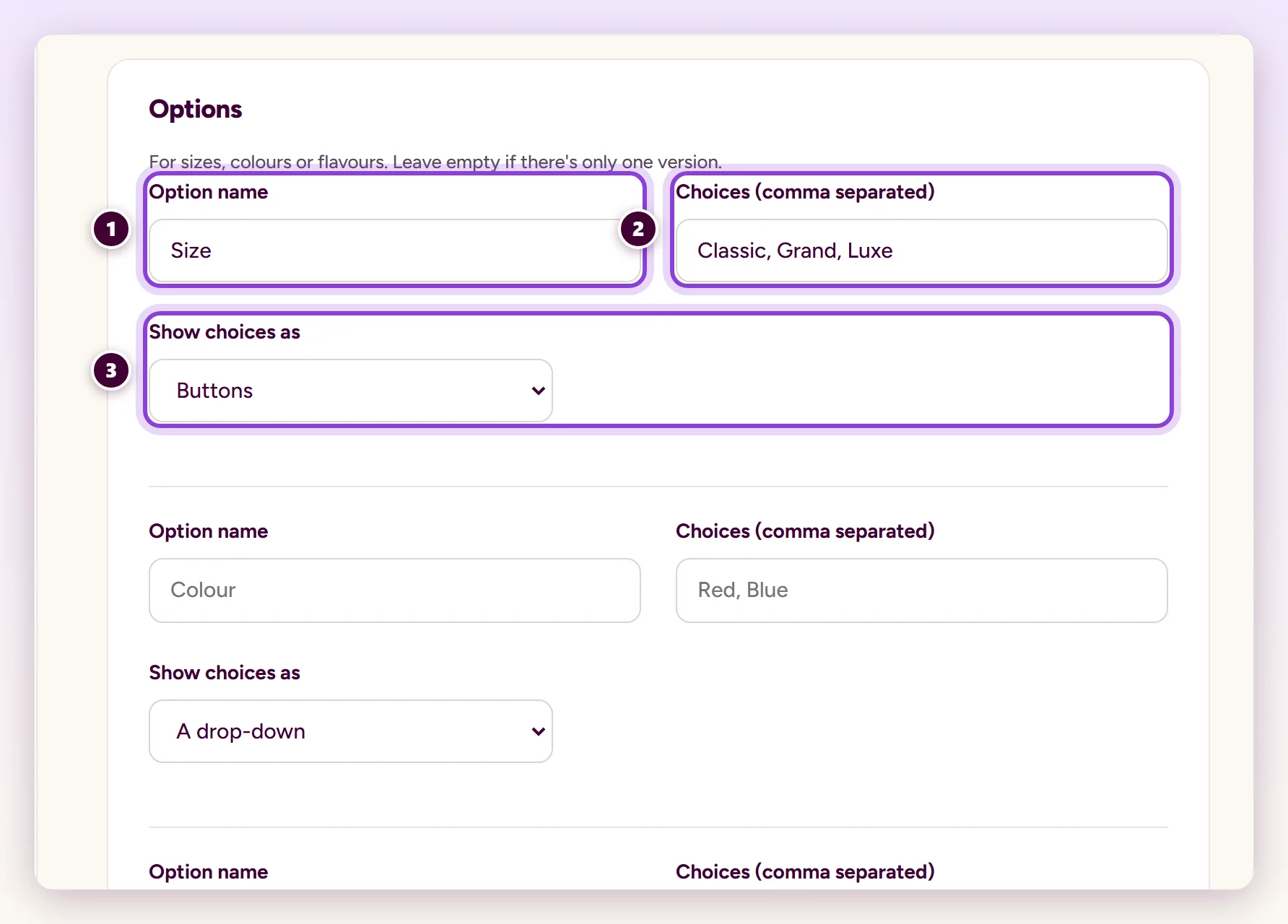
- Under Options, type the Option name (like Size) and its Choices (like Small, Medium, Large).
- Choose how they're shown: a drop-down, buttons or colour or photo swatches.
- Choose Save product. For swatches, you can now set a colour dot or one of the product's photos for each choice. Choosing a photo swatch shows that photo.
Size guides
- In Shop settings → Size guides, add a guide: a name, a short intro, a table (one row per line, columns separated by commas, first line is the headings; you can paste from a spreadsheet) and a note.
- On each product, choose the guide under Size guide. A Size guide link appears by the size choice and opens it.
Details and shipping information
Add sections like Materials and Care on each product (Extra details), and shop-wide ones like Shipping and Returns in Shop settings. A Details part on your product page shows them as accordions, tabs or a list.
← All online shop guides