Open Shop on your dashboard and choose Add a product, or click a product to edit it.
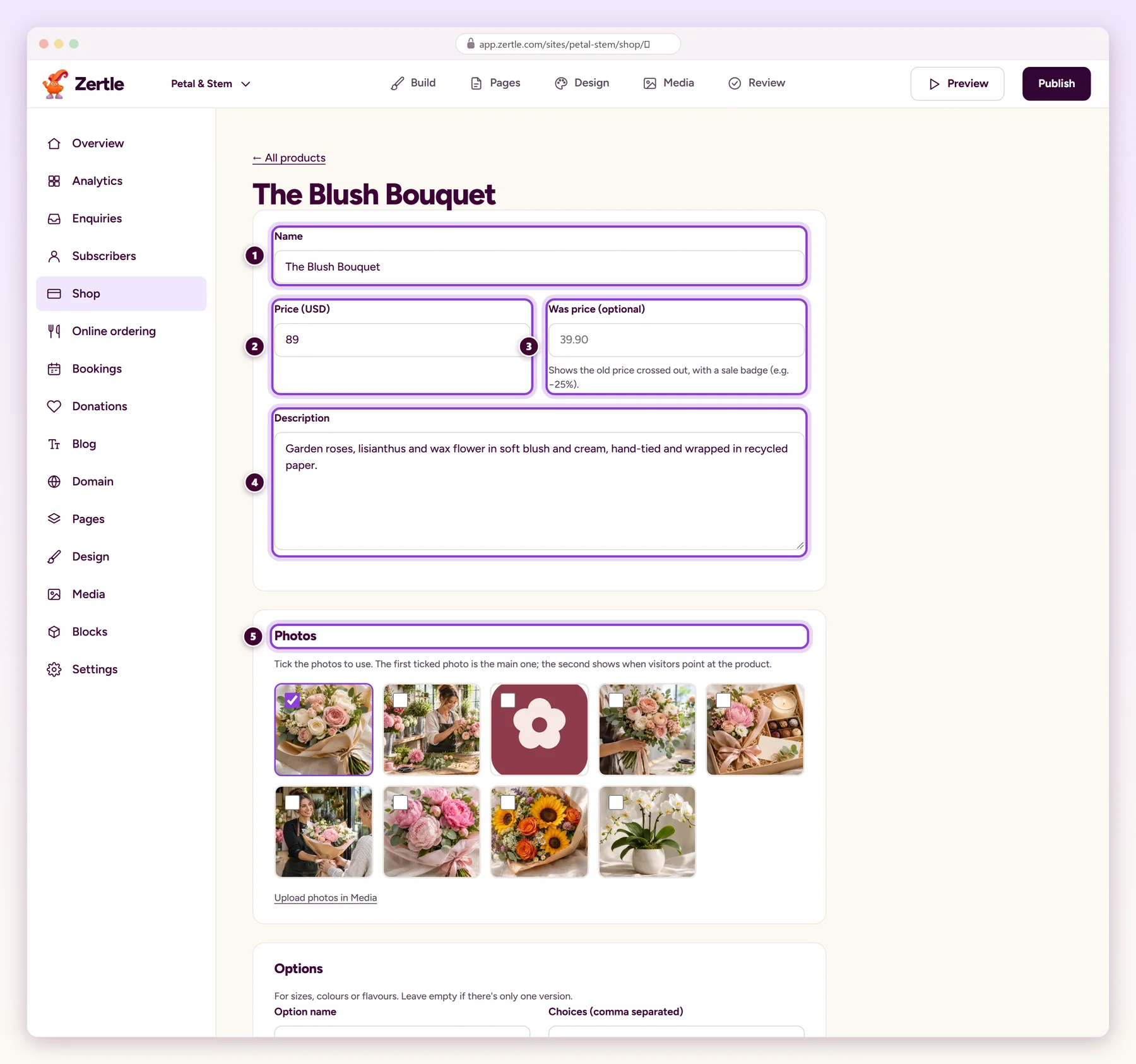
The basics
| Setting | What it does |
|---|---|
| Name | The product's name, like "The Blush Bouquet". |
| Price | The price in your shop's currency, like 89 or 29.90. |
| Was price | Optional. Shows the old price crossed out, with a sale badge like −25%. |
| Description | What it is, what's included and why people will love it. |
Photos
Tick the photos to use, from your media. The first ticked photo is the main one; the second shows when visitors point at the product. To add new photos, choose Upload photos in Media, then come back.
Options (sizes, colours, flavours)
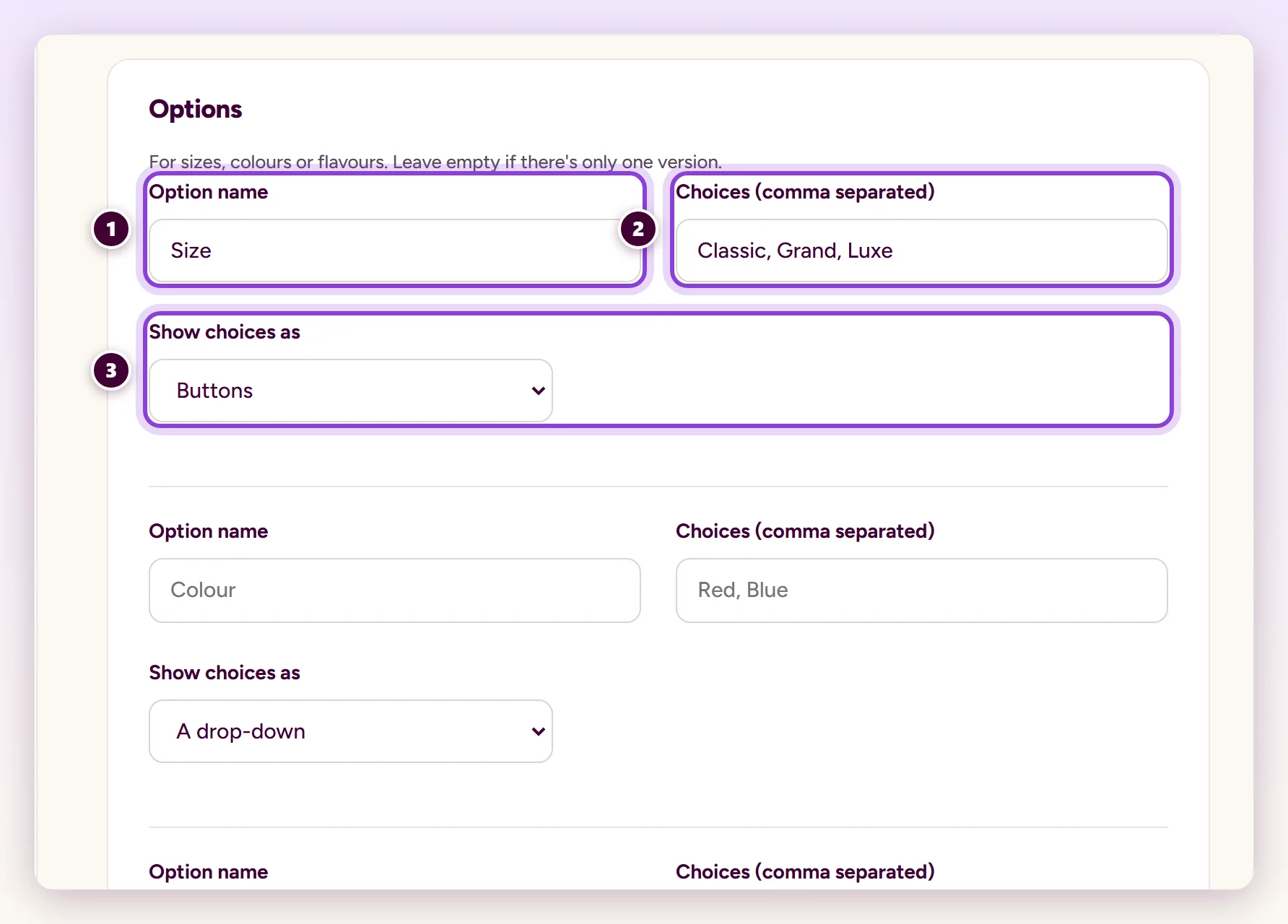
Add up to three options. For each:
- Option name, like Size.
- Choices, separated by commas, like Classic, Grand, Luxe.
- Show choices as a drop-down, buttons, or colour or photo swatches.
After saving, you can set a colour dot or one of the product's photos for each swatch. See Sizes, colours, swatches and size guides.
Extra details
Sections shown on the product page as accordions, tabs or a list, like Materials and Care. Each has a Heading and Text. Shop-wide sections, like Shipping and Returns, are in Shop settings.
Size guide and sale end
- Size guide: choose one of the guides you've made in Shop settings. A Size guide link appears by the size choice.
- Sale ends: with a was price, shows "Sale ends in…" and goes back to the was price automatically when it ends.
Details
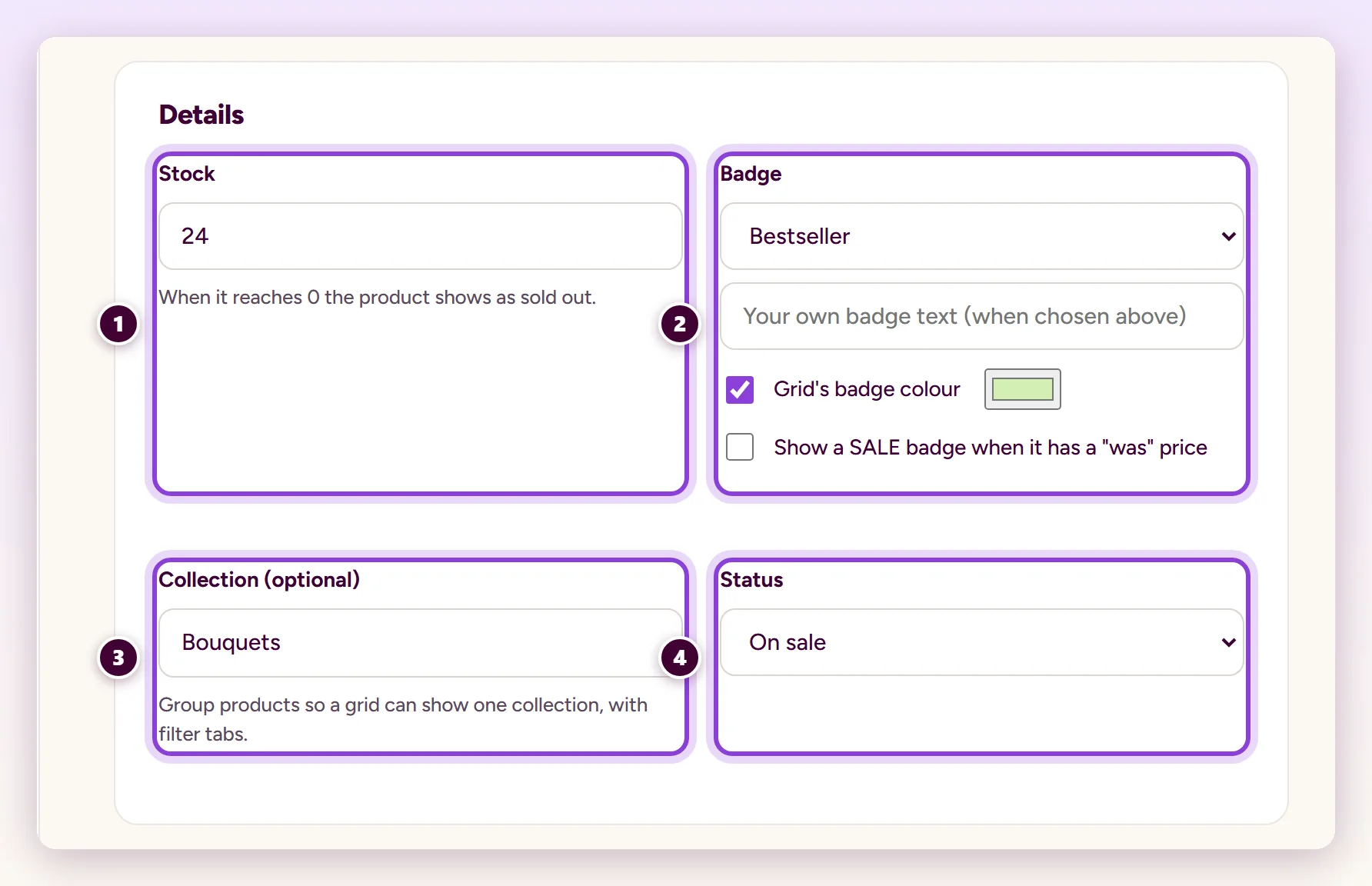
| Setting | What it does |
|---|---|
| Stock | How many you have. When it reaches 0, the product shows as sold out and shoppers can ask to be emailed when it's back. Leave empty if you don't track stock. |
| SKU | Optional. Your own stock code. |
| Weight | Optional. Used when a delivery option is priced by weight. |
| This product needs shipping | Untick for services, downloads, tickets and gift cards: they add no shipping, and an order of only those skips the address. |
| Badge | No badge, New, Bestseller, Limited, Back in stock, Gift idea, or your own text. |
| Grid's badge colour | Use the grid's colour, or pick one for this product. |
| Show a SALE badge | When it has a was price. |
| Collection | Group products, like Bouquets or Gifts. A product grid can show one collection, with filter tabs. |
| Status | On sale or Hidden (kept, but not shown in your shop). |
Prices and stock for each option
Products with options (like Size and Colour) get a table with every combination once you save, such as "M / Red". For each one you can set:
| Setting | What it does |
|---|---|
| Price | Its own price, like a bigger size costing more. Leave empty to use the product's price. |
| Stock | Its own stock, so one size can sell out while others stay on sale. Leave empty to use the product's stock. |
| SKU | Its own stock code, like BLUSH-GRAND. |
| Weight | Its own weight, for shipping priced by weight. |
| Sell | Untick to stop selling that combination (it shows as "Not available"). |
On your product page, the price, the stock line and the Add to cart button change as customers choose. A product only shows as sold out when every combination is. Change the options? Save first and the table updates.
Choose Add product (or Save). Publish your site to update the live shop.
← All online shop guides