Product grid
The product grid shows your products as cards that open their product pages.
- Click the section you want it in, then choose Add elements and click Product grid.
- In the panel on the right, choose which products to Show, the Order and how many Columns.
- Tick what each card shows, then publish your site.
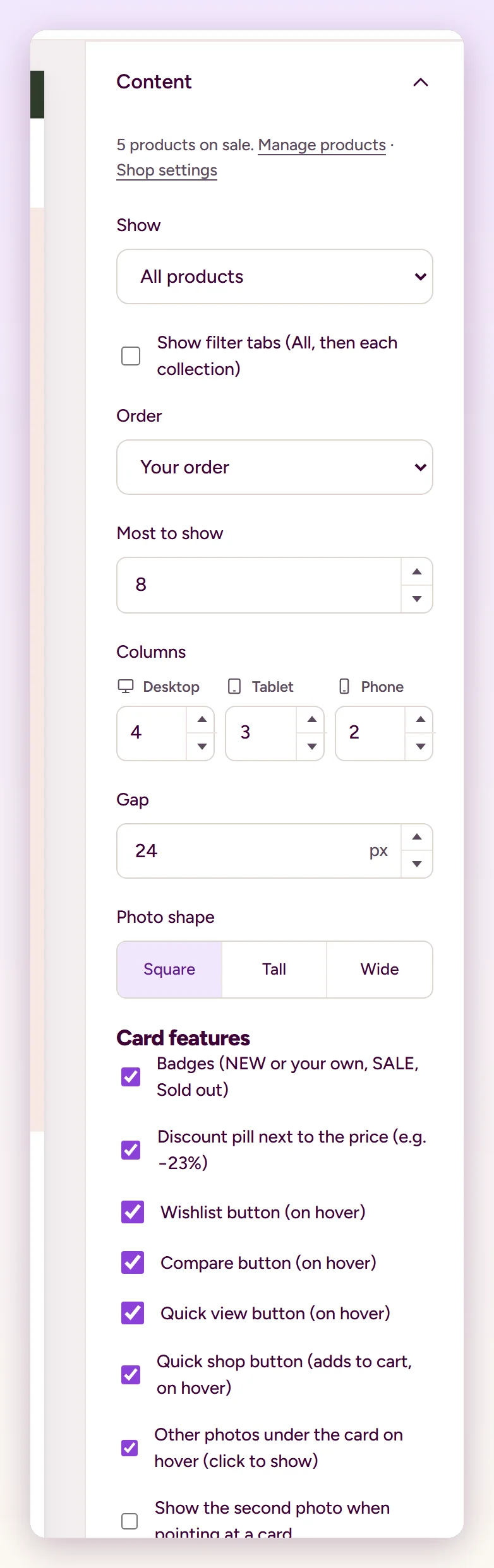
| Setting | What it does |
|---|---|
| Show | All products, or one collection. |
| Show filter tabs | Tabs above the grid: All, then each collection. |
| Order | Your order, Newest first, Price low to high, or Price high to low. |
| Most to show | How many products. |
| Columns and Gap | For desktop, tablet and phone. |
| Photo shape | Square, Tall or Wide. |
Card features
Tick what each card shows: badges (New or your own, SALE, Sold out), a discount pill (like −23%), wishlist, compare, quick view and quick shop buttons on hover, other photos under the card, the second photo when pointing at a card, the star rating, and "Sale ends in…".
Card design
Photo fit (whole product, or fill the card), text alignment, card background, corners, name size, and the colours of the badge, SALE badge and discount pill.
Cart & wishlist icons
Add Cart & wishlist and drag it into your header, next to the menu. Choose which icons show: Search, Wishlist (with a count), Cart (opens the cart drawer) and Account (when customer accounts are on). Set the icon size; the colour follows the text colour in Style.
← All online shop guides