Sell anything people download, like an ebook, printable planner, sewing pattern, music, photo presets or a course workbook. When a customer pays, Zertle emails them a private download link straight away, even while you're asleep.
- In Shop → Products, choose Add a product (or open one you already have).
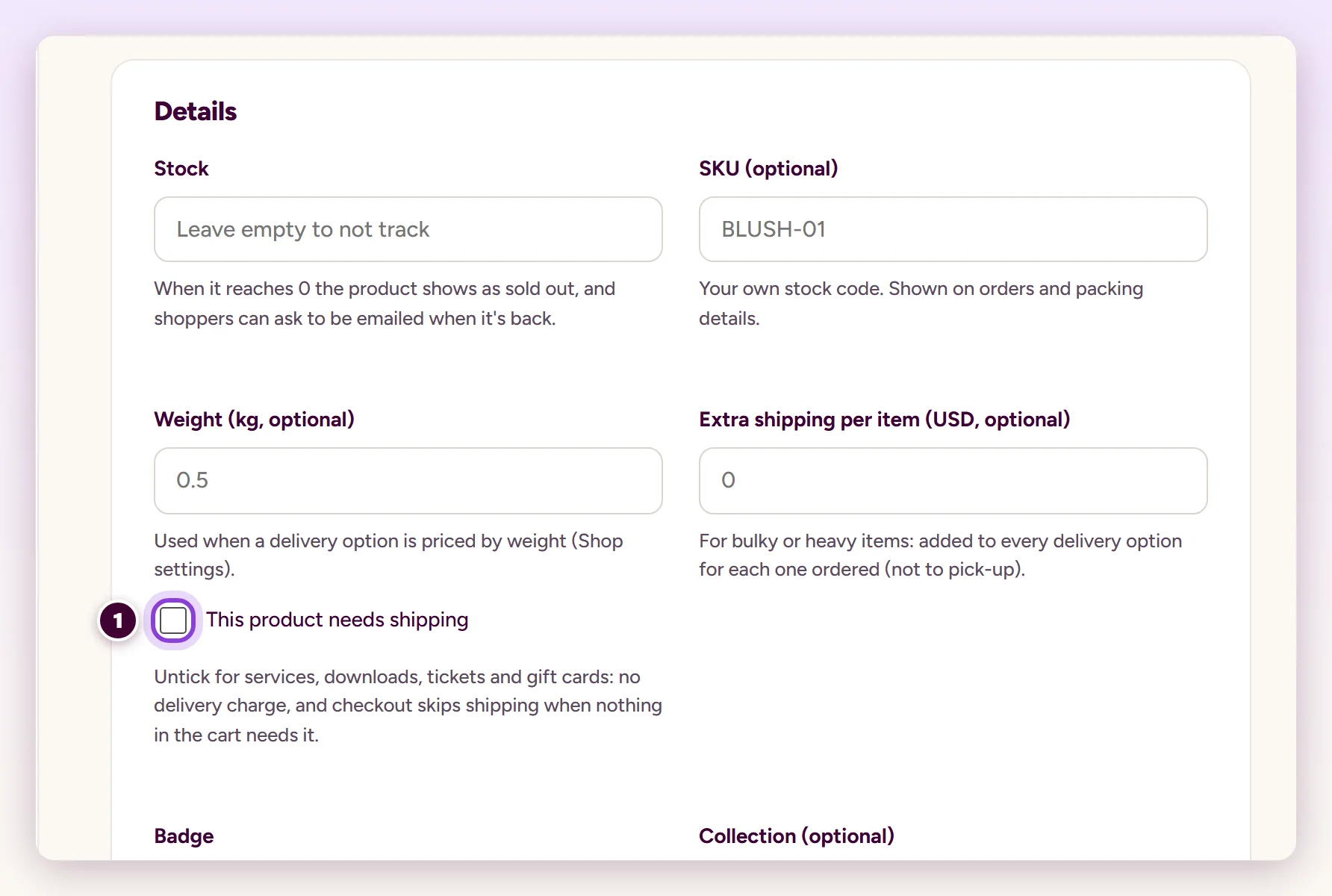
- Give it a name, price, photo and description, and untick This product needs shipping. Save it.
- Under Digital download, choose Add a file.
- Choose how long links work and how many downloads they allow, then Save download settings.
- Publish your site.
Set up the product
Make a downloadable product just like any other product: see Add and edit products. Show a photo of what people get, like the cover or a few sample pages, and say what's included and the file type in the description.
Then untick This product needs shipping (under Details), so there's no delivery charge. If a cart has only downloads, checkout skips the address.
Add your files
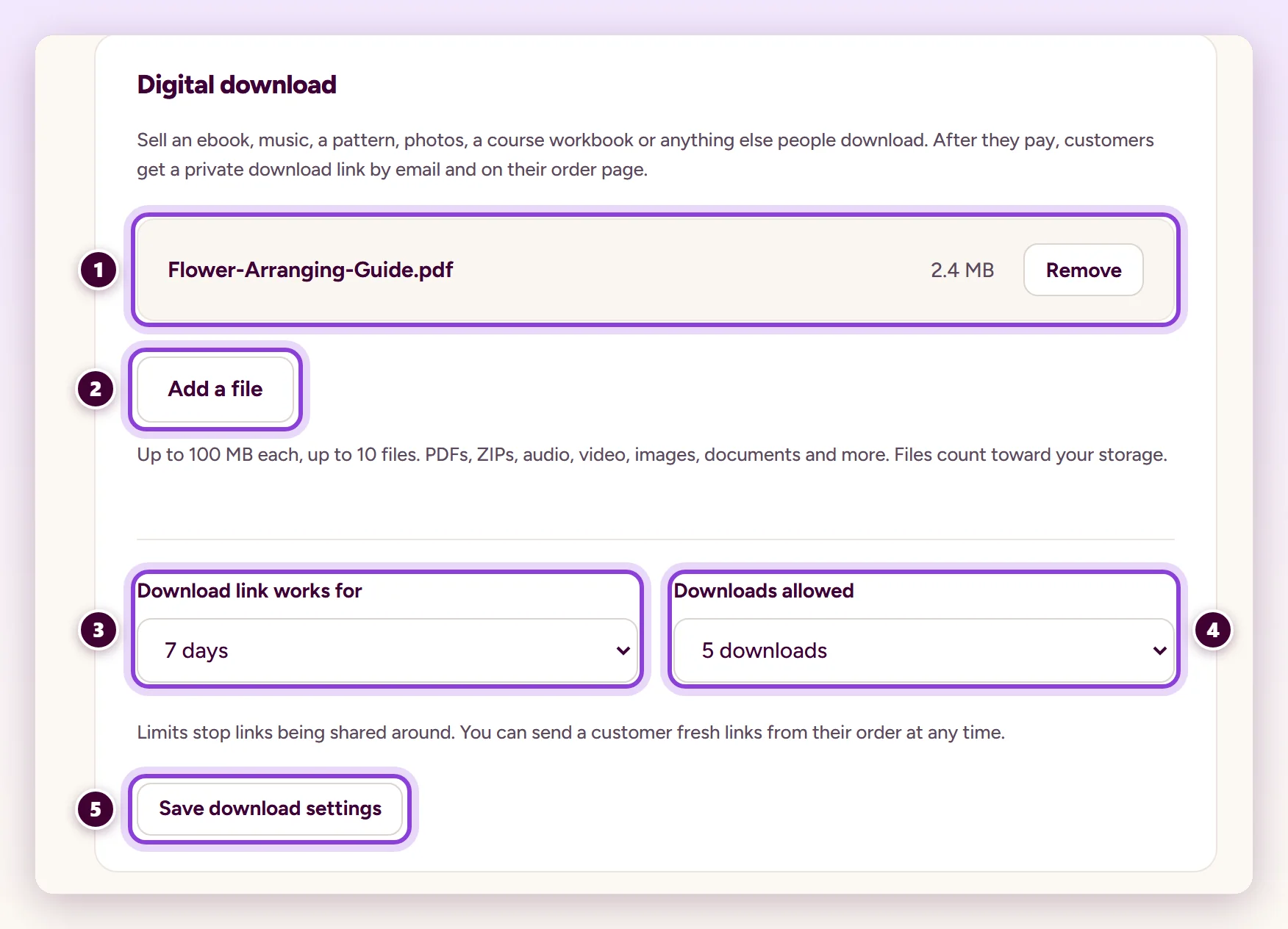
- Save the product first. The Digital download box appears on the product's page once it's saved.
- Choose Add a file and pick the file from your computer. It uploads straight away.
- Add more files the same way, like a workbook and its worksheets. Customers get a link for each one.
| Limit | Details |
|---|---|
| File size | Up to 100 MB per file. For bigger files, put them in a ZIP or split them into parts. |
| Files per product | Up to 10. |
| File types | PDFs, ZIPs, audio, video, images, documents and more. |
| Storage | Files count toward your plan's storage. |
To swap a file for a new version, add the new one and choose Remove on the old one. Customers who already bought it keep their links until they expire, but a removed file stops downloading.
Choose the download limits
| Setting | What it does |
|---|---|
| Download link works for | From 1 day up to 1 year, or Never expires. |
| Downloads allowed | 1, 3, 5 or 10 downloads per file, or No limit. |
Limits keep casual sharing in check: a forwarded link soon stops working. A week and 5 downloads suits most products. It gives customers time to download on their phone and computer.
What customers get
Straight after paying, customers get an email titled *Your downloads from [your site]*, with a link for each file. The links are on their order page too, and in their account if you've turned on customer accounts.
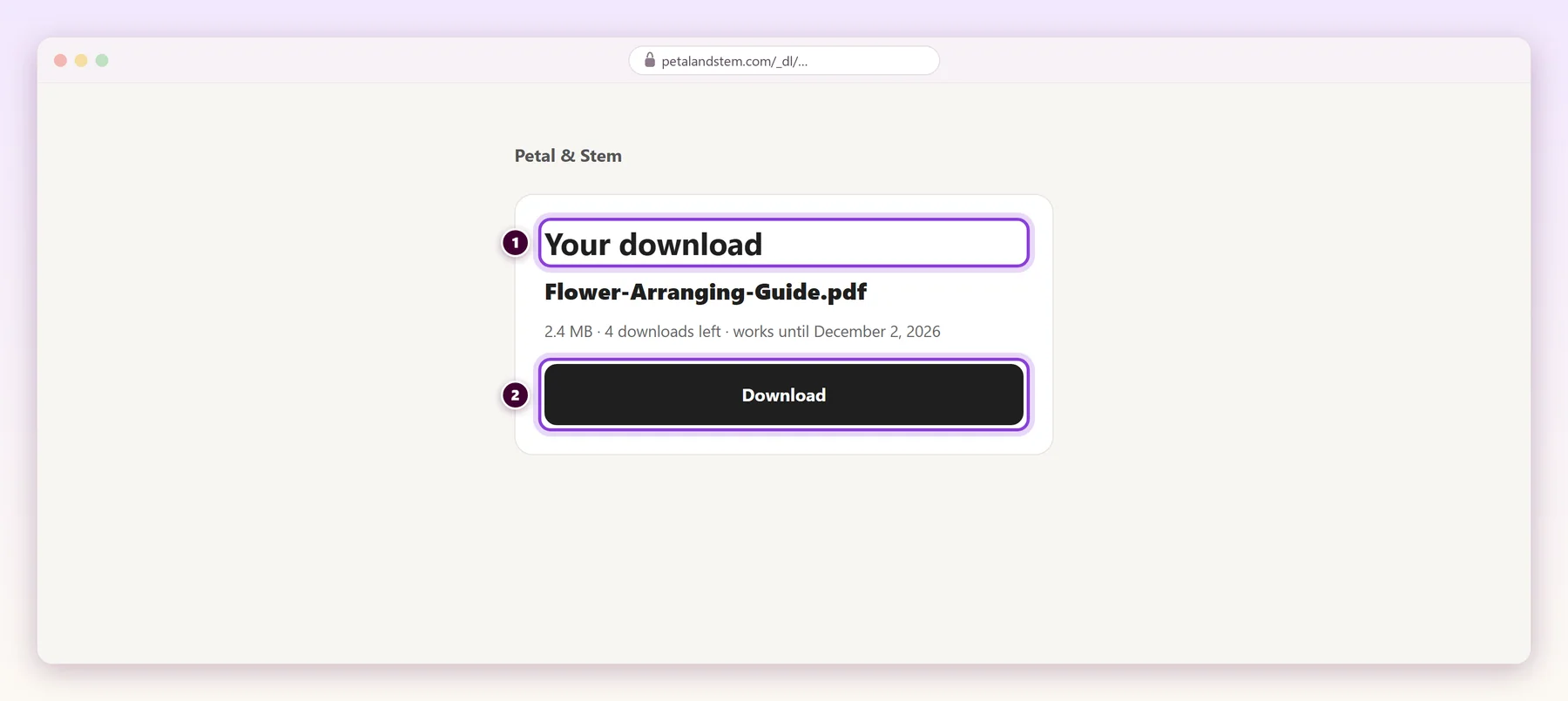
Each link opens a simple page on your website with the file name, size, downloads left and the date it works until, plus a Download button:
Orders paid by bank transfer get their links when you mark the order as Paid.
When a customer needs a new link
If a link has expired or run out, or a customer can't find their email:
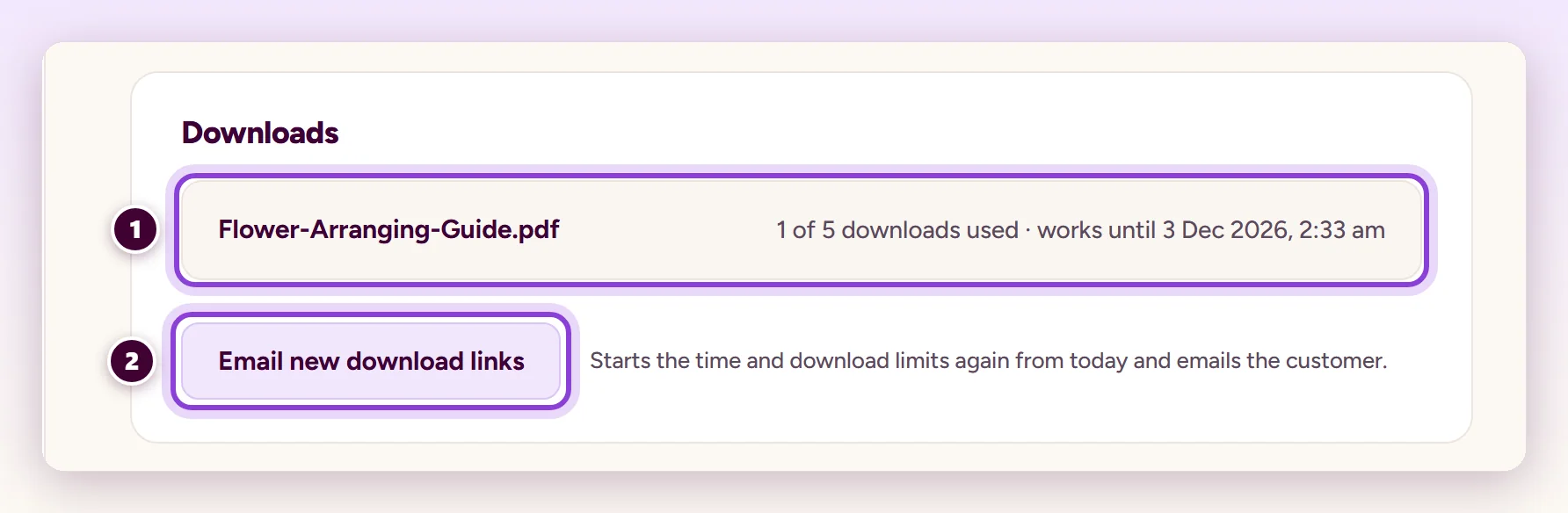
- Open the order in Shop → Orders.
- Under Downloads, check how many downloads they've used and when the link expires.
- Choose Email new download links. The time and download limits start again from today.
Good to know
- Downloads and physical products can be bought together in one checkout. Customers only get links for the downloads they bought.
- Discount codes and gift cards work on downloads too.
- Payments go straight to your Stripe account, with no Zertle fee on your sales.