Orders
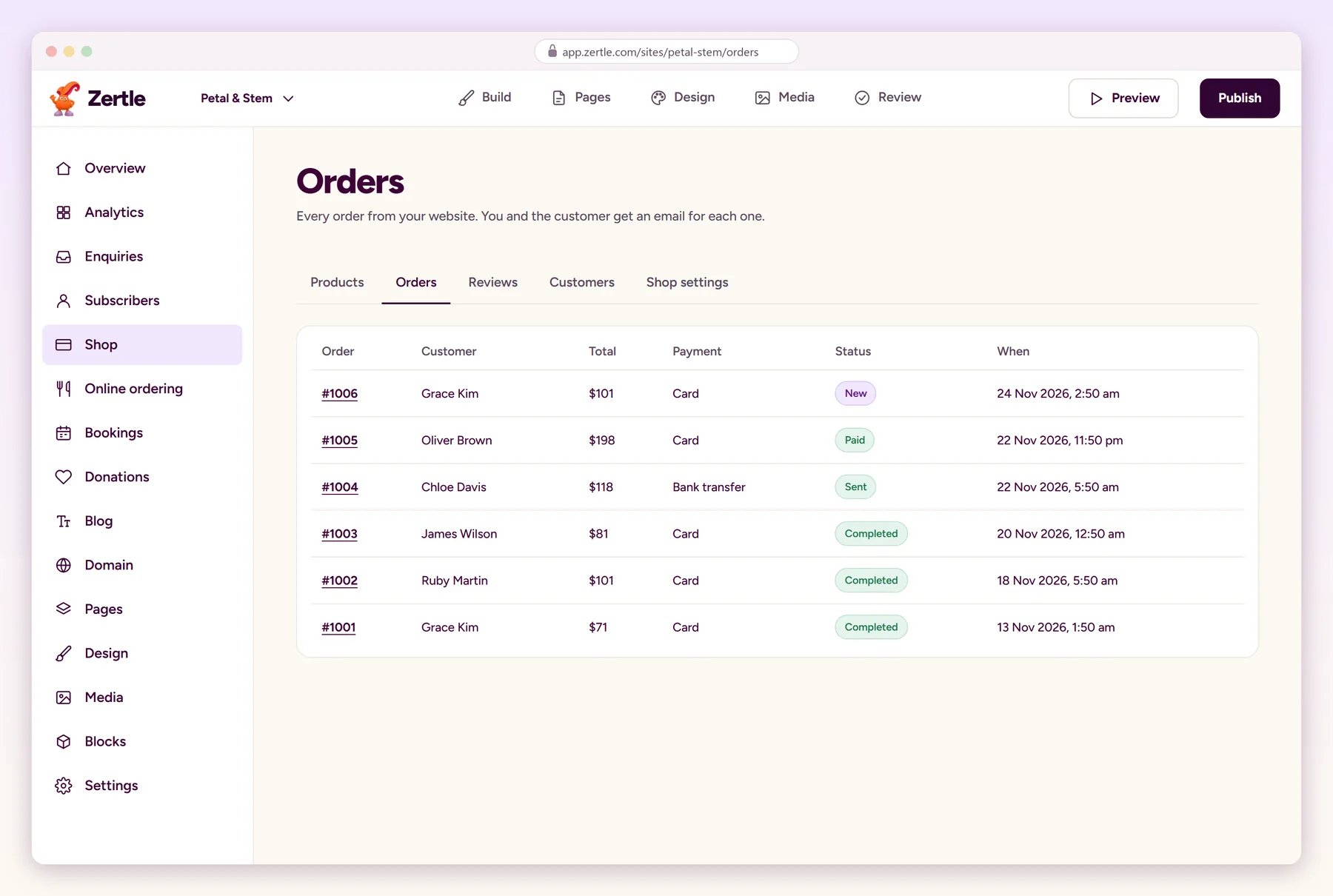
Every order arrives by email (to you and the customer) and appears in Shop → Orders, newest first, with the customer, total, how they paid, the status and when.
Click an order to see everything:
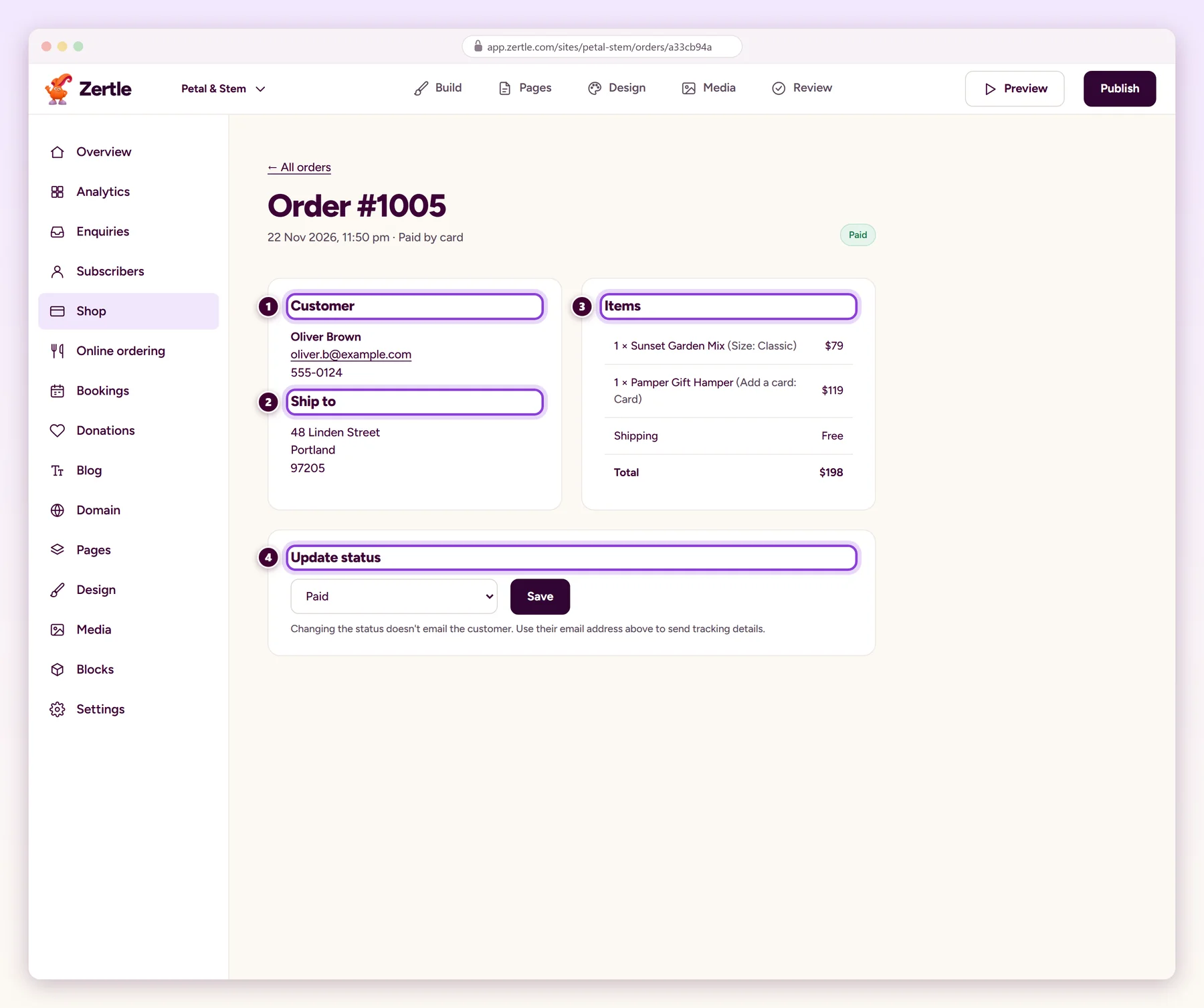
- Customer: name, email and phone. Click the email to write to them.
- Ship to: their address, or that they'll pick up.
- Items: each product, option, quantity and price, with shipping, any discount and the total.
- Update status: New, Paid, Sent, Completed or Cancelled. Choose Save.
What the statuses mean
| Status | Use it when | | New | The order has arrived. Card orders that show "Card payment not finished" were started but not paid. | | Paid | You've received the money (card orders are marked paid automatically). | | Sent | It's on its way, or ready to collect. | | Completed | All done. | | Cancelled | It won't go ahead. Refund card payments in your Stripe dashboard. | ## Tracking and pick-up emails When you send an order, add its tracking on the order page under Tracking:
- Choose the Carrier (USPS, UPS, FedEx, DHL, Royal Mail, Evri, DPD, GLS, PostNL, Canada Post, Australia Post, NZ Post, Sendle, Aramex, Japan Post), or Other carrier with its name and tracking link.
- Type the Tracking number. Listed carriers get their tracking link automatically.
- Add a Note for the customer if you like, such as when to expect it.
- Leave Email the customer now and Mark the order as sent ticked, then choose Add tracking.
The customer gets a "Your order is on its way" email with a Track your parcel button, and the tracking shows on their order page. Sending more than one parcel? Add tracking for each one. Email again resends it; Remove deletes a wrong number.
For pick-up orders, choose Email: ready to collect instead. The customer is told their order is ready and where to collect it.
Customers
Shop → Customers lists everyone who has ordered, with their number of orders, how much they've spent, their last order and whether they have an account. Search by name or email, or Download CSV.
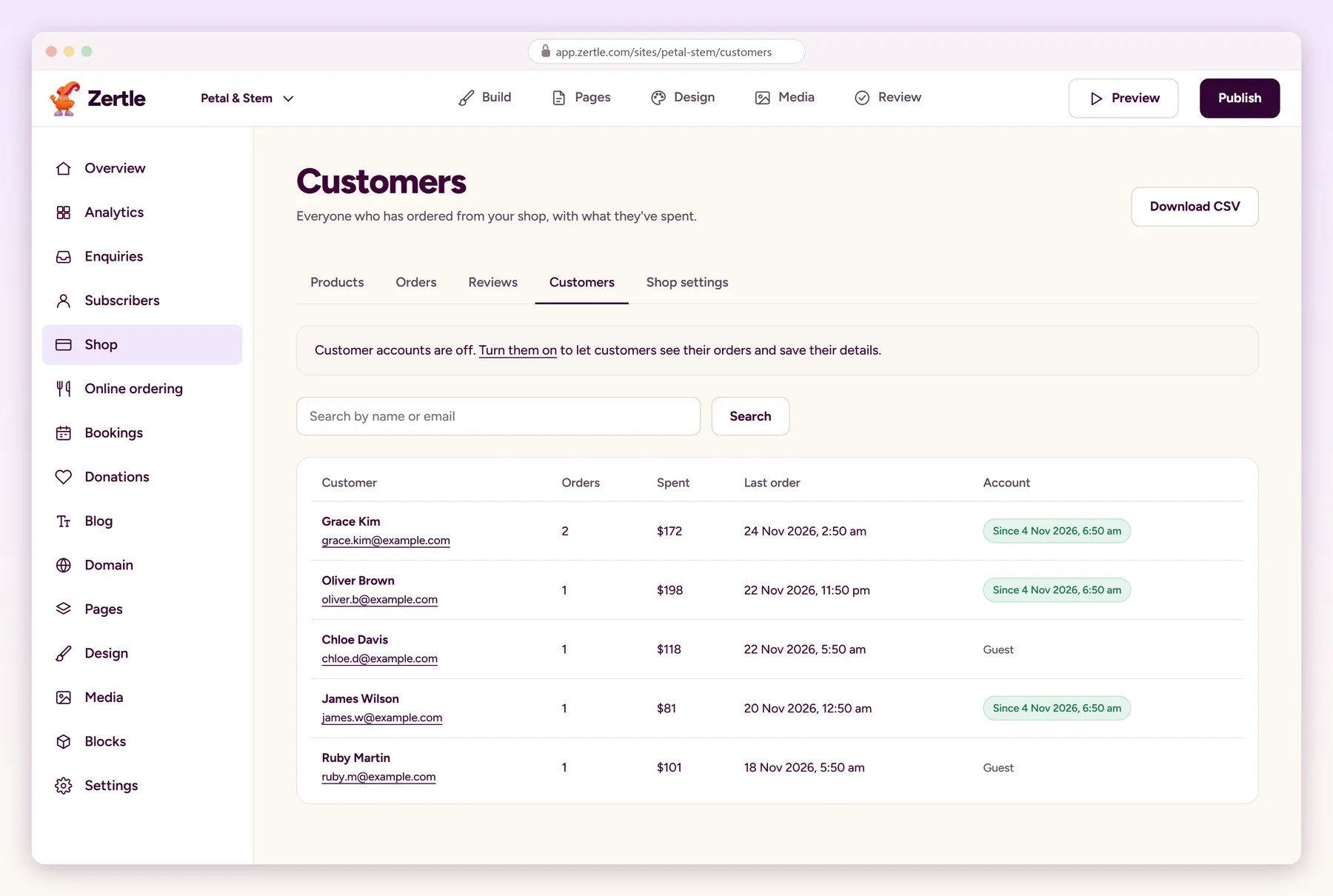
Customer accounts
Turn on Customer accounts in Shop settings and publish. Customers sign in with an emailed link (no passwords) to see their orders, save their details for a faster checkout and keep their wishlist on every device. A person icon appears in your header's shop icons.
← All online shop guides