Google shows products from shops like yours for free in its Shopping tab, in Google Images and in search results, with the photo, price and whether it's in stock. Zertle makes the list of products Google needs (a "product feed") and updates it every time you publish.
Before you start
Prove the site is yours to Google first. It takes about five minutes: see Get found on Google.
Add your products to Google (once)
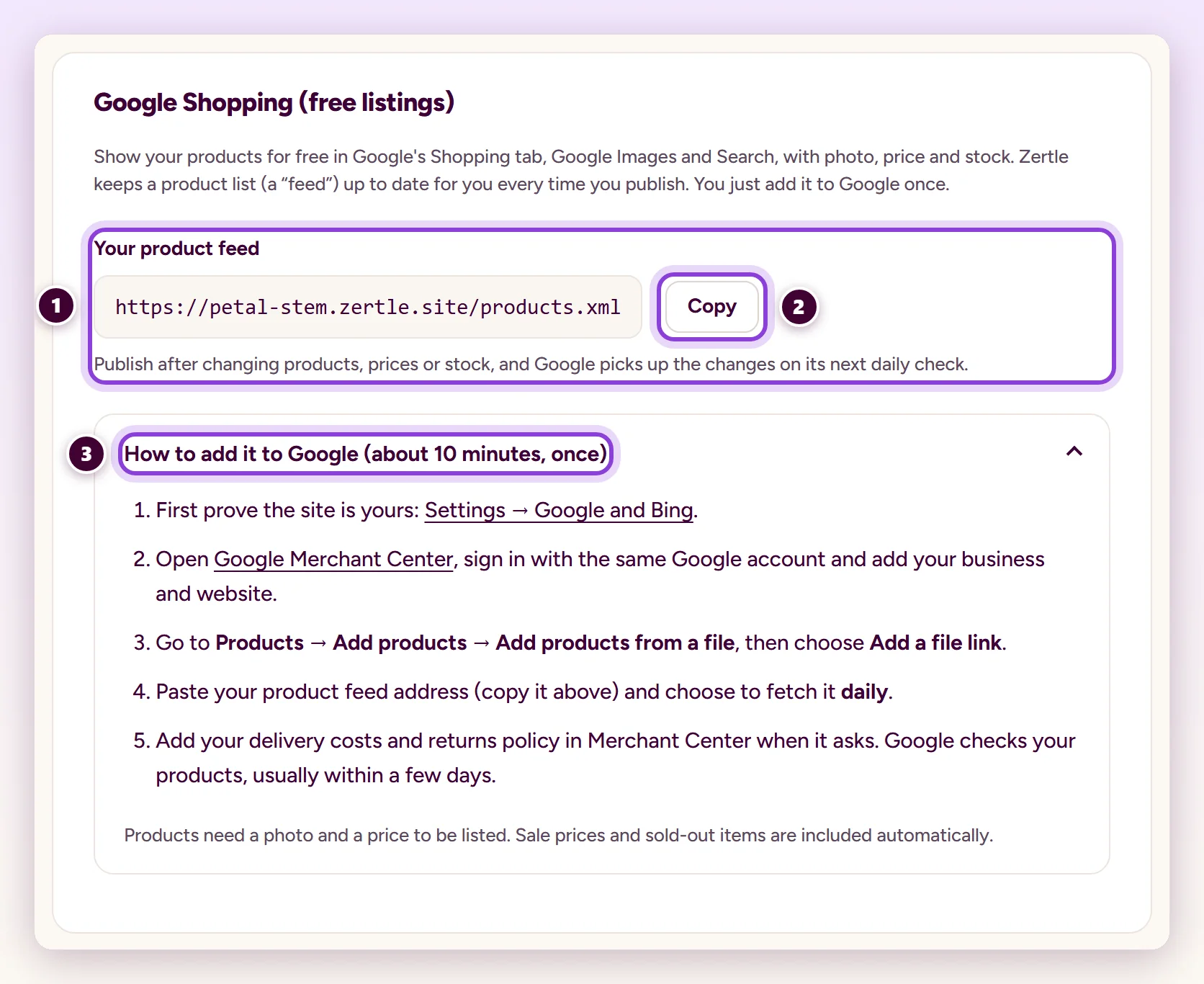
- On your dashboard, open Shop → Settings and find Google Shopping (free listings).
- Choose Copy next to Your product feed.
- Open Google Merchant Center (the link is in the steps) and sign in with the same Google account. Add your business and website when it asks.
- Go to Products → Add products → Add products from a file, then choose Add a file link.
- Paste your feed address and choose to fetch it daily.
- Add your delivery costs and returns policy when Merchant Center asks. Google checks your products, usually within a few days.
Keeping it up to date
- Publish after changing products, prices or stock. Google picks up the changes on its next daily check.
- Sale prices show as a sale (the old price crossed out), and sold-out products show as out of stock.
- Products need a photo and a price to be listed.