Gift cards bring in new customers and sales all year, especially around birthdays and holidays. Customers buy them on your website and pay by card. Zertle emails the card with its code, and the person spends it at checkout. Anything they don't spend stays on the card for next time.
- In Shop → Gift cards, tick Sell gift cards on my website.
- Choose the amounts and how long cards last, then Save gift card settings.
- Add a button or menu item that links to /gift-card, then publish your site.
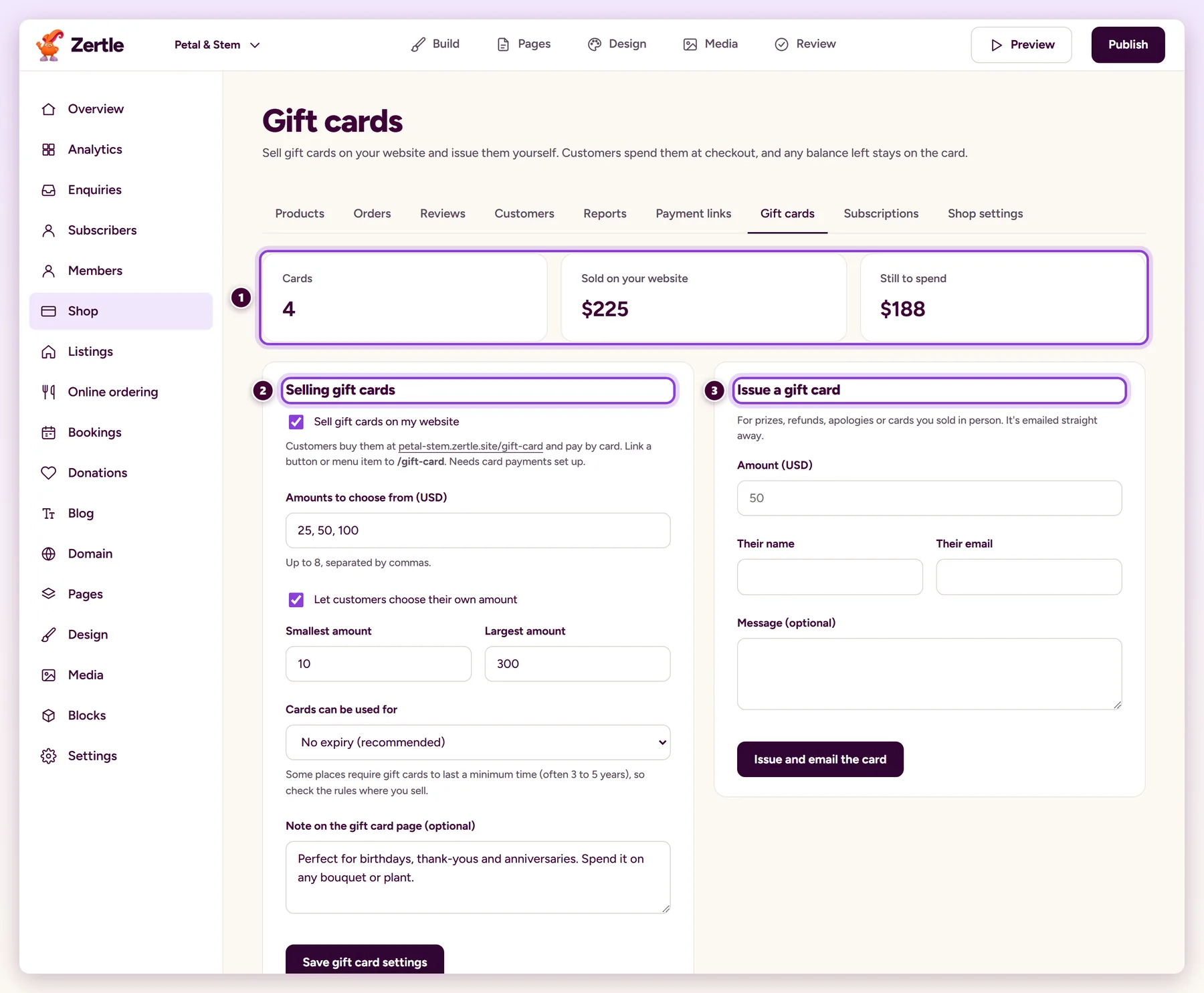
Choose your settings
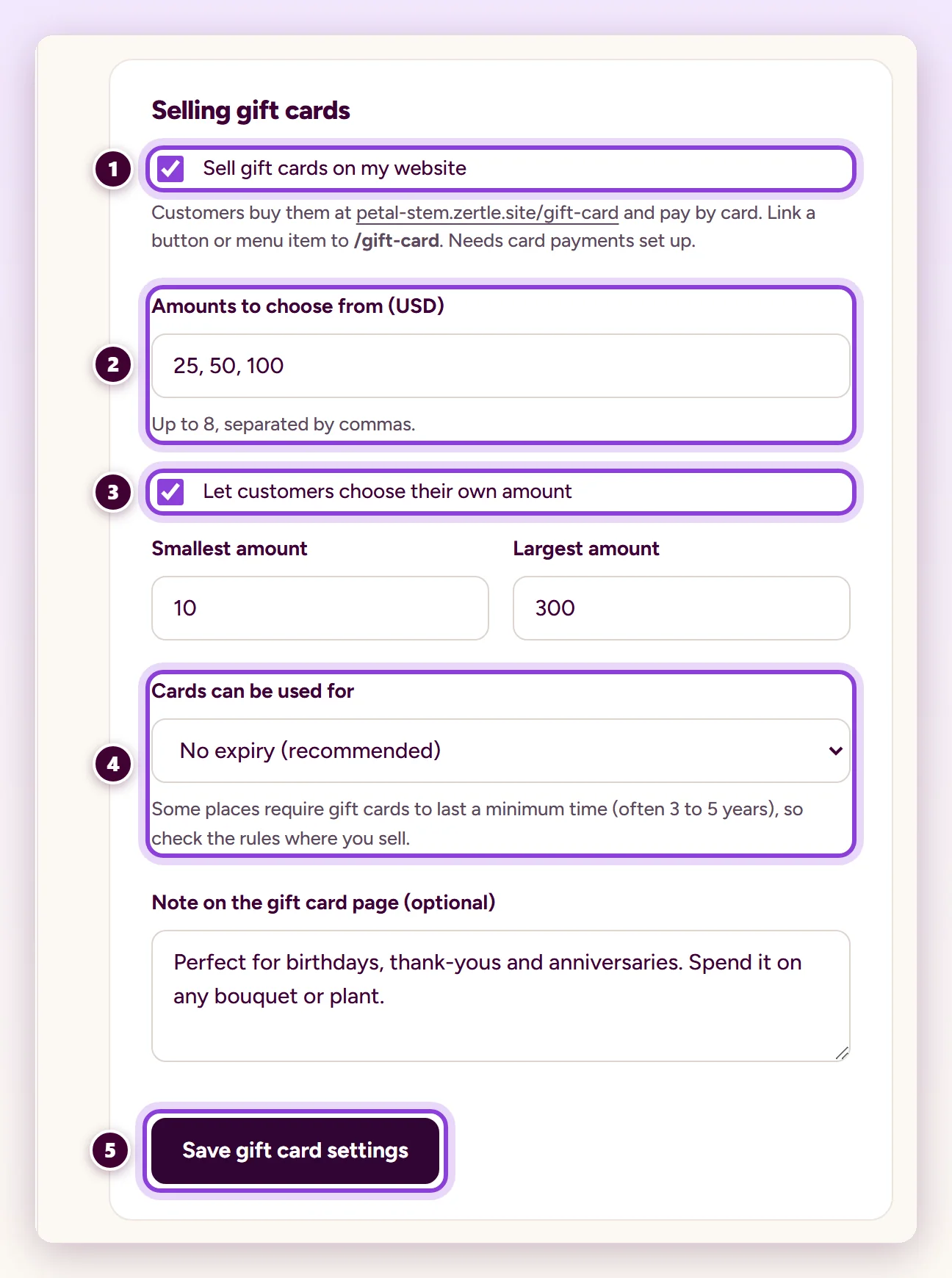
| Setting | What it does |
|---|---|
| Sell gift cards on my website | Turns on your gift card page and the Gift card code box at checkout. |
| Amounts to choose from | Up to 8 amounts, separated by commas, like 25, 50, 100. |
| Let customers choose their own amount | Adds an Another amount choice, between the smallest and largest amounts you set. |
| Cards can be used for | No expiry (recommended) or a number of years. Some places require gift cards to last a minimum time, so check the rules where you sell. |
| Note on the gift card page | A short line for buyers, like *Spend it on any bouquet or plant.* |
What buyers see
Your gift card page is a simple page on your website at yourwebsite.com/gift-card. Buyers choose an amount, say who it's for and pay on Stripe's secure page.
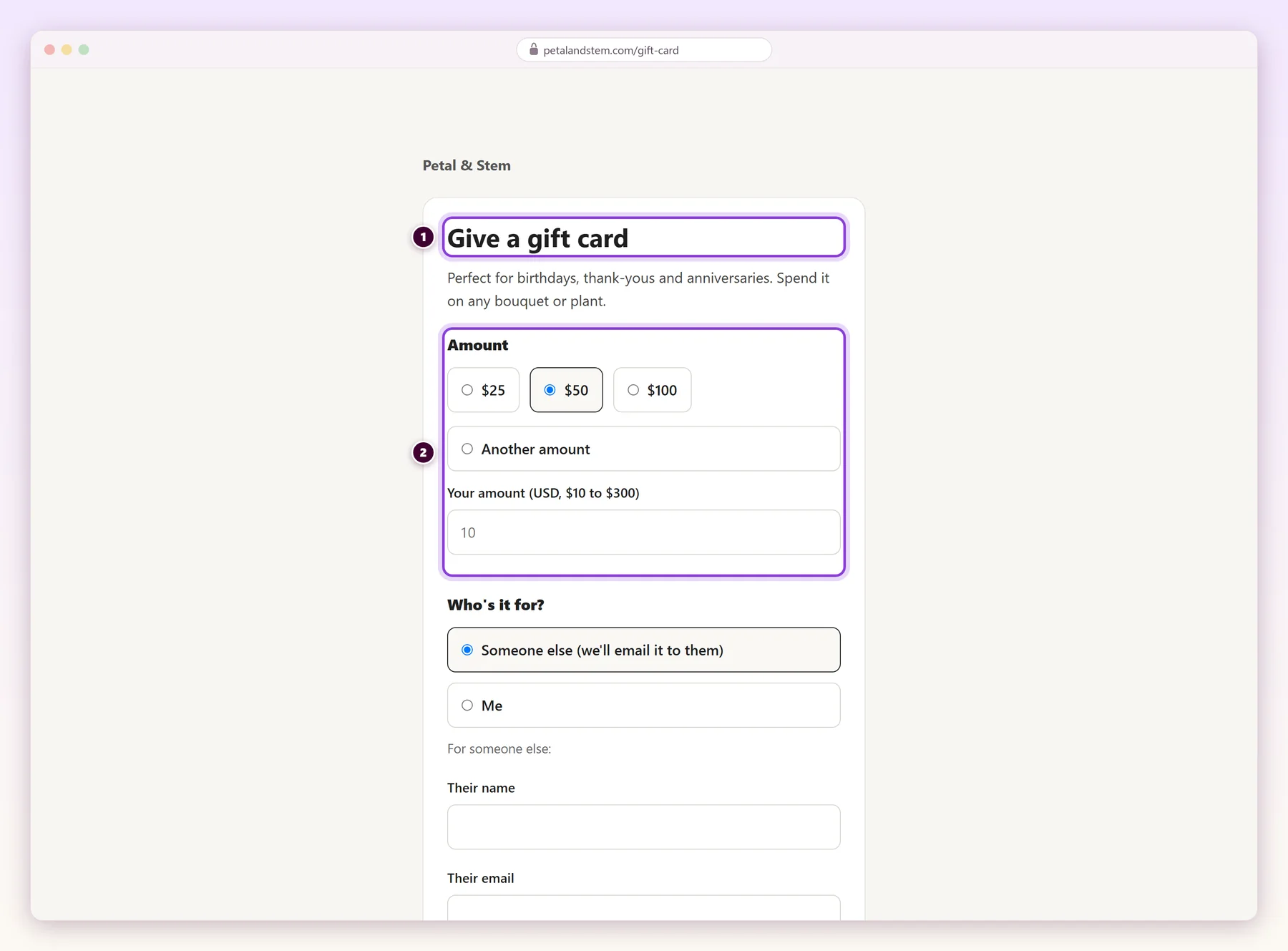
- For someone else: they add the person's name and email, an optional message, and an optional Send it on date up to a year ahead, which is great for birthdays. The card is emailed on that morning, and the buyer gets a receipt straight away.
- For themselves: the card is emailed to them straight after they pay.
You get an email each time a gift card is sold.
Spending a gift card
At checkout, customers type their code into the Gift card code box and choose Apply. It's a separate box from discount codes, so they can use both on one order.
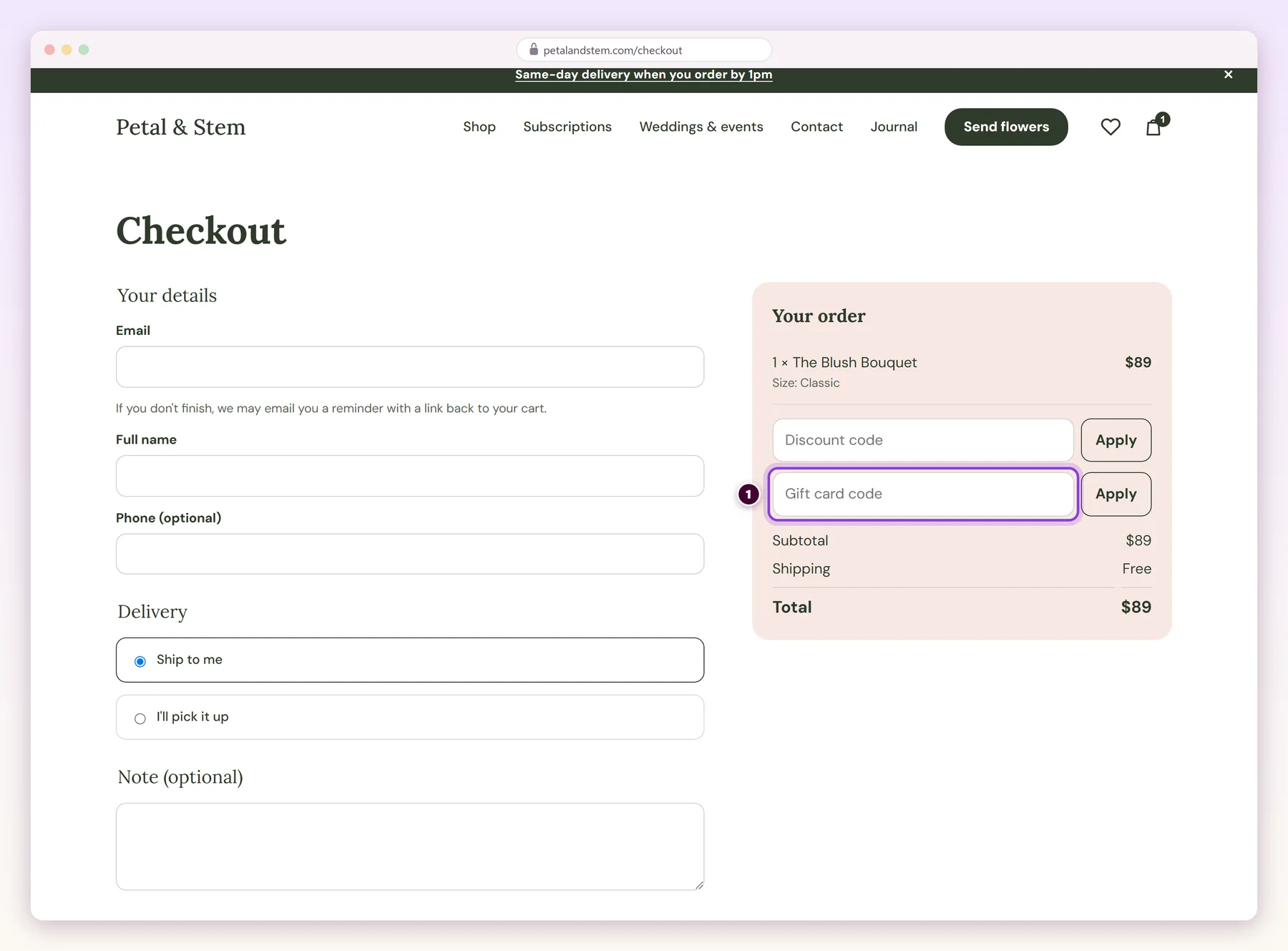
- The card pays toward the total, including delivery, up to its balance. Whatever's left over is paid by card or bank transfer as usual.
- If the card covers the whole order, there's nothing more to pay.
- Any balance left stays on the card. Customers can use it again with the same code.
- If you cancel an order, the amount it took from a gift card goes back onto the card.
Issue a gift card yourself
Use this for prizes, refunds, apologies or cards you sold in person:
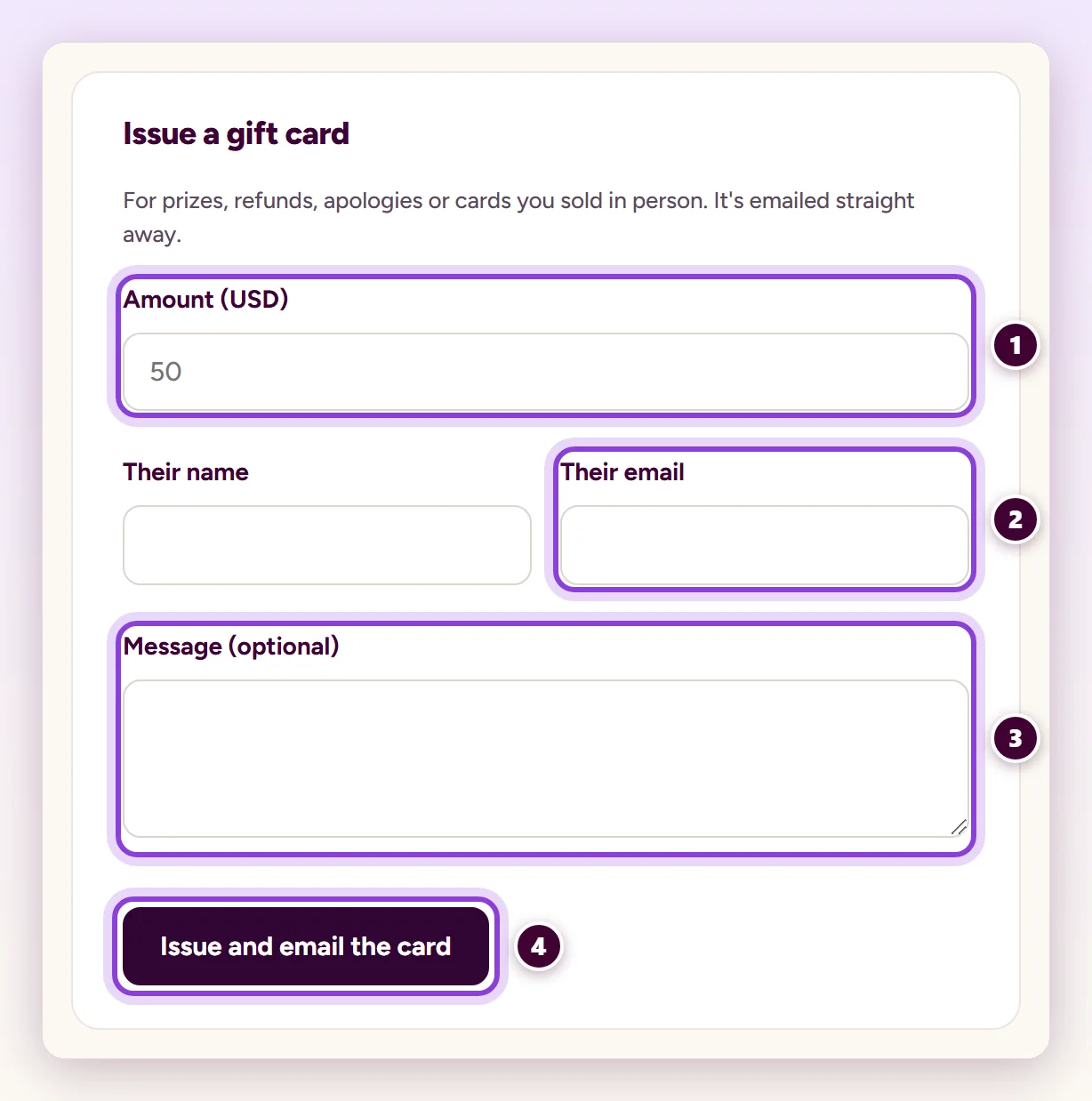
- Under Issue a gift card, enter the Amount.
- Add their name and email, and a message if you like.
- Choose Issue and email the card. It's emailed straight away.
Manage your cards
All gift cards lists every card, newest first, with who it's for, its balance and its status.
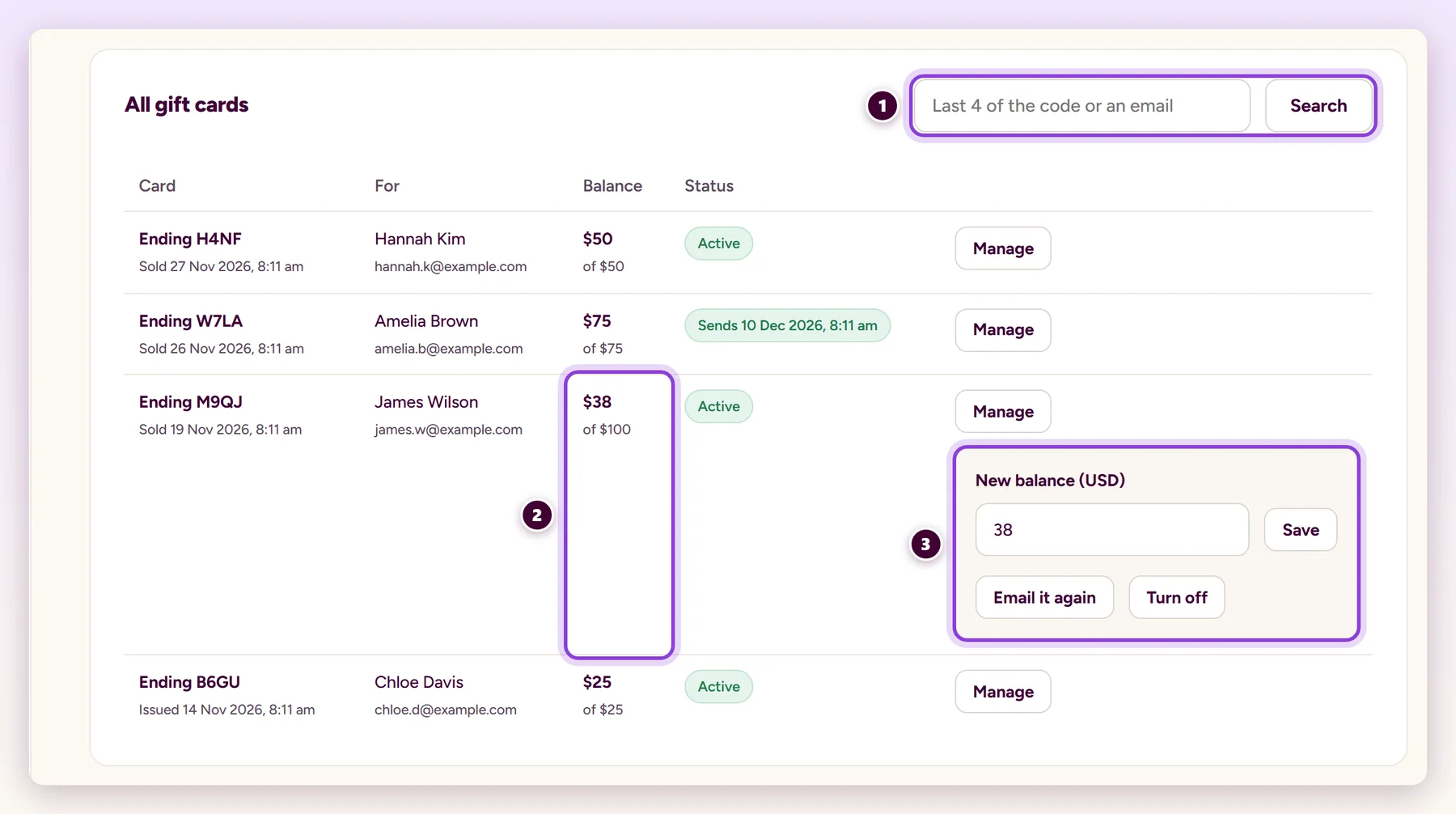
- To find a card, search for the last 4 characters of its code or an email address.
- Choose Manage next to the card.
- Change the New balance and choose Save, or choose Email it again if they can't find the email.
- Choose Turn off to stop a card being used, for example if it was sent to the wrong person. Turn back on undoes this.
| Status | Means |
|---|---|
| Active | Ready to spend. |
| Sends [date] | Bought for a future date and not emailed yet. |
| Turned off | You turned it off, so it can't be used. |
| Expired | Its time ran out. |
Good to know
- Codes are long and random, so they can't be guessed. Your dashboard only ever shows the last 4 characters.
- Gift cards work on everything in your shop, including digital downloads.
- Payments go straight to your Stripe account. Still to spend shows how much is on cards that haven't been used yet.