Turn one-off buyers into regulars. With Subscribe and save, customers choose how often they want a product, like fresh flowers every 2 weeks or coffee every month. They pay once on Stripe's secure page and are then charged automatically for each delivery. Every delivery shows up in Orders, just like any other order.
- In Shop → Products, open a product.
- Under Subscribe and save, tick Offer Subscribe and save on this product.
- Choose how often customers can get it, a discount and the delivery charge.
- Choose Save product, then publish your site.
Set up a product
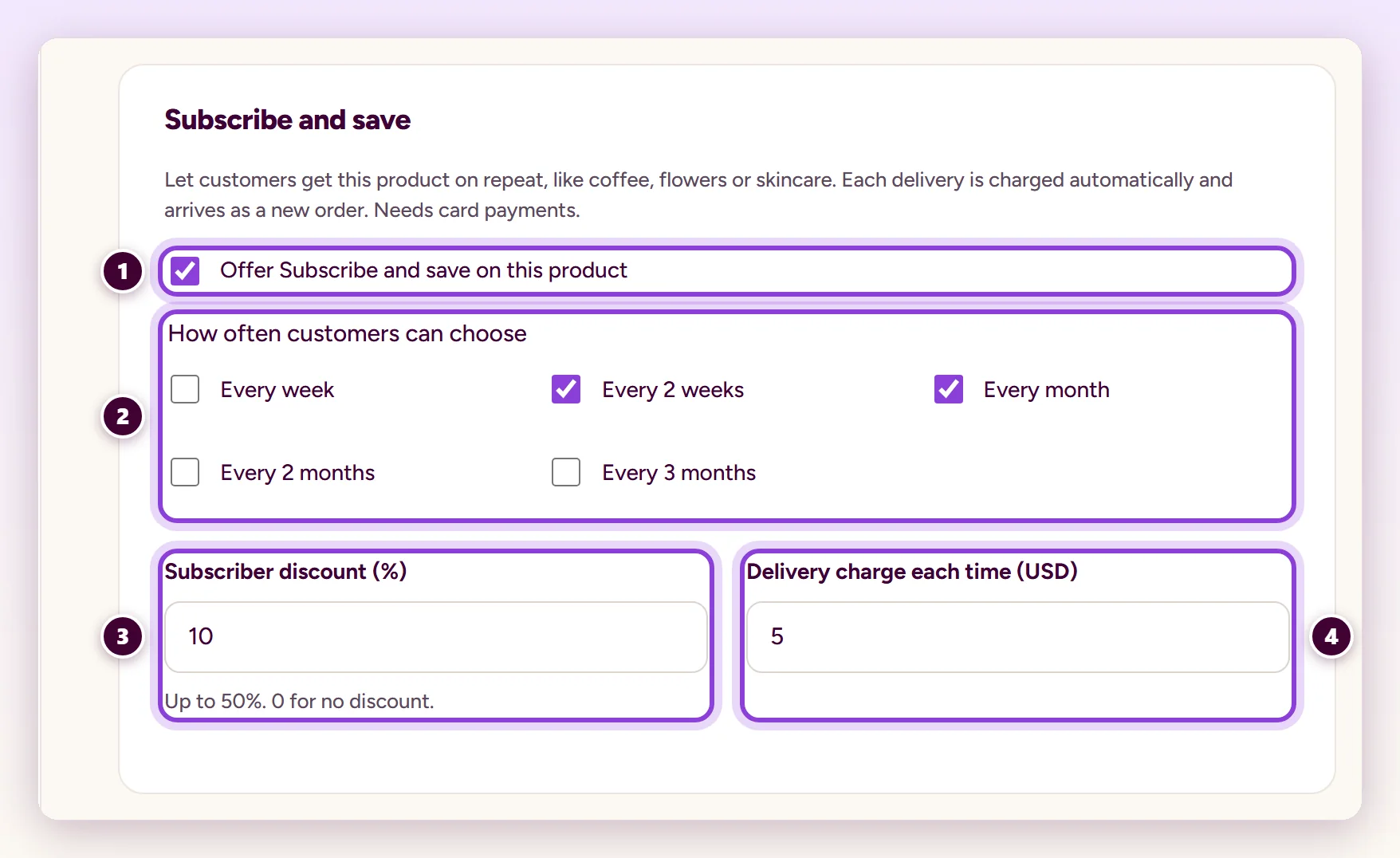
| Setting | What it does |
|---|---|
| Offer Subscribe and save on this product | Shows the Subscribe box on the product's page. |
| How often customers can choose | Every week, 2 weeks, month, 2 months or 3 months. Tick as many as you like. |
| Subscriber discount (%) | Up to 50% off each delivery, as a thank-you for subscribing. 0 for no discount. |
| Delivery charge each time | Added to every delivery. Leave it at 0 for free delivery. |
What customers see
A Subscribe box appears under Add to cart on the product's page. It shows the discount and the price for each delivery:
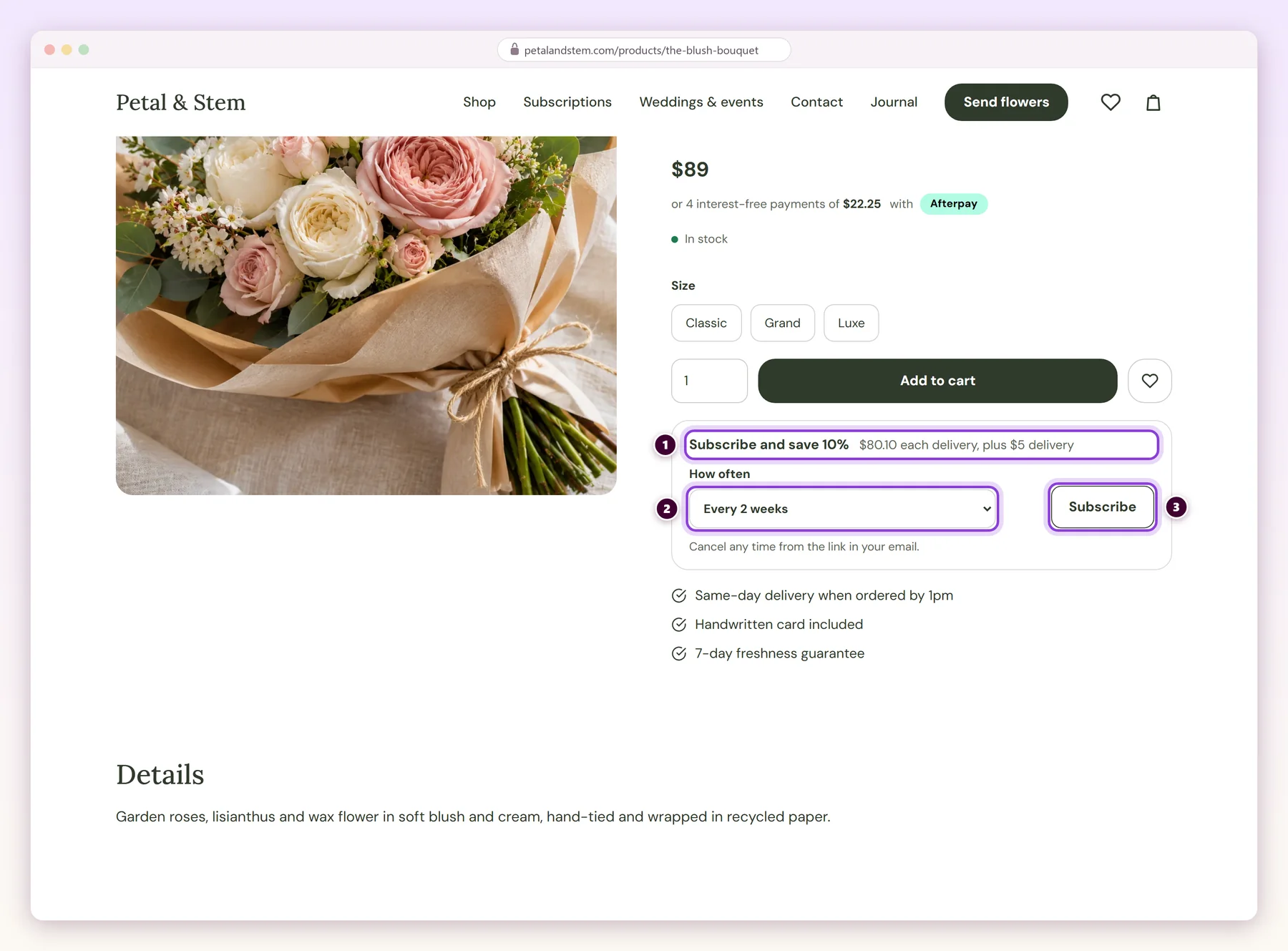
- The customer picks any options, like size, and chooses How often.
- They choose Subscribe and pay on Stripe's secure page, which also asks for their delivery address.
- They get an email confirming their subscription, with a link to manage or cancel it.
The Subscribe box hides itself when a product is sold out.
Every delivery is an order
The first payment and every renewal create a paid order in Shop → Orders, with the customer's address. Stock goes down and you get your usual new-order email, so you pack and send it like any other order. Subscription orders count in your sales reports.
Manage subscriptions
Open Shop → Subscriptions to see everyone who subscribes, with what they get, how often, and when the next delivery is due.
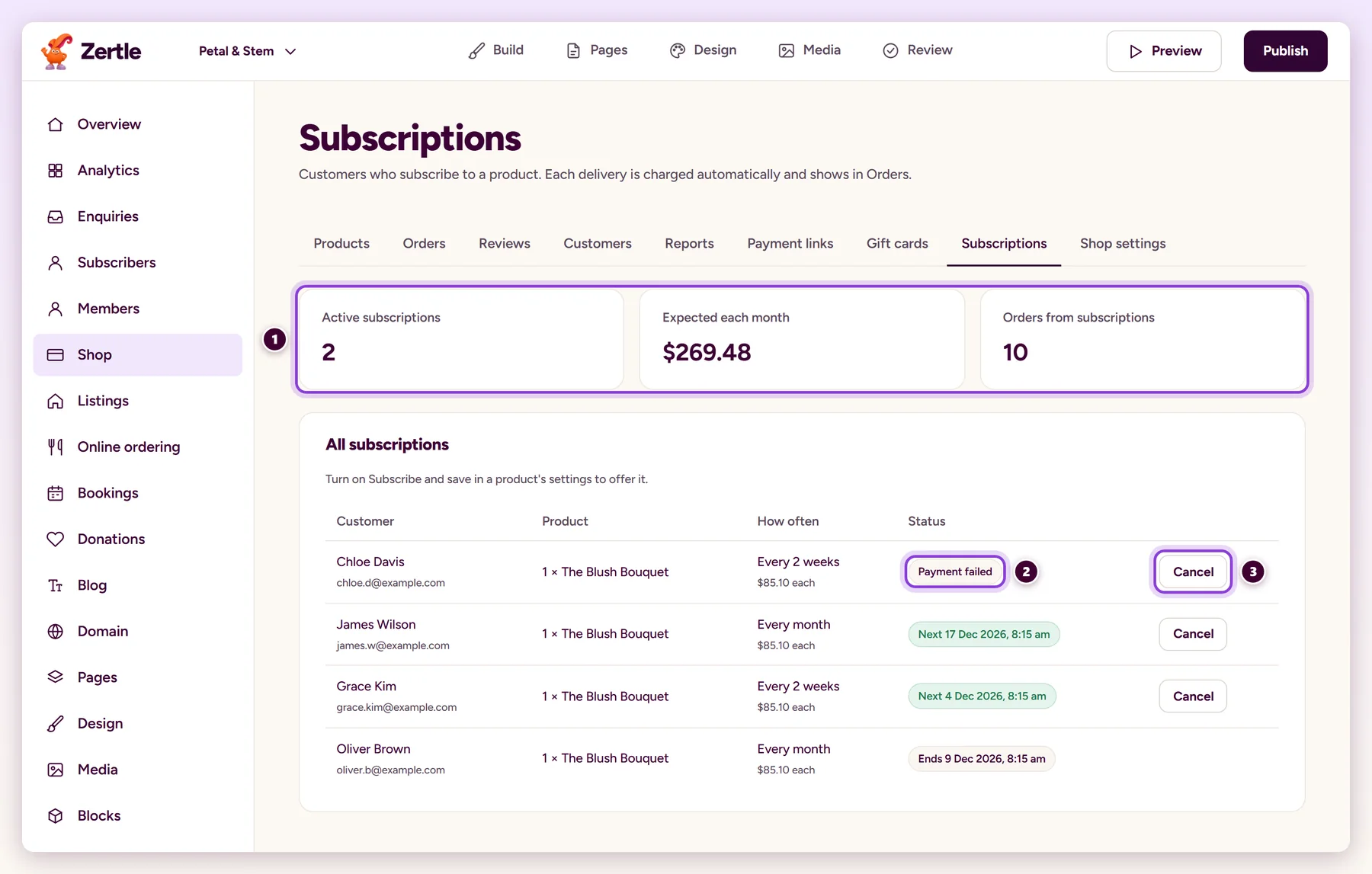
| Status | Means |
|---|---|
| Next [date] | Active. The next delivery is charged on that date. |
| Ends [date] | Cancelled. It stops after the delivery they've already paid for. |
| Payment failed | The last charge didn't go through. Stripe tries the card again automatically, following the retry settings in your Stripe account. |
| Cancelled | Finished. |
To cancel someone's subscription, choose Cancel next to it. It stops after the delivery they've already paid for, and nothing more is charged.
How customers cancel
Customers cancel any time from the link in their subscription email. The page shows what they get and how often, with a Cancel subscription button. Their subscription stops after the delivery they've already paid for.
← All online shop guides